EN DE

User Guide  ·  Version 1.0

🤖 Android 🍎 iOS 🪟 Windows

1   What is TealKit?

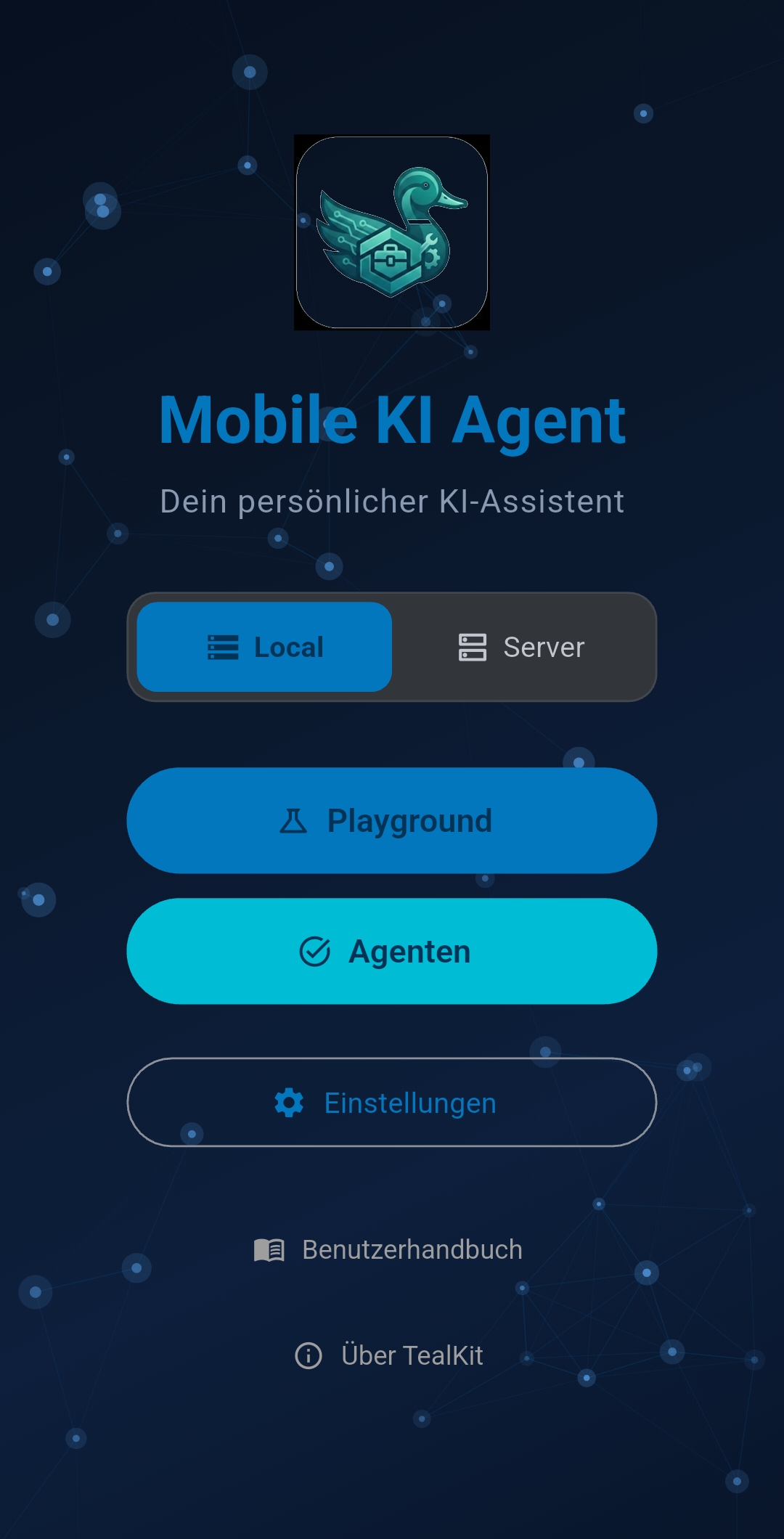
TealKit is a mobile AI agent powered by the Model Context Protocol (MCP). Connect it to any compatible LLM (OpenAI, Anthropic Claude, Google Gemini, Mistral, Ollama …) and your own data sources — documents, emails, websites, files — then let the AI work through multi-step agents automatically.

Everything runs on your device. No data is sent to TealKit servers.

Key concepts

2   Platform Notes

PlatformNotes
Android Output files default to internal app storage. Set a custom path in Settings → General → Output Directory to use a visible folder (e.g. Downloads). Background agent scheduling uses WorkManager.
iOS API keys are stored in iOS Keychain. File access via the Files app requires tapping Choose Directory — the system file picker remembers the grant. Background agents run via BGTaskScheduler.
Windows The Windows desktop app is available now on the Microsoft Store. The Linux version is downloadable from GitHub (see Desktop Features §17). macOS support is coming in a later release. Purchasing any TealKit mobile version (Android or iOS) unlocks the full desktop version at no extra cost — one purchase covers all platforms.

3   First-Time Setup

1
Open Settings (gear icon on the home screen or tap First Step if shown). Navigate to LLM Settings.
2
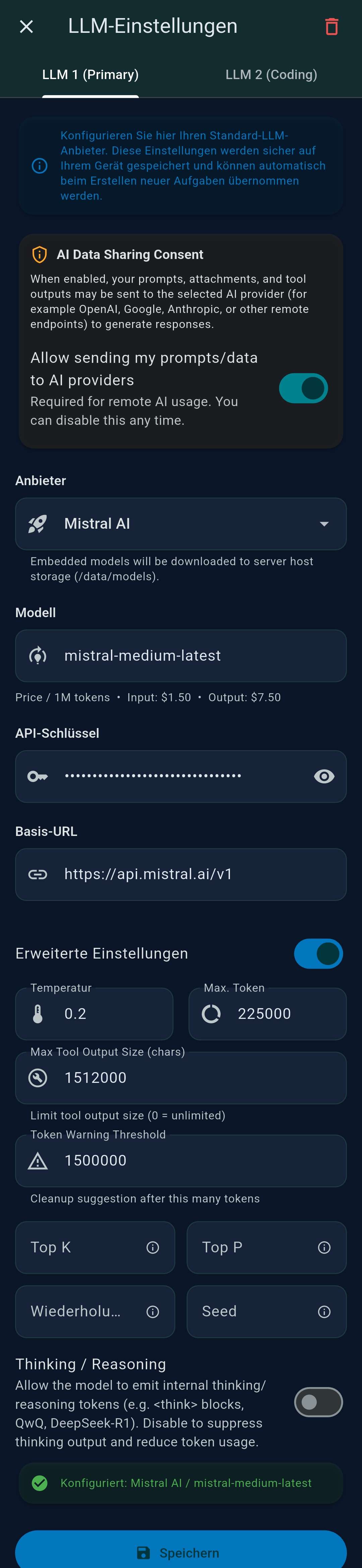
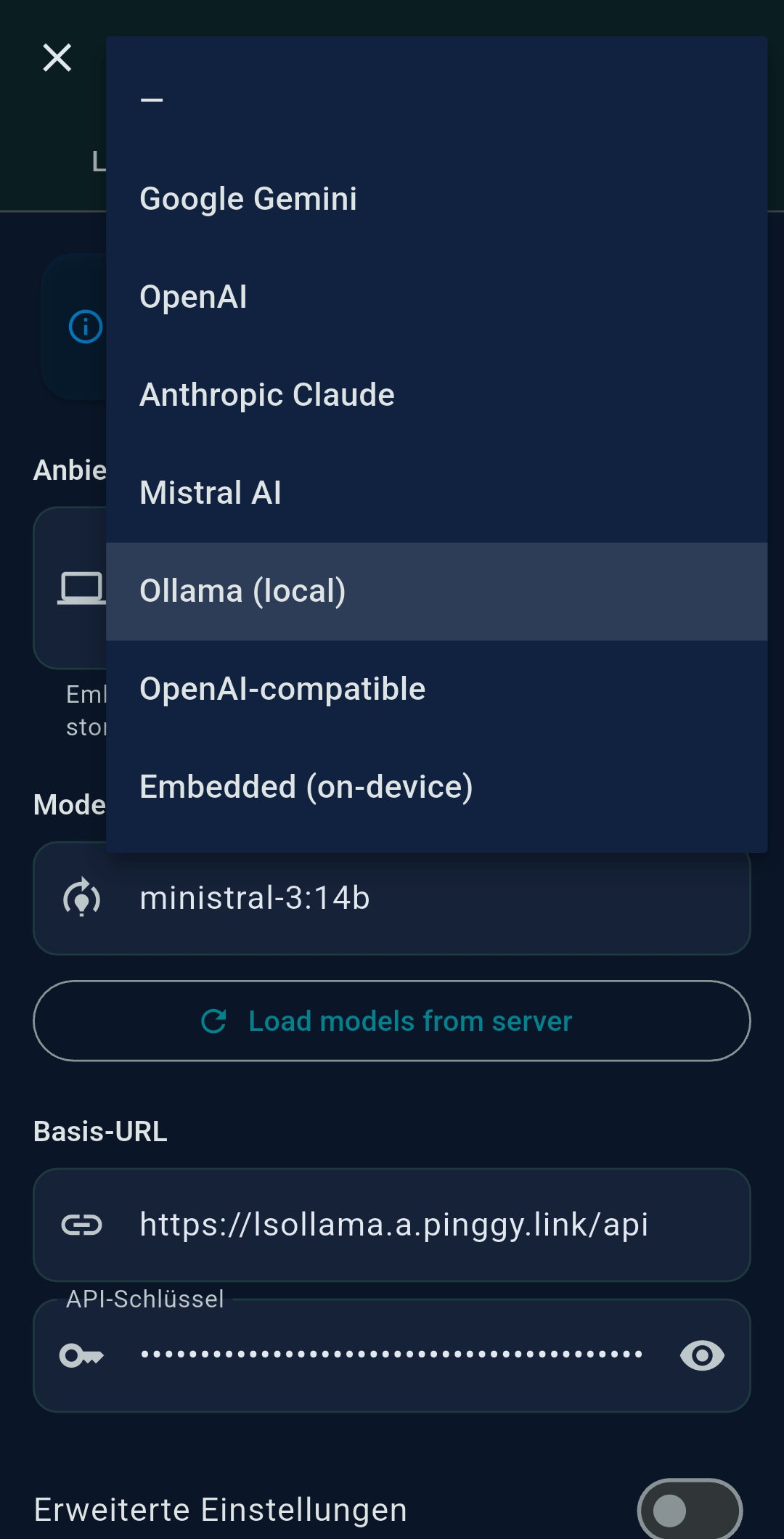
Choose your AI provider — OpenAI, Anthropic, Google Gemini, Mistral, Azure OpenAI, or a local Ollama instance.
3
Enter your API key. Keys are stored in the secure keychain of your device and never leave it.
4
Pick a model, e.g. gpt-4o, claude-sonnet-4-5, or gemini-2.5-flash.
5
Tap Save LLM Settings. The home-screen buttons activate automatically.
Tip: Ollama users — enter http://localhost:11434 as the base URL and leave the API key blank.

Provider details & API key registration

ProviderAPI key & registrationRecommended models (2025)
OpenAI platform.openai.com/api-keys gpt-4o, gpt-4o-mini, o3-mini, o4-mini
Anthropic console.anthropic.com claude-opus-4-5, claude-sonnet-4-5, claude-3-5-haiku-20241022
Google Gemini aistudio.google.com (free tier available) gemini-3.1-pro, gemini-2.5-pro, gemini-2.5-flash
Mistral console.mistral.ai mistral-large-latest, mistral-small-latest
Azure OpenAI Azure Portal → Azure AI Foundry → Keys & Endpoint Depends on deployment name
Ollama (local) No key needed — ollama.com for setup llama3.1, phi4, mistral, qwen2.5
Tip: Google Gemini offers a free API tier (with rate limits) — a great way to try TealKit at no cost. Sign up at aistudio.google.com, generate an API key, and paste it into LLM Settings.

LLM Provider and Model Settings

When configuring an LLM, you will find several advanced settings. Not all parameters shown in certain models or external guides apply to TealKit, but here is a quick helper for the ones available:

LLM 2 — Secondary Model

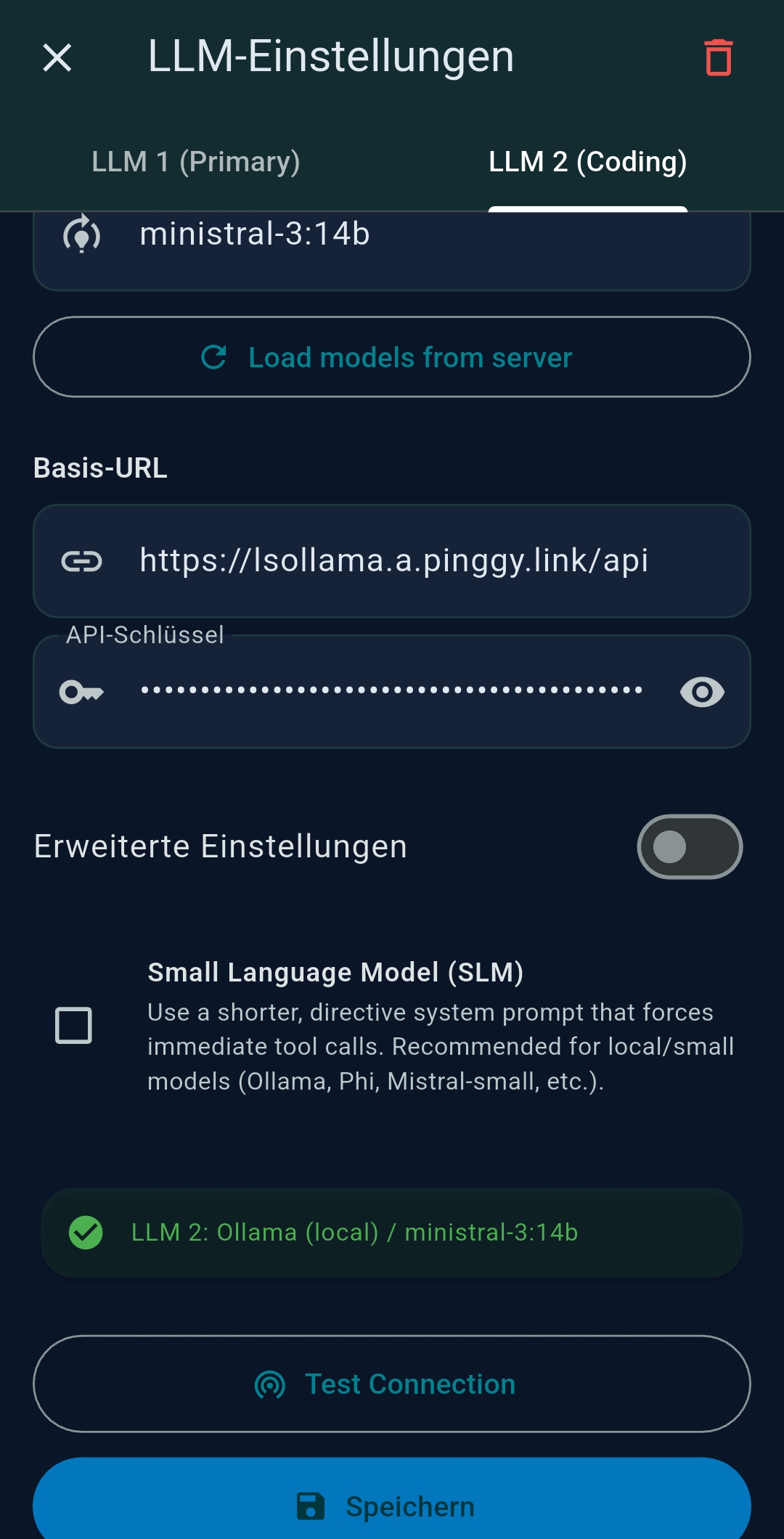
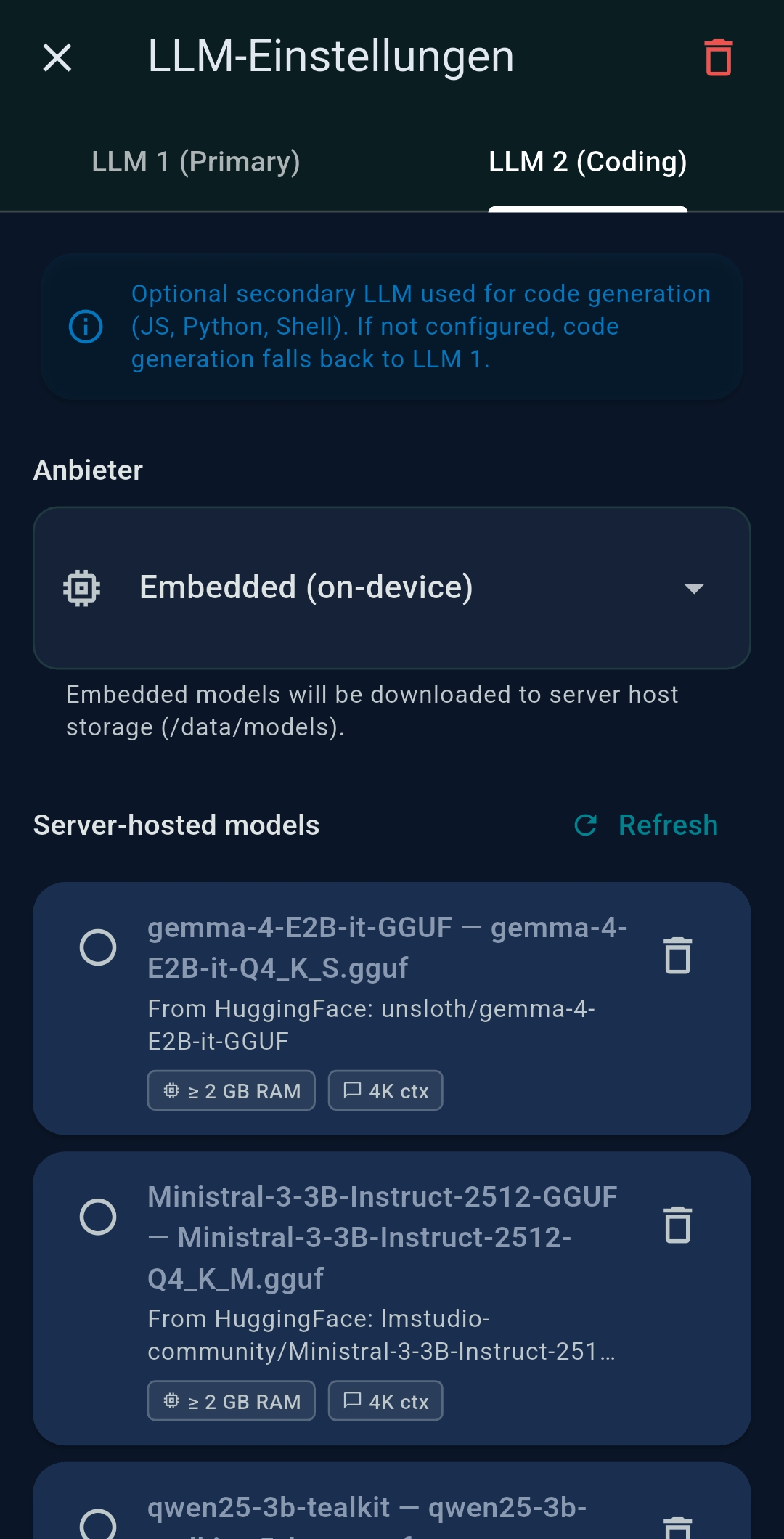
TealKit lets you configure a second, independent AI model dedicated to code generation. This is useful for keeping a powerful (but more expensive) primary model for reasoning and agent execution, while using a faster or cheaper model for writing shell scripts and JavaScript tools.

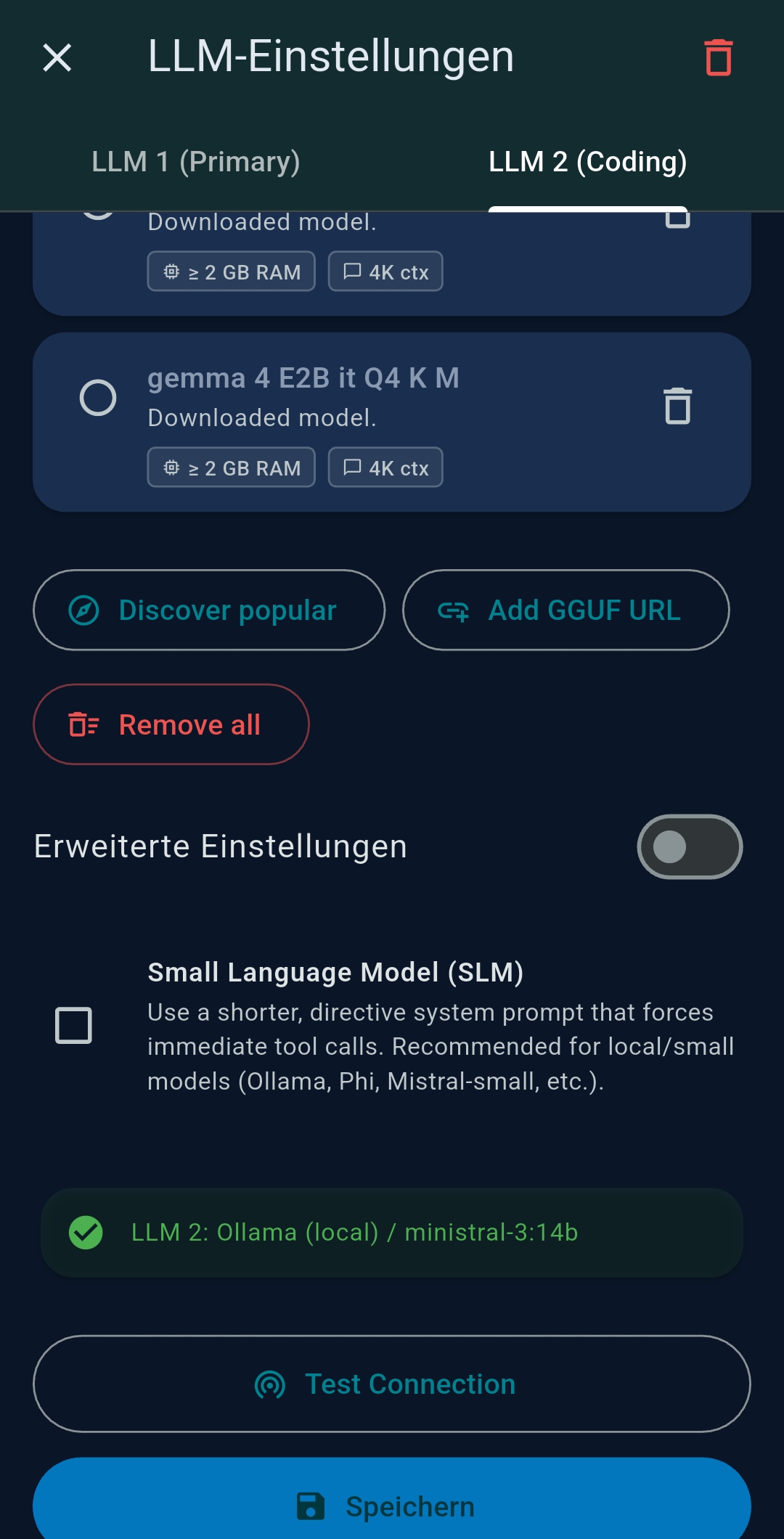
Configure LLM 2 under Settings → LLM Settings → LLM 2 tab. The same providers and parameters are available as for the primary model.

Tip: A fast, low-cost model like gemini-2.5-flash or mistral-small-latest works well as LLM 2 — saving your primary model budget for complex reasoning agents.

Use Case Examples

Here are some examples of what you can accomplish in the Playground or build as automated Agents:

4   Playground

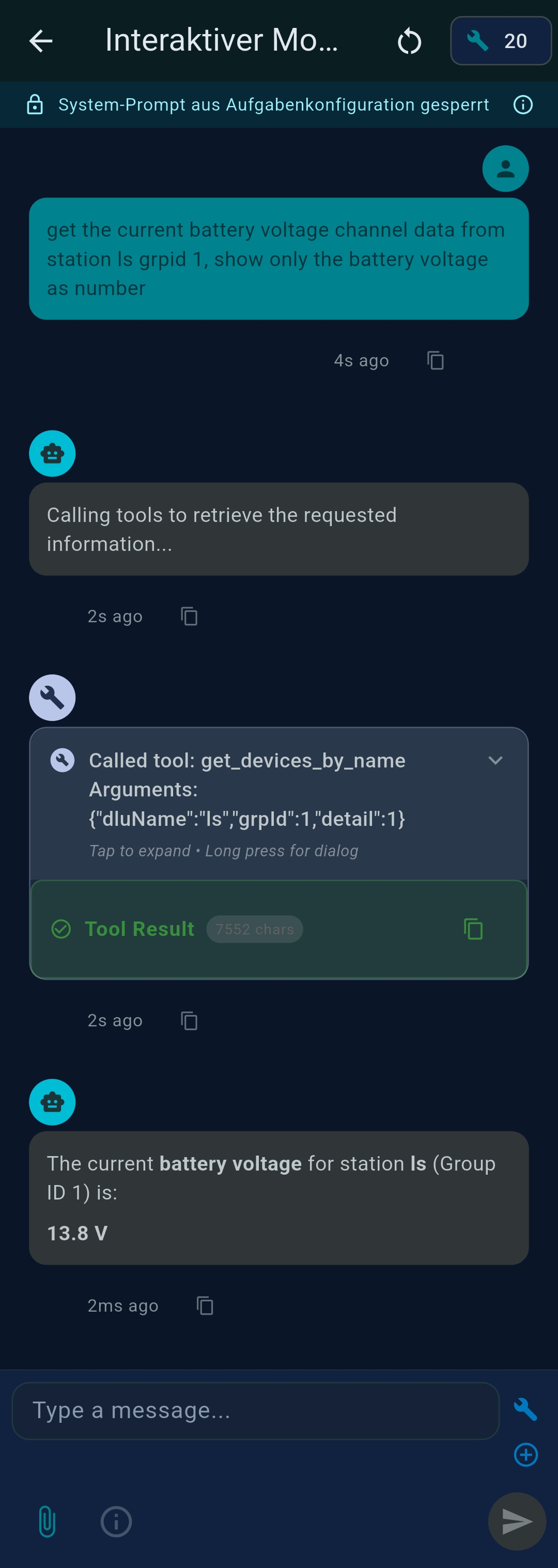
The Playground is an interactive chat where you experiment with the AI and its tools in real time.

Setting up a session

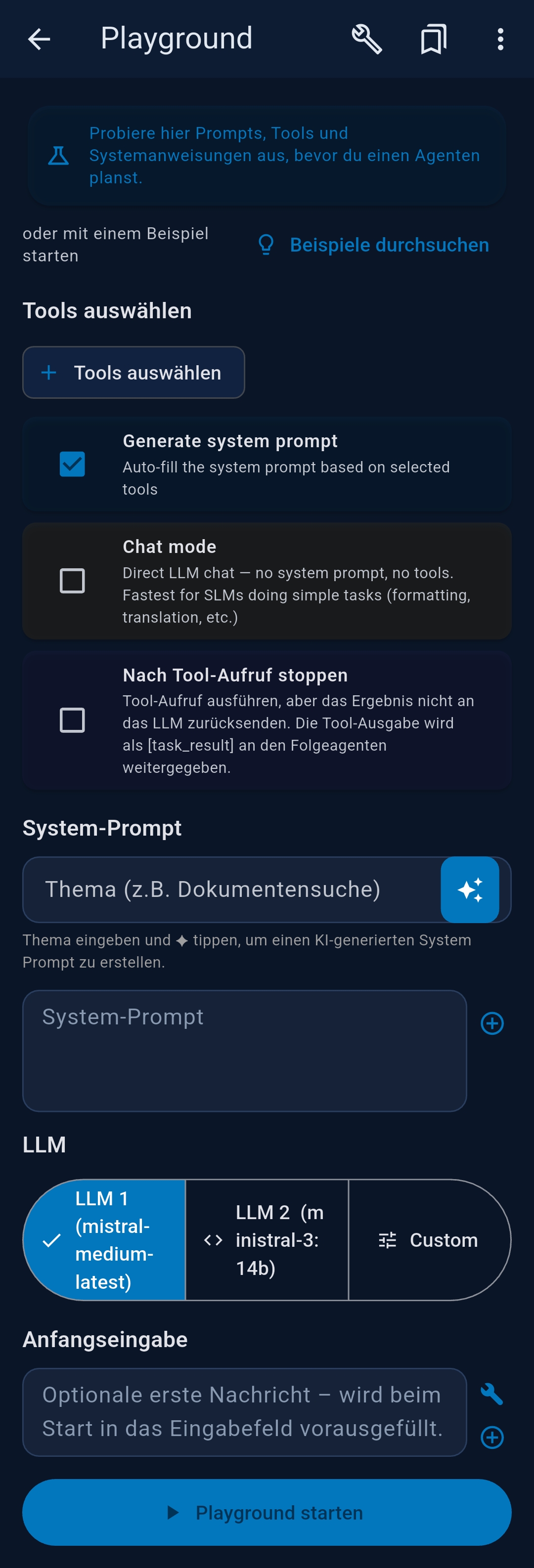
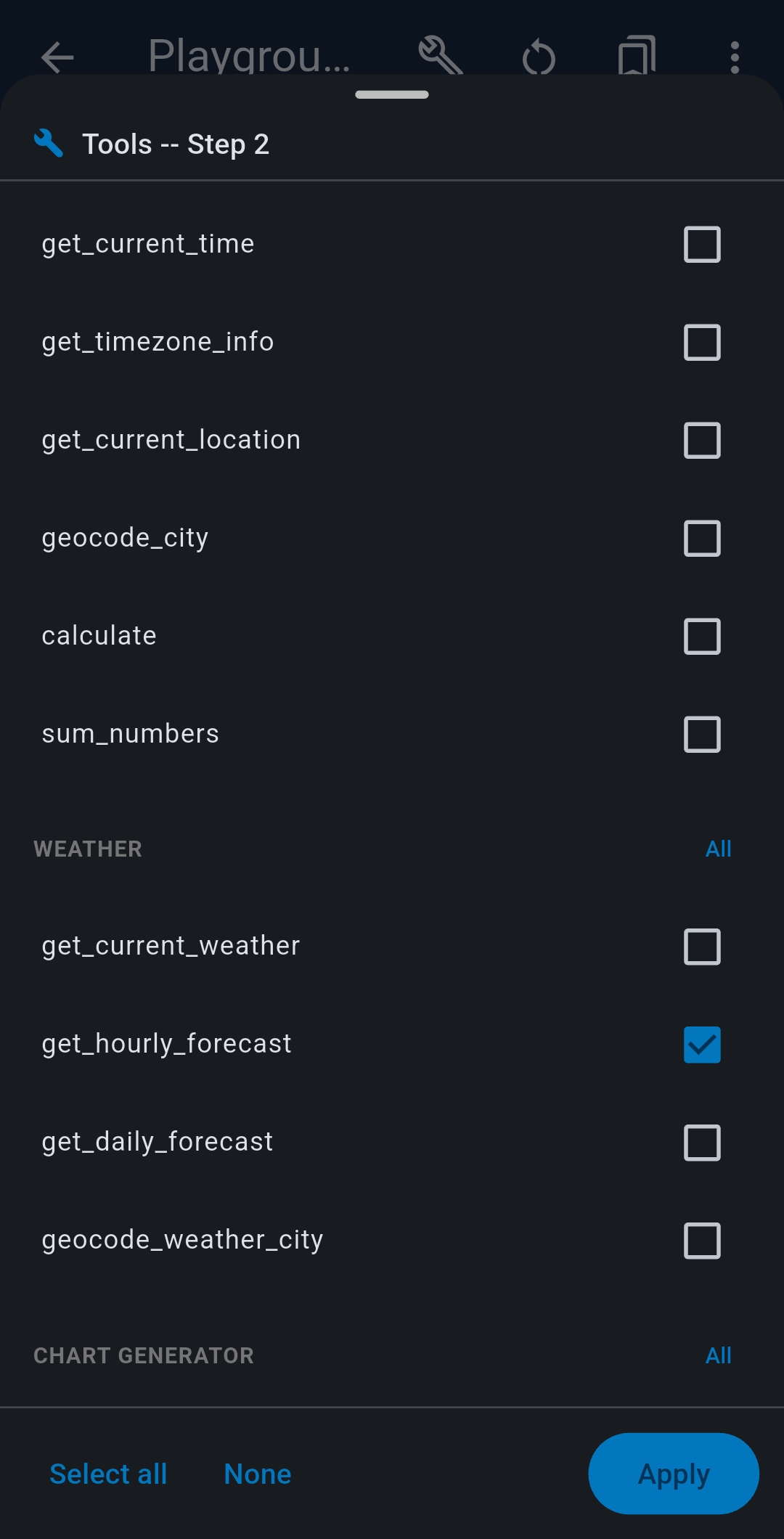
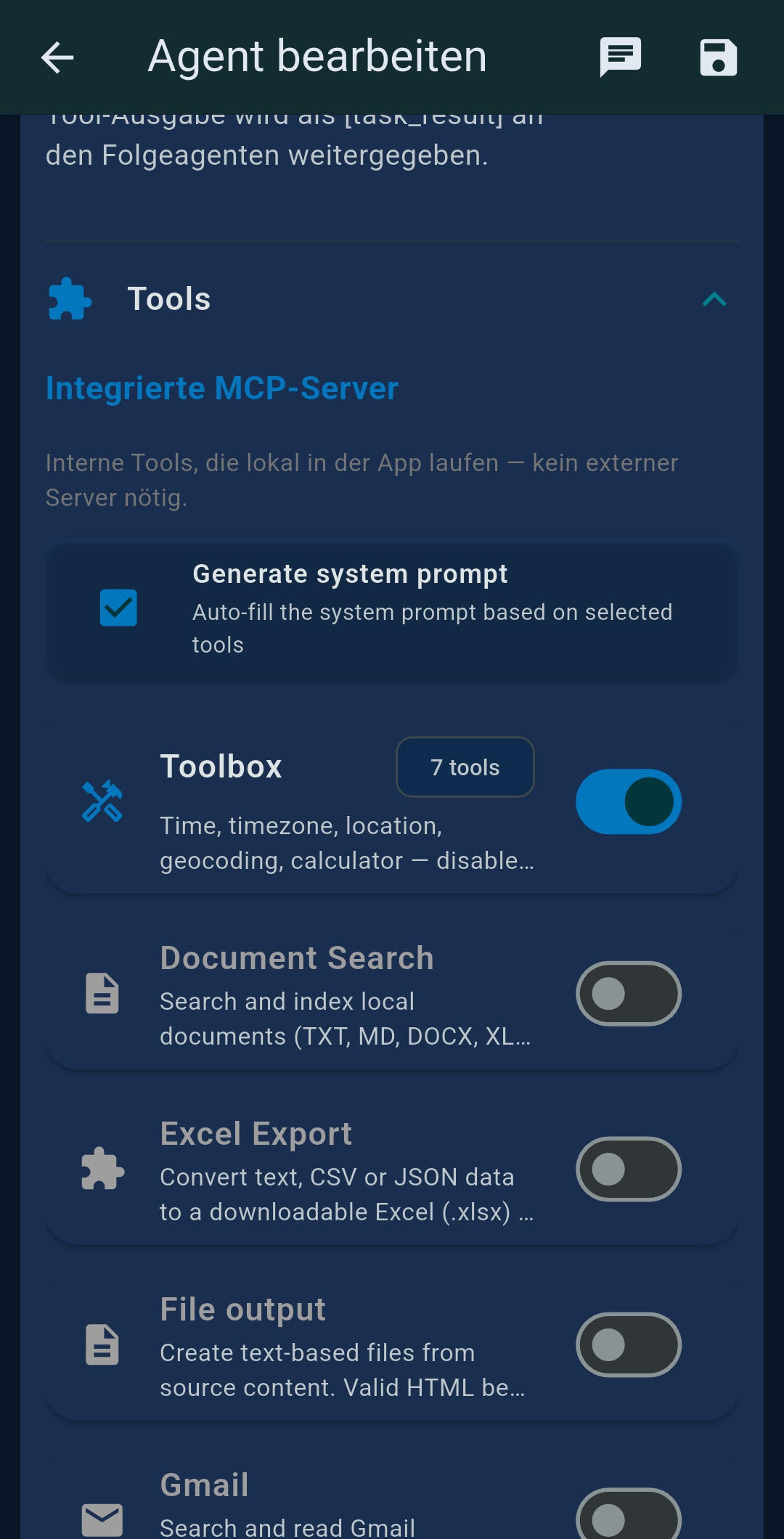
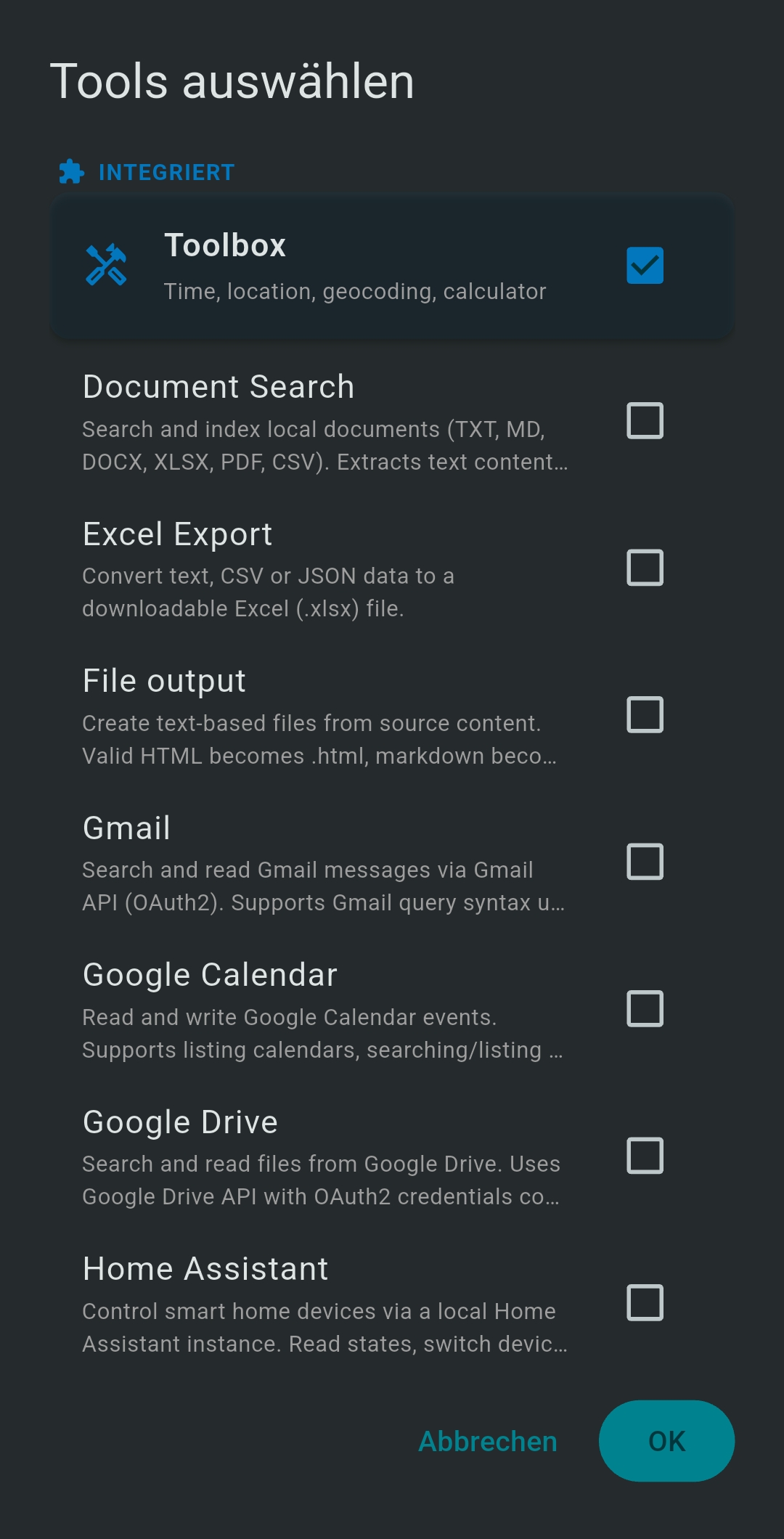
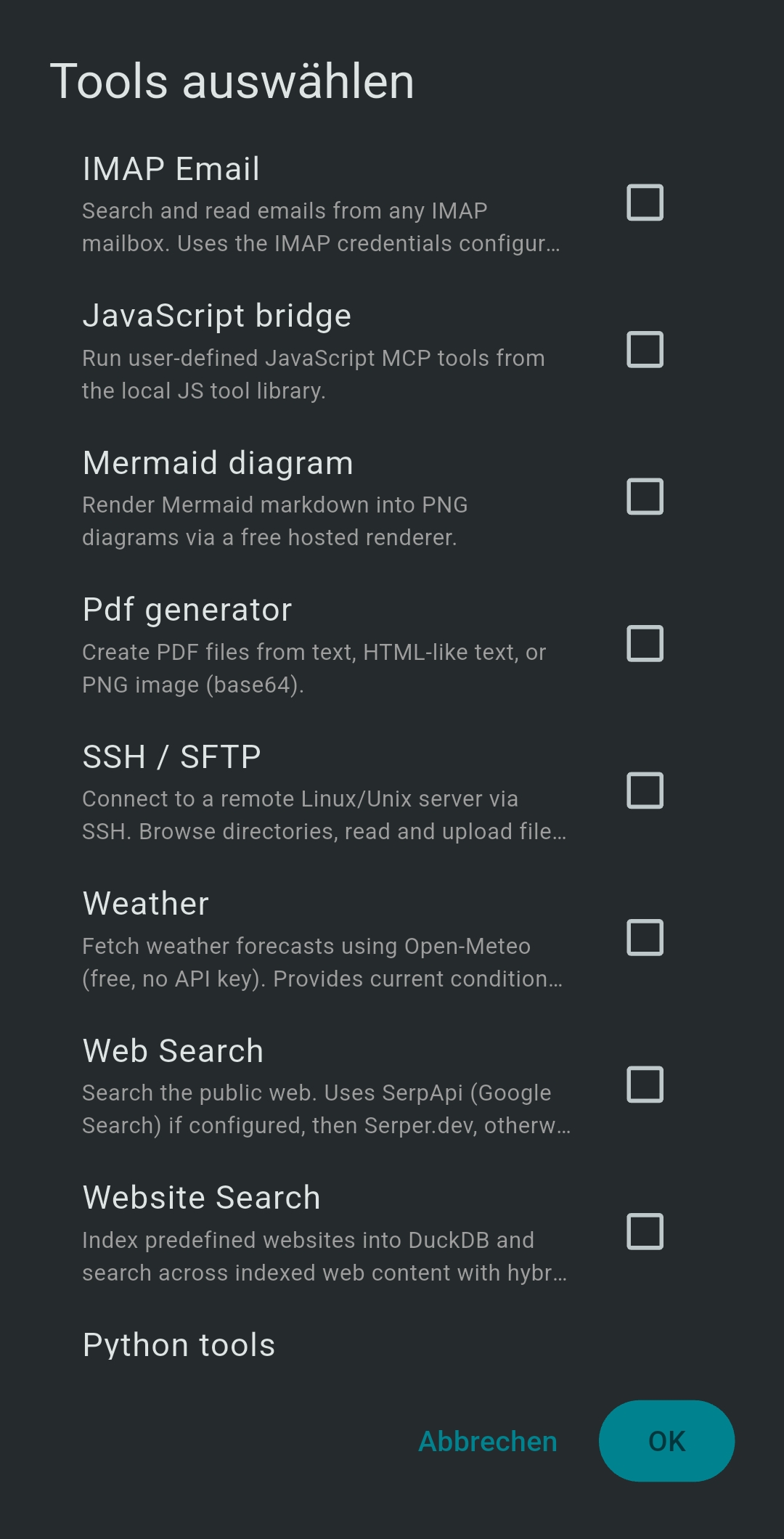
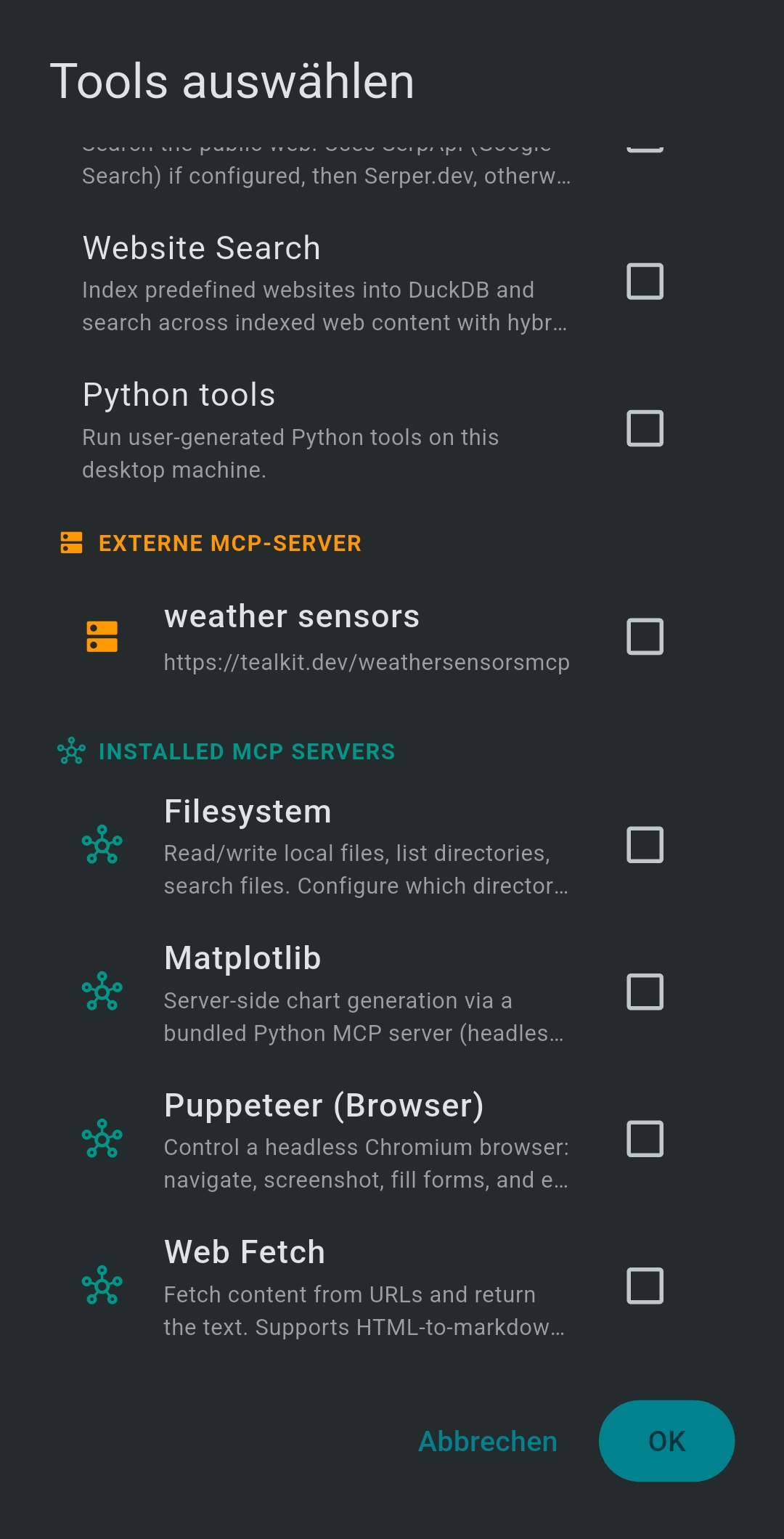
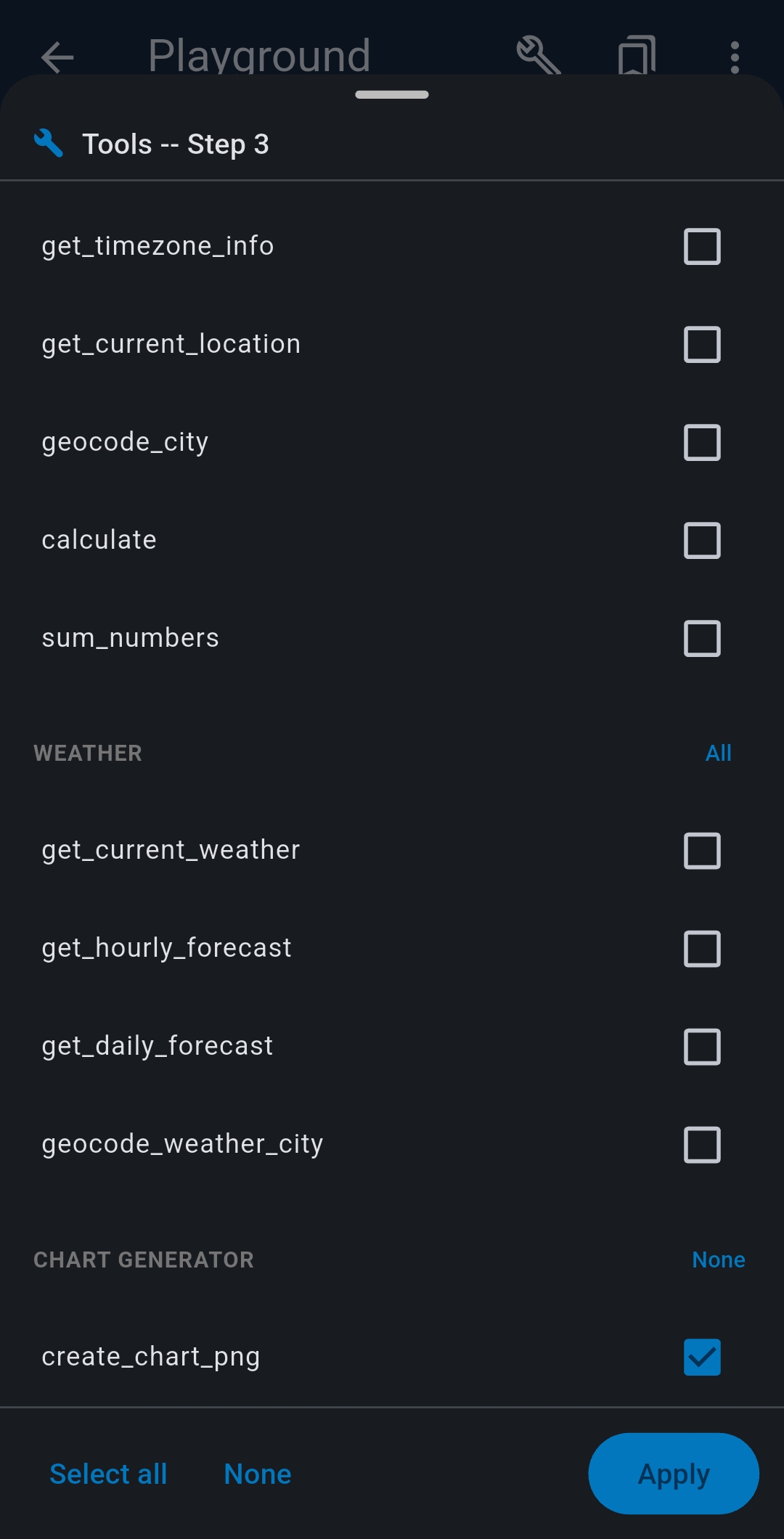
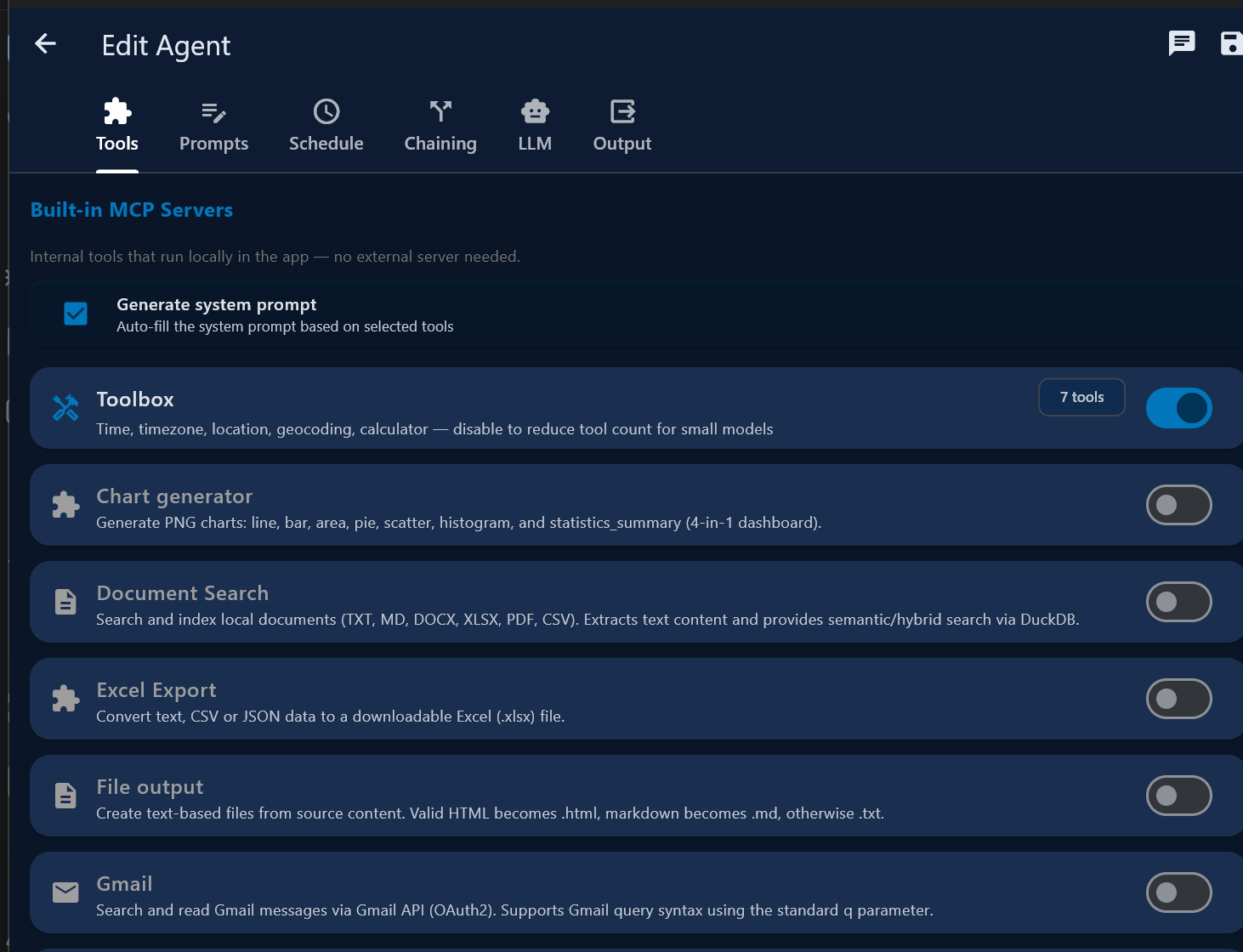
  1. Select tools (web search, email, documents …). Enable the Generate system prompt checkbox to let the AI automatically create a tailored prompt based on your tool selection.
  2. Review or edit the system prompt (or tap ✨ to regenerate it manually).
  3. If you selected Website Search or Documents, tap Start Indexing to build the local index. A red Stop button appears during indexing — tap to cancel anytime.
  4. Optionally set an initial message sent automatically on start.
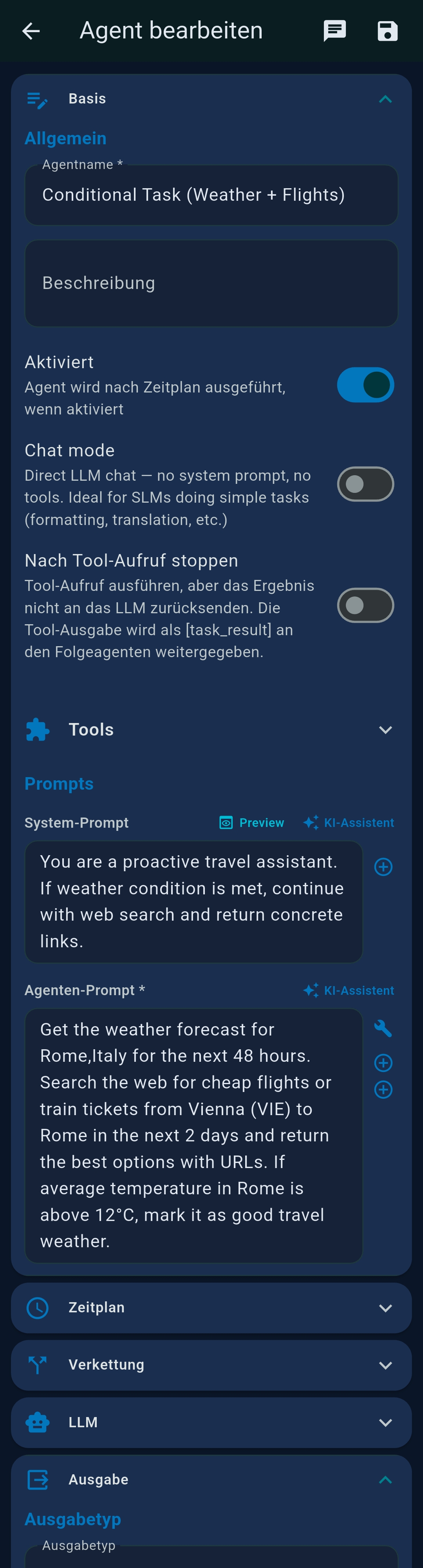
  5. (Optional) Chat mode — enable the orange Chat mode checkbox to send your message directly to the LLM with no system prompt and no tools. All tool checkboxes are ignored. Ideal for SLMs doing translation, formatting, summarisation, or any pure text agent where tool overhead adds latency without benefit.
  6. (Optional) Stop after tool call — enable the purple Stop after tool call checkbox to make the session execute one tool call, capture the raw output, and stop immediately — no further LLM processing. The raw tool output becomes ${task_result} for a chained agent. Useful when you want unmodified tool output (e.g. SSH command result, web scrape, document search) to flow directly into a downstream agent.
  7. If you have configured a second LLM (Settings → LLM Settings → LLM 2), a LLM 1 / LLM 2 selector appears above the Start button. Use it to switch models without leaving the Playground — ideal for comparing a powerful cloud model against a local SLM on the same prompt.
  8. Tap Start Playground (disabled while indexing is active).

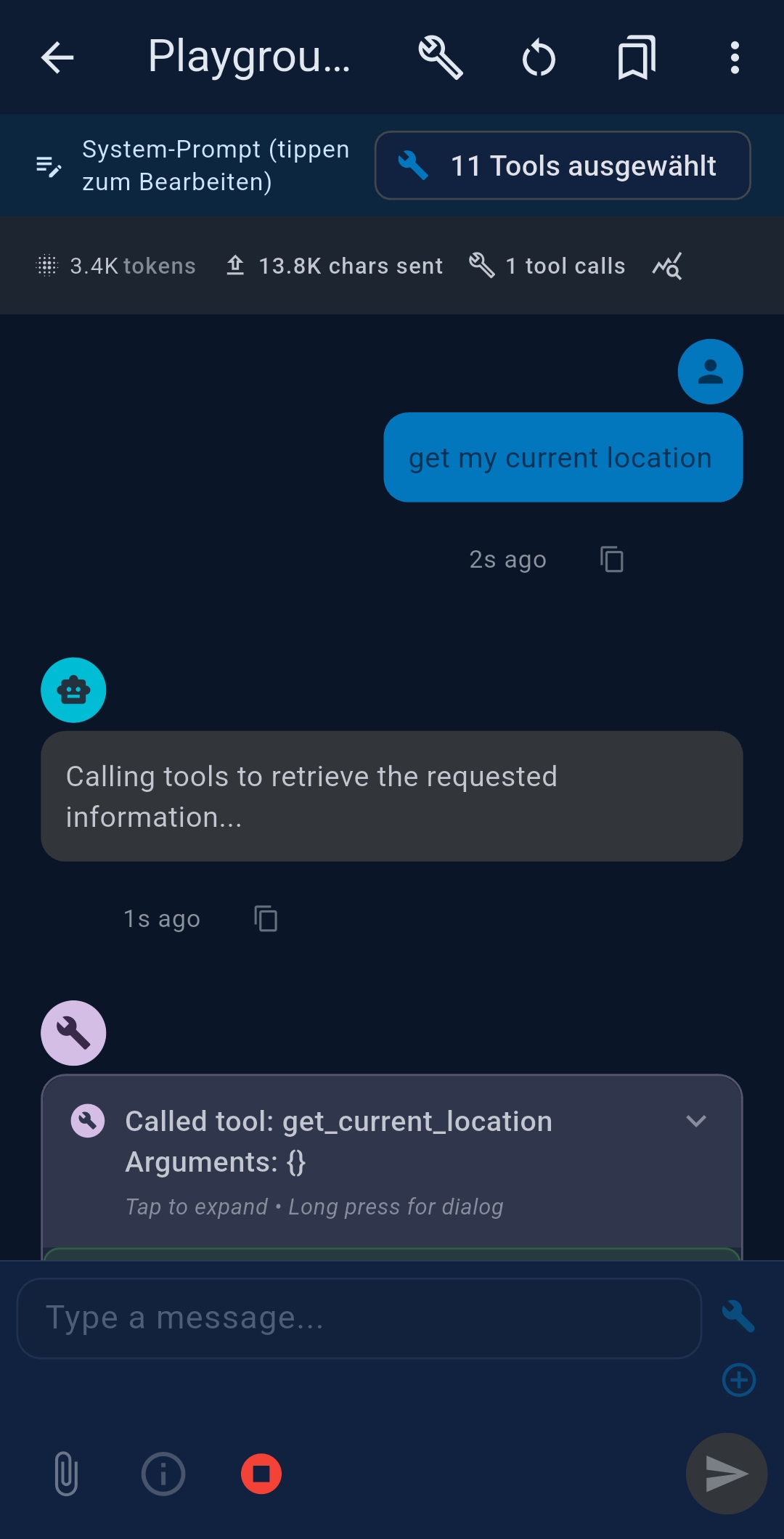
During chat

Tip: Use the LLM selector to find the best model for each agent before saving it as an automated Agent. See Best Practices for more guidance.

5   Agents

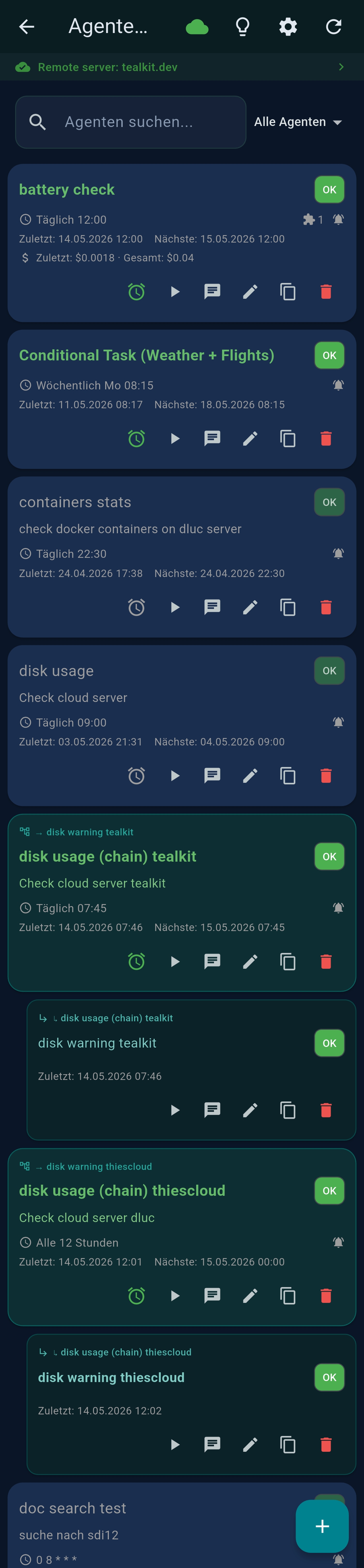
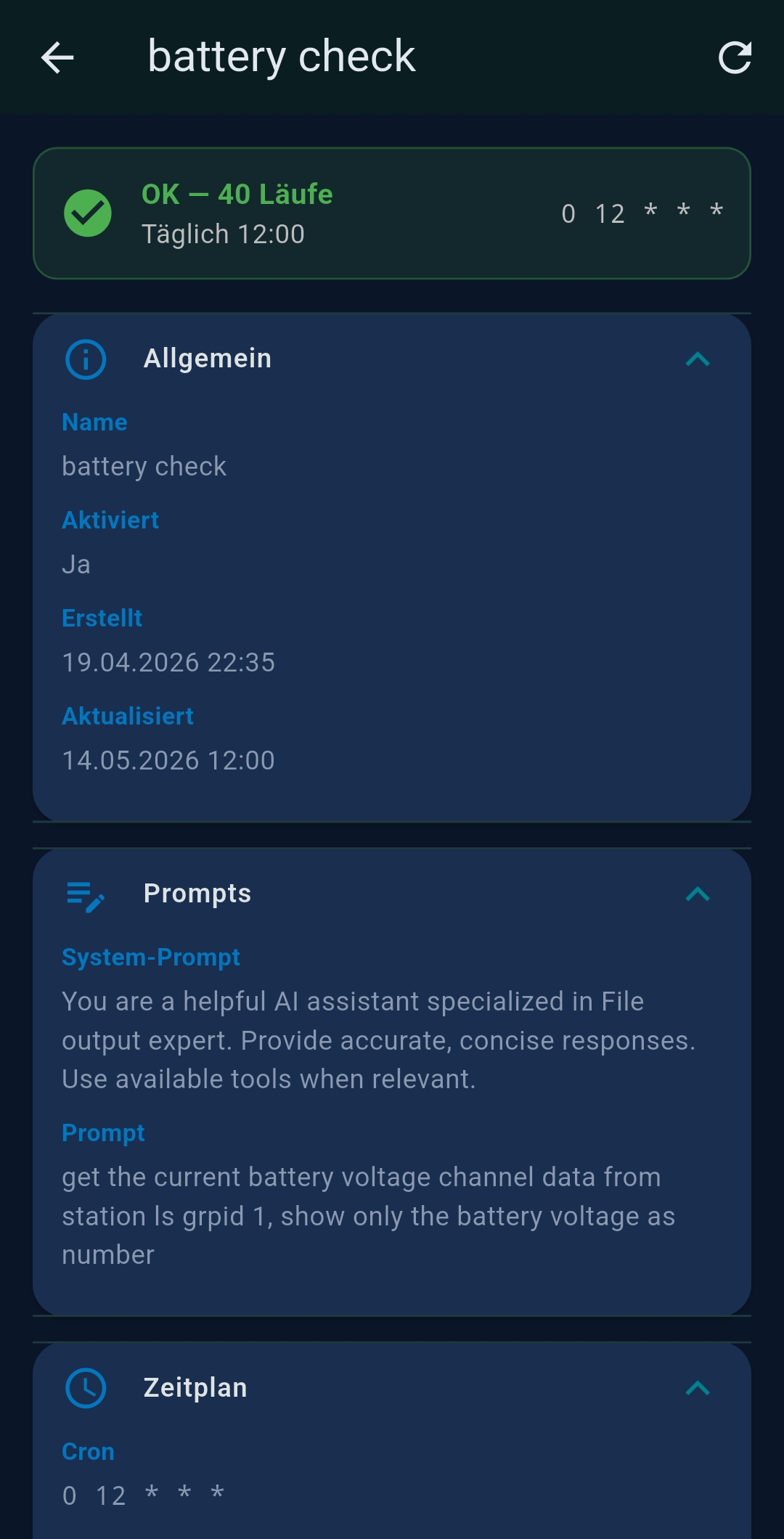
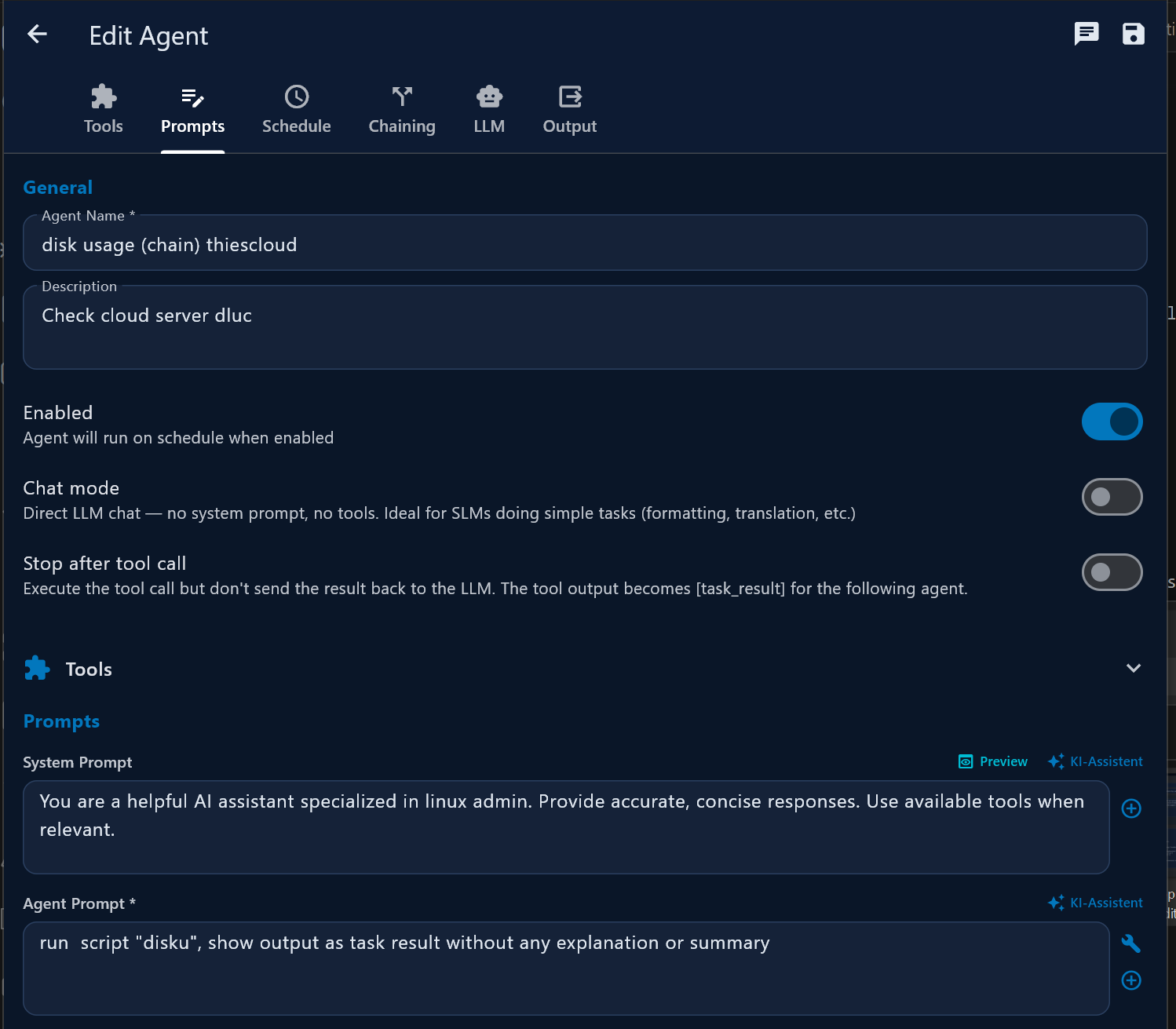
Agents are saved automation workflows. Each agent packages an LLM, tools, a system prompt, and an initial message — ready to run with one tap. Free tier: up to 3 agents. PRO removes the limit.

Creating a agent

  1. Go to Agents → + New Agent.
  2. Give it a name and description.
  3. Configure the LLM (can differ from your global default — or select LLM 2 (from settings) to run the agent with your secondary model).
  4. Select tools and configure each one (website URLs, document folder, etc.).
  5. Enable Generate system prompt in the Basis / Built-in Tools panel to let the AI auto-generate a prompt from your tool selection, then review or edit it.
  6. Write the system prompt and initial user message.
  7. Tap Save.

Execution modes

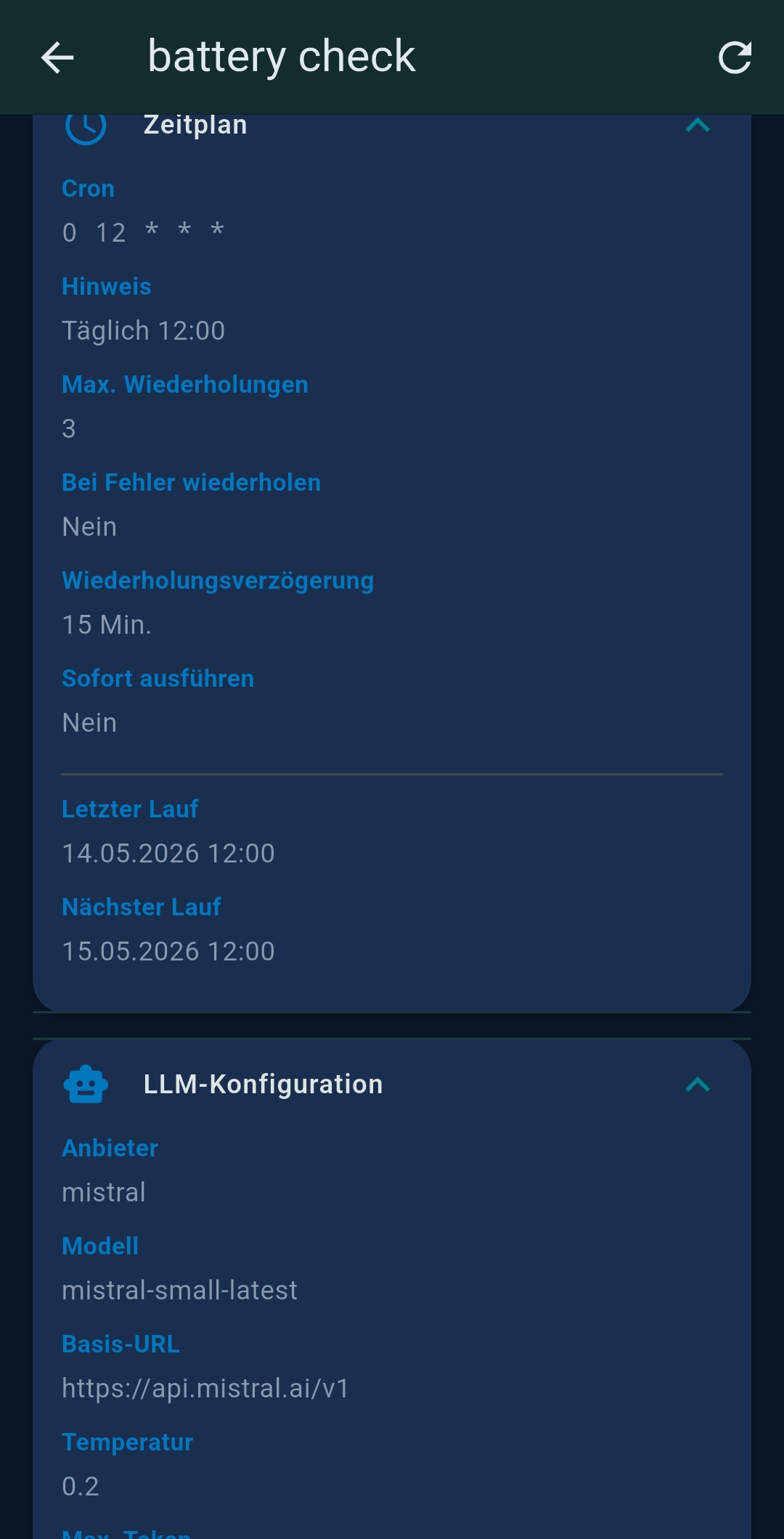
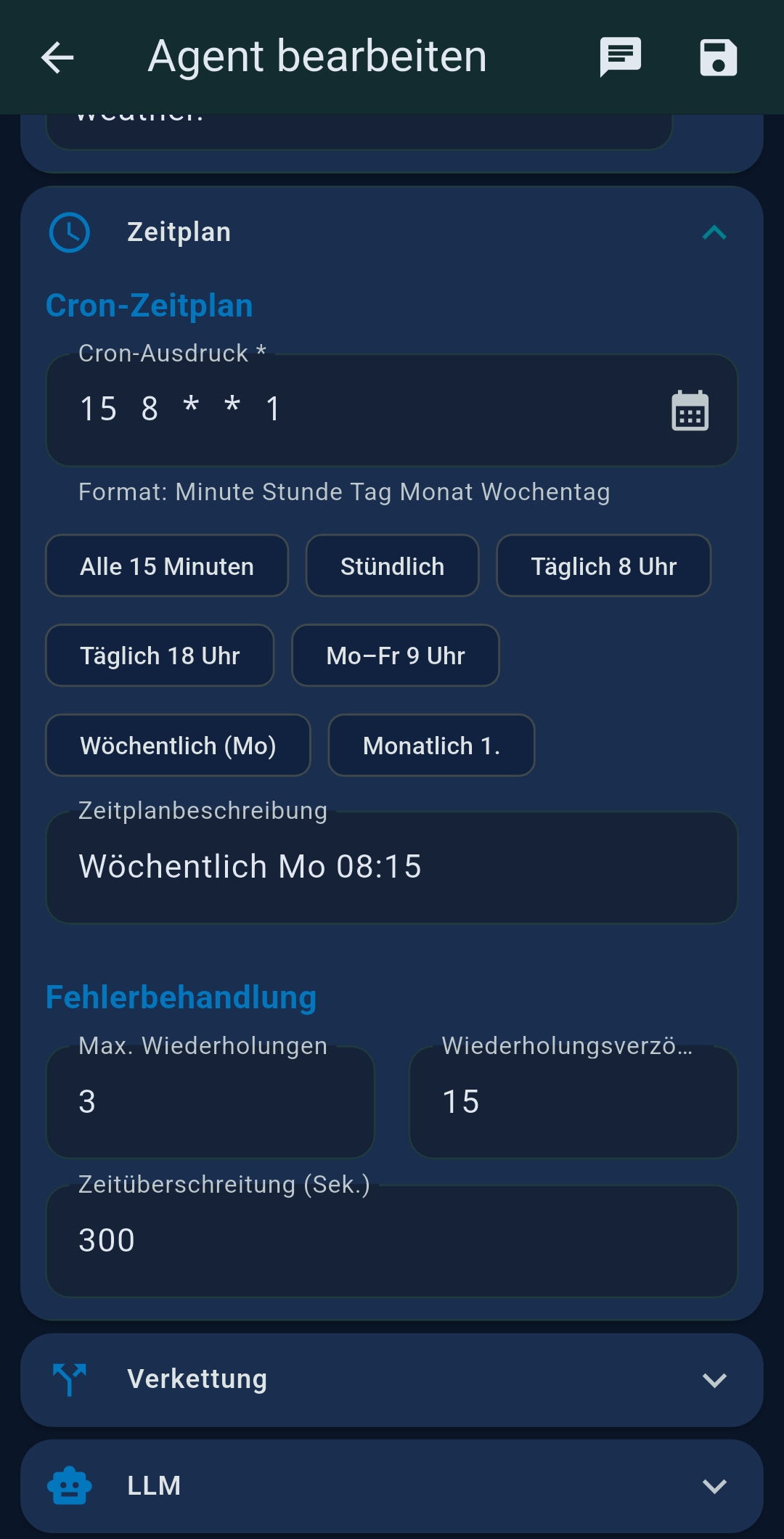
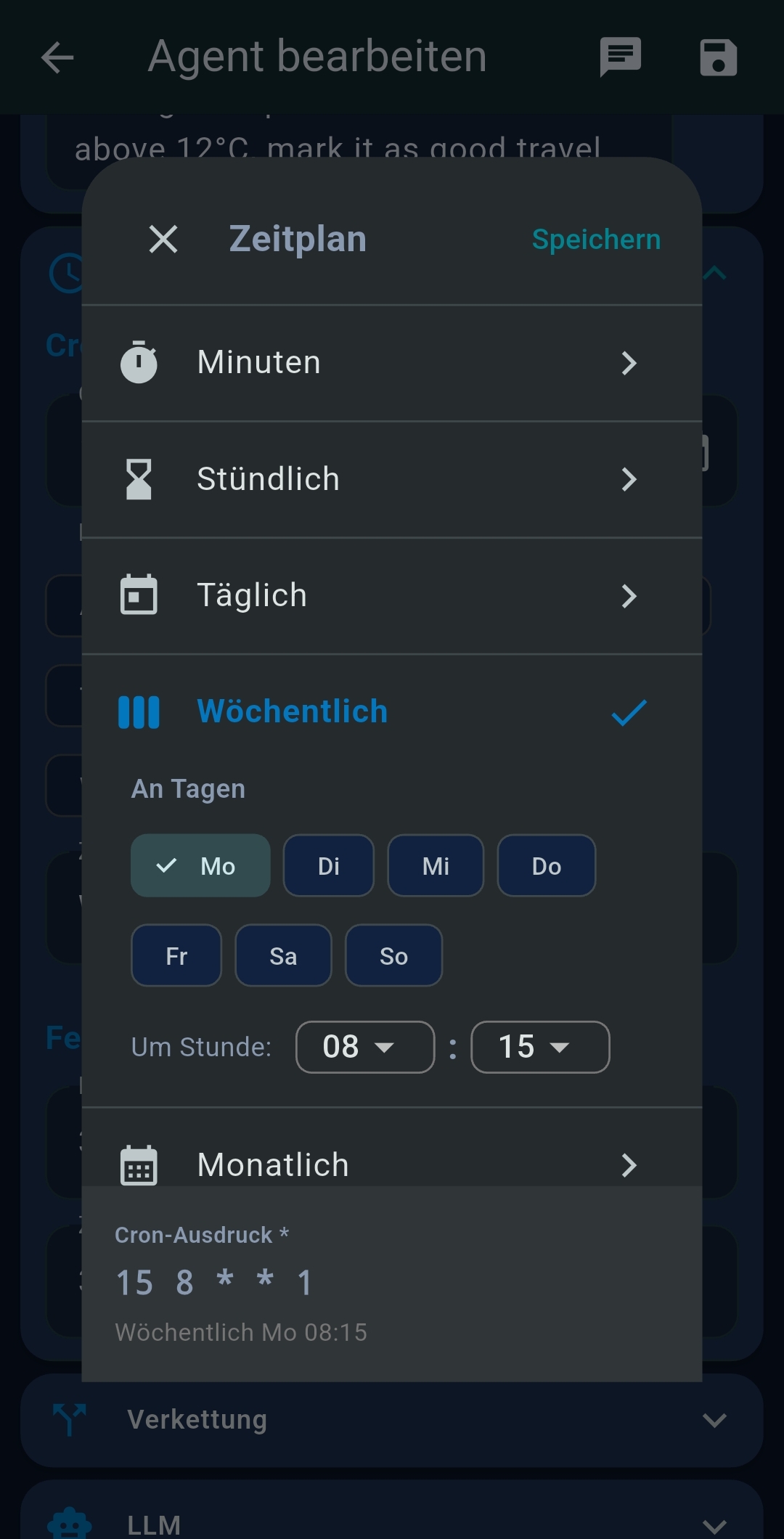
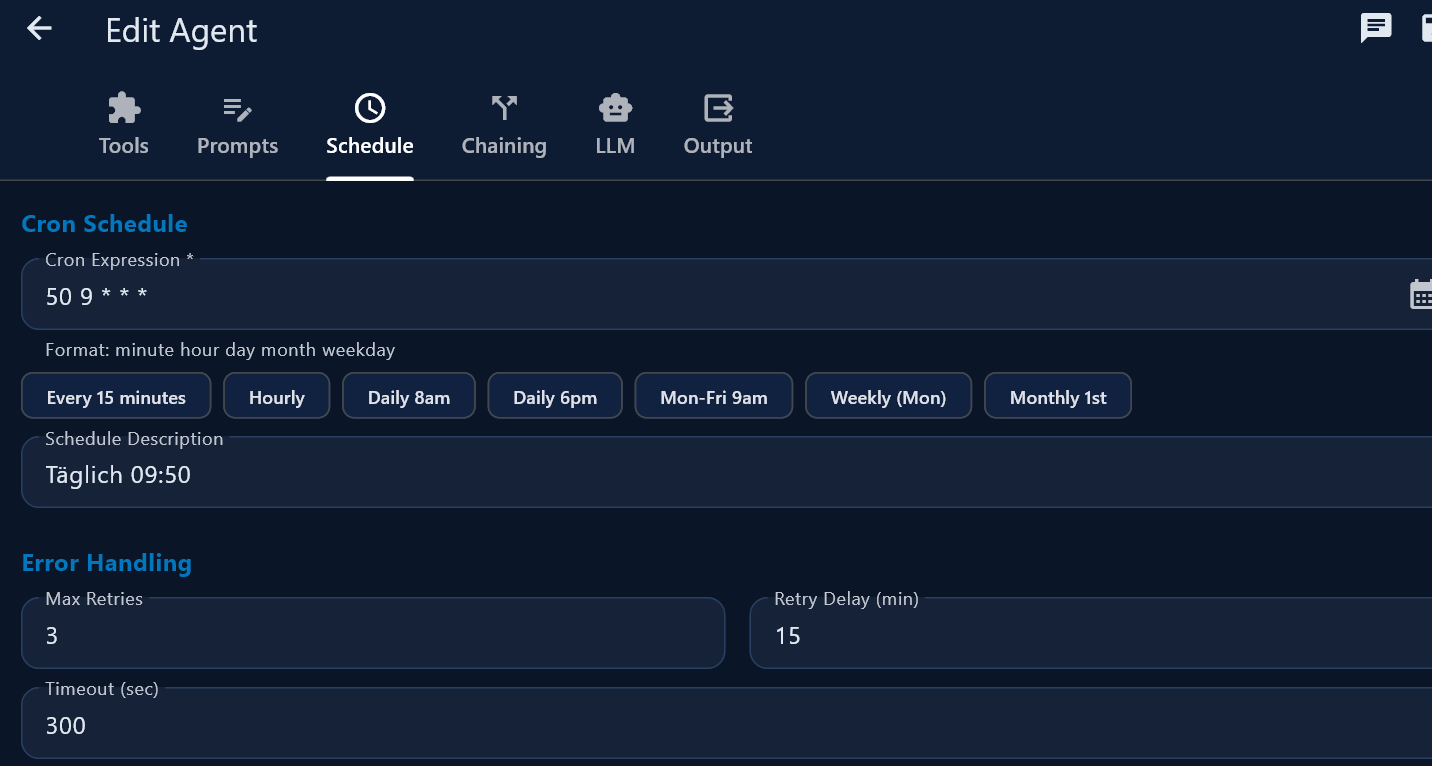
Cron scheduling PRO

Automate any agent to run on a schedule:

Tip: Scheduled agents run in the background even when the app is minimised. Make sure battery optimisation settings do not kill the app.
⏱ Background timing – important: When the app is closed, TealKit uses a periodic background wakeup (heartbeat) to check for due agents. The wakeup interval is configurable in Settings → General → Background check interval (5 / 10 / 15 min, default 10 min). Due to Android Doze mode, iOS app-refresh limits, and OEM battery optimisations, the exact wakeup time is controlled by the operating system — agents may start a few minutes earlier or later than their scheduled time. A shorter interval increases responsiveness but uses slightly more battery. If sub-minute precision is required, keep the app in the foreground — the foreground scheduler fires at the exact cron time.

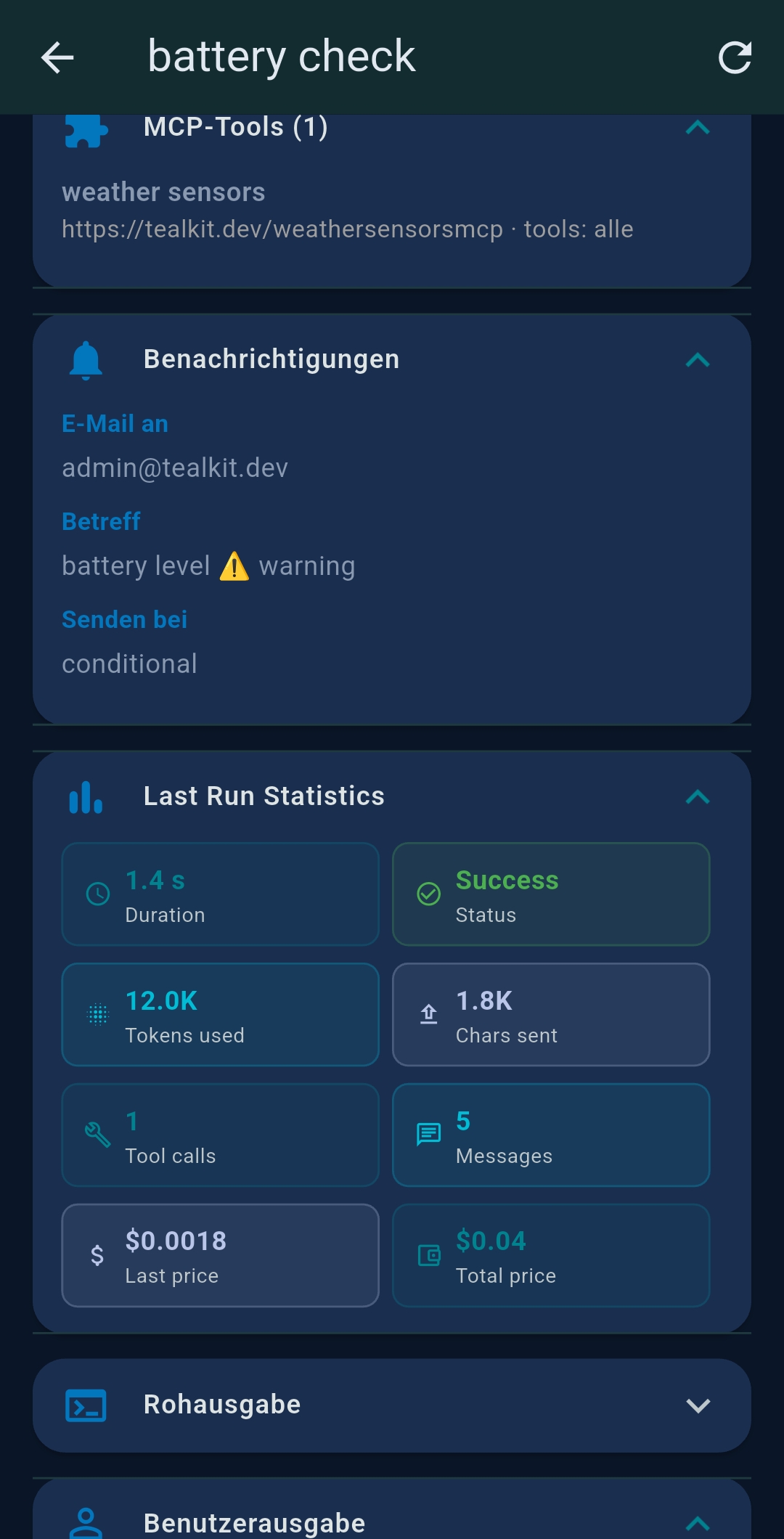
Run statistics

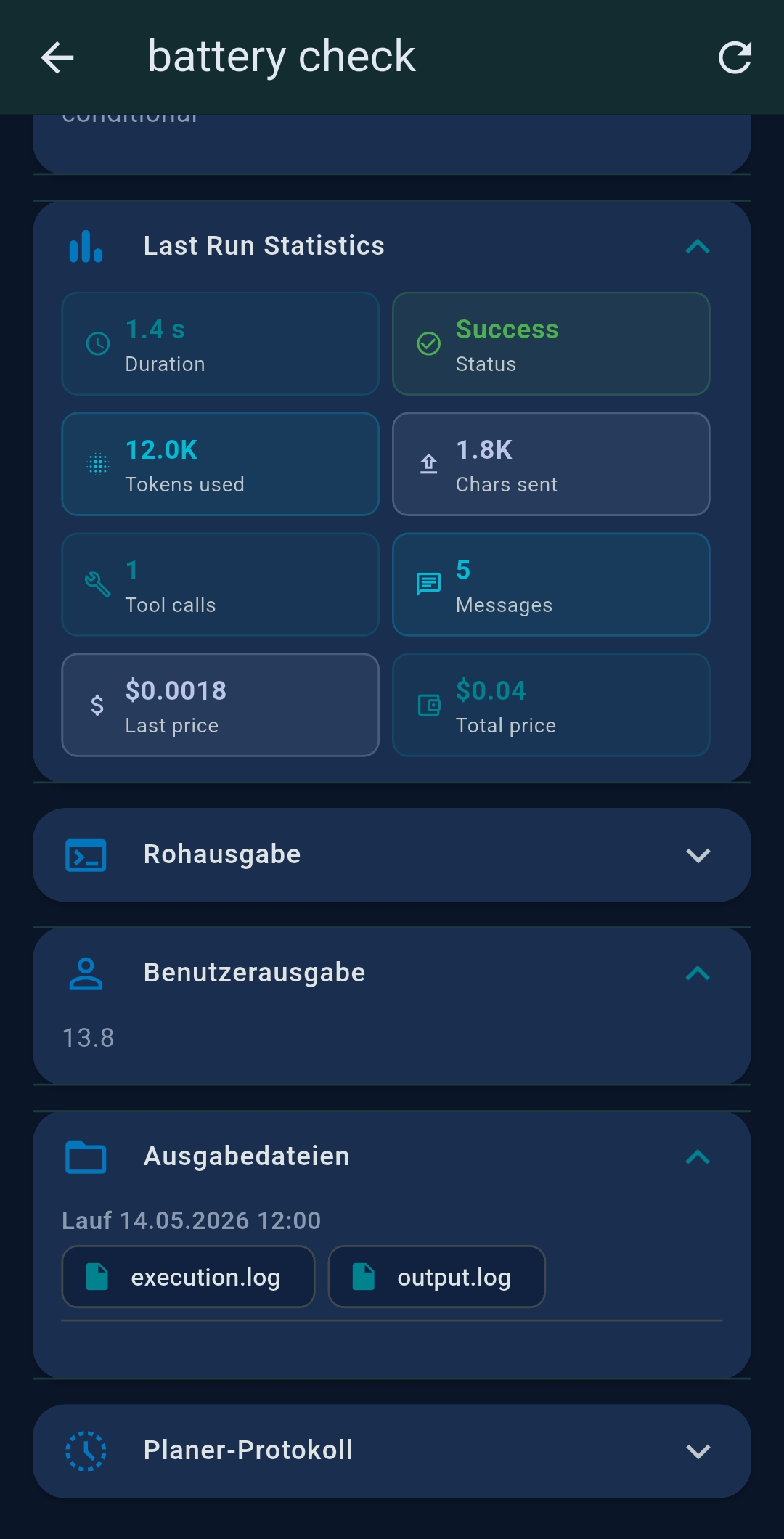
Tap a completed run entry to view detailed stats:

MetricDescription
DurationTotal wall-clock time for the run
StatusSuccess / Failed / Cancelled
Tokens usedPrompt + completion token count
CharactersOutput character count
Tool callsNumber of MCP tool calls made
MessagesTotal conversation turns

Output format

Control the output format through your system prompt or initial message:

Output channels PRO

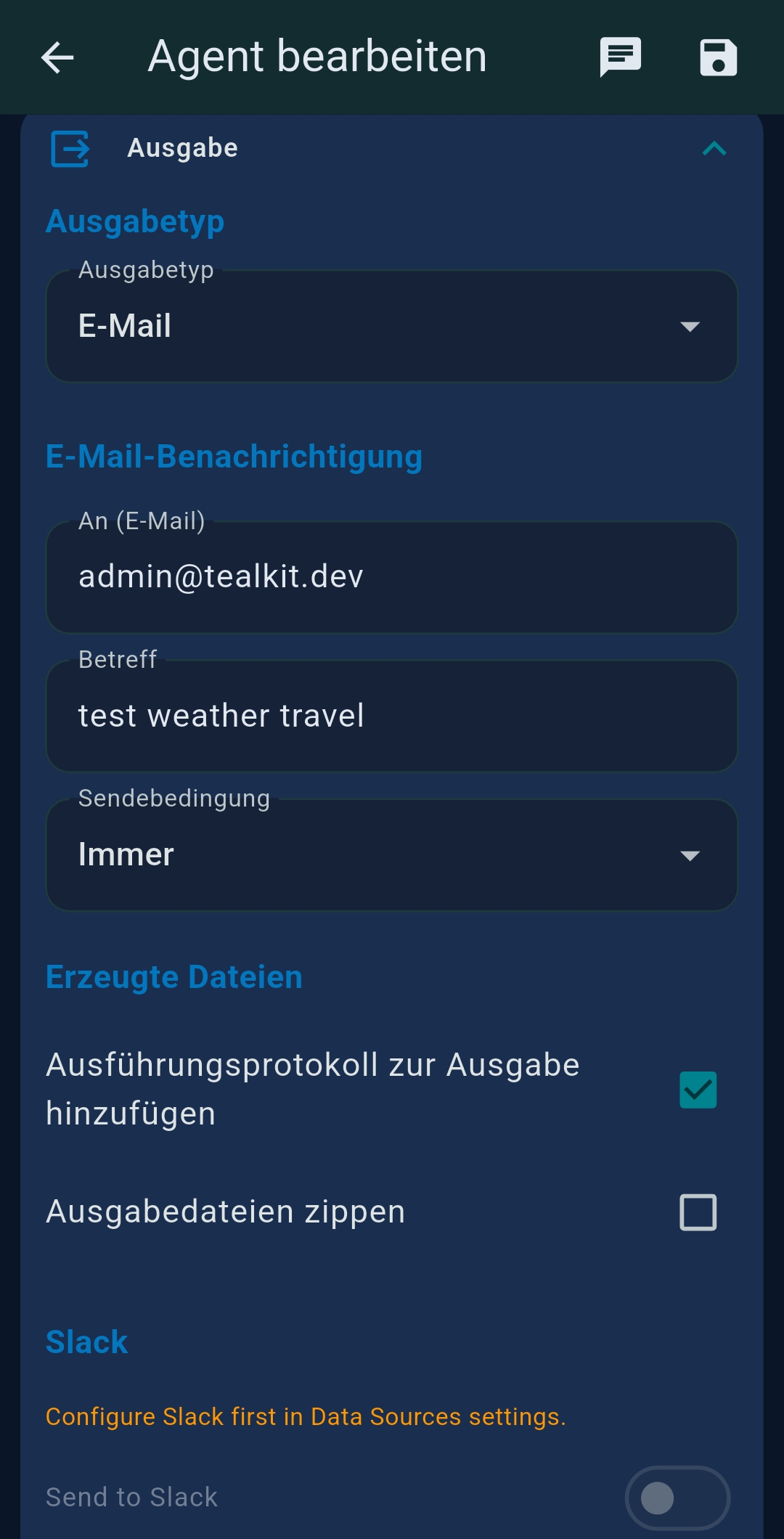
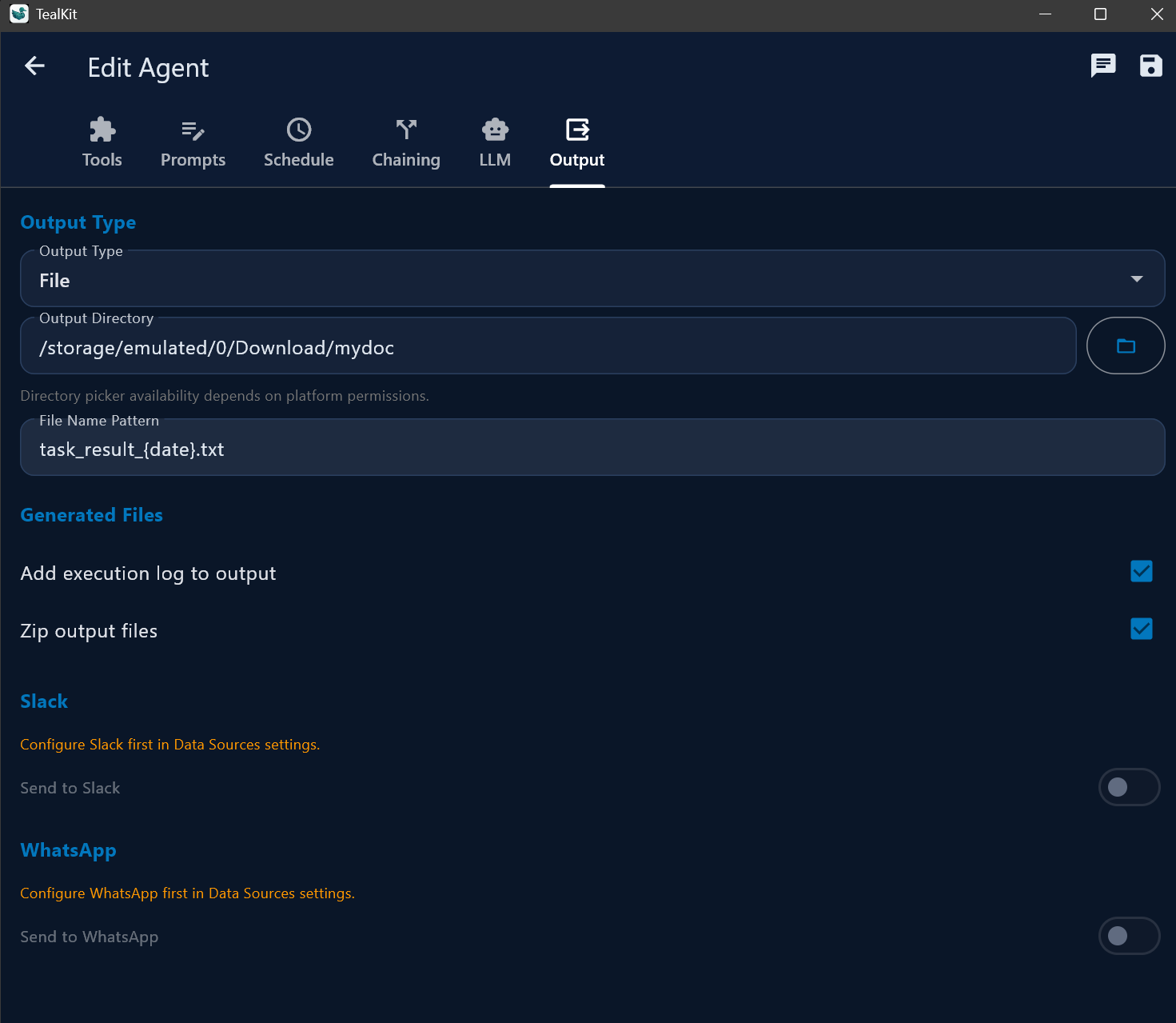
Agent results can be delivered automatically to one or more channels when a run finishes. Each channel has its own send condition and can optionally attach the output files. Global credentials are configured once in Settings → Data Sources; per-agent overrides are set on the agent's Output tab.

Any generated file can be attached — not just the Markdown log. This includes .xlsx spreadsheets (from the excel server), .png charts and diagrams (from chart / mermaid), .html previews, and .md result files. Enable the Include output files toggle on the agent's Output tab to have all generated files forwarded to every active delivery channel.

✉ Email output PRO

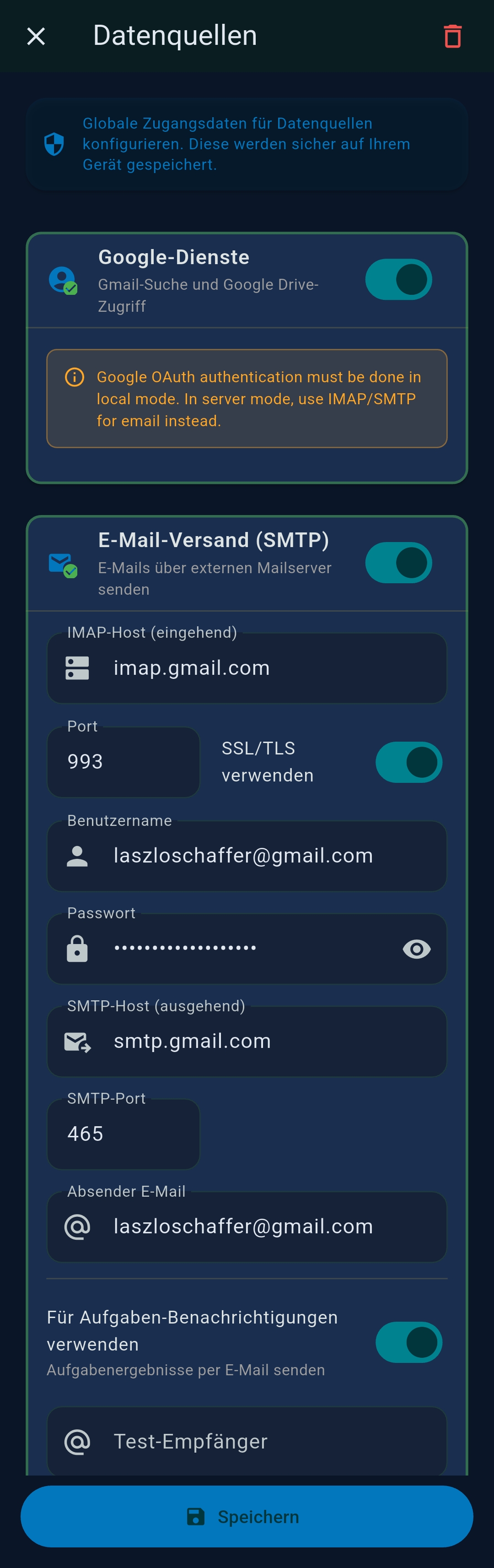
Have the agent result emailed automatically when done. Configure in the agent's Output section:

💬 Slack output PRO

Post the agent result to a Slack channel automatically. Creating a Slack App is freecreate one at api.slack.com. Two auth modes are supported:

Per-agent options on the Output tab:

Tip: Use a Bot Token when you need output files (Excel, PNG charts, …) attached as native Slack files. A Webhook is enough for text-only notifications.

📲 WhatsApp output PRO

Send the agent result to a WhatsApp number via the Meta Business Cloud API. Registration is free and includes 1,000 conversations / month at no cost. Requires a Meta Business account with a verified phone number.

  1. Create or open a Meta app at developers.facebook.com → WhatsApp Cloud API Get Started.
  2. Add the WhatsApp product and note your Phone Number ID.
  3. Generate a System User access token with whatsapp_business_messaging permission.
  4. Enter both values in Settings → Data Sources → WhatsApp.

Per-agent options on the Output tab:

Note: WhatsApp Business accounts are subject to Meta's messaging policy. Recipients must have opted in or you must use an approved message template for first contact.

📂 SFTP output PRO

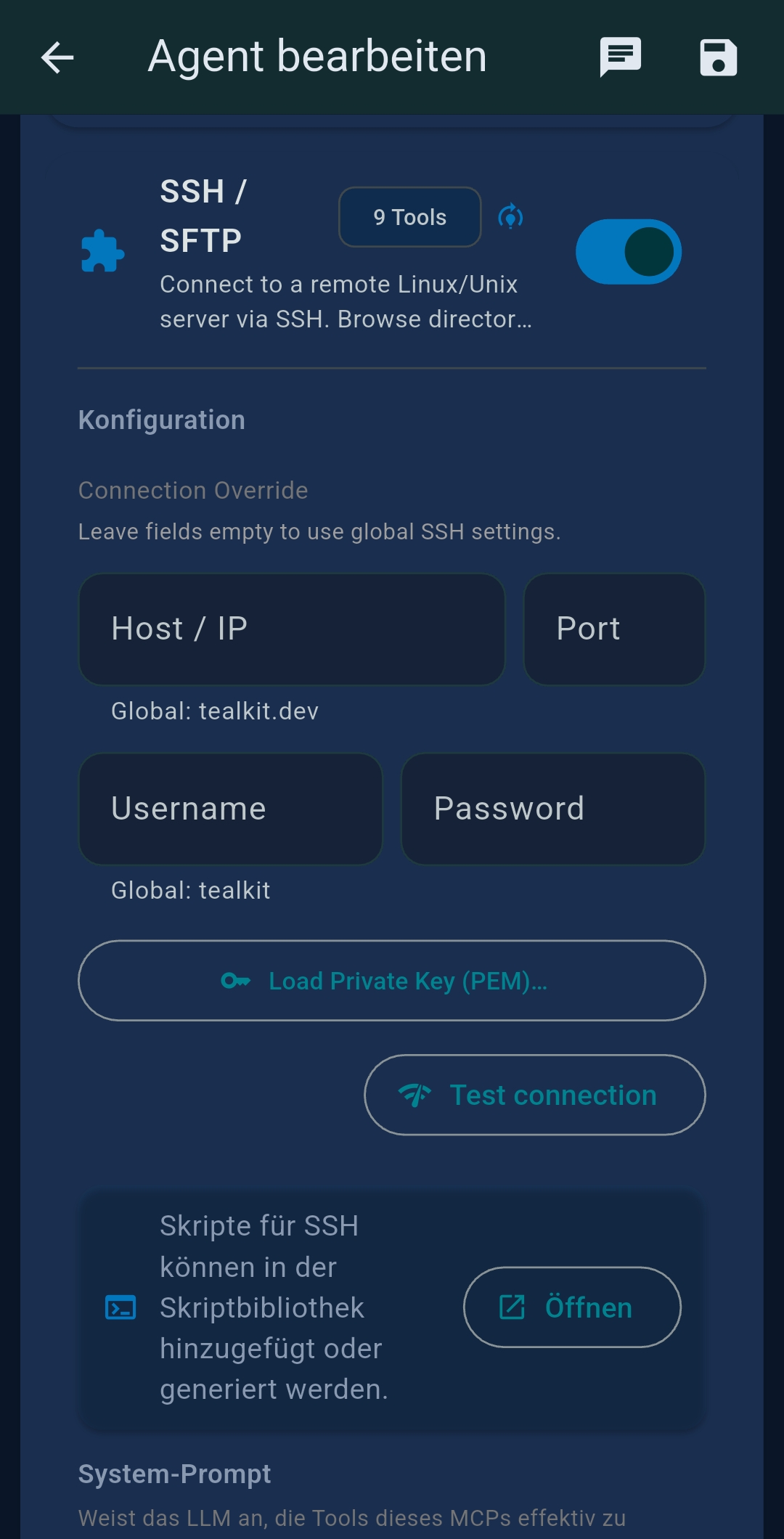
Upload agent results and generated files to a remote server automatically via SFTP when a run finishes. Configure SSH/SFTP credentials once in Settings → Data Sources → SSH.

Per-agent options on the Output tab:

Tip: Combine SFTP output with Email output — have files stored on your server and receive a notification email after every run.

ZIP output PRO

Bundle the full output folder (result + logs + attachments) into a single ZIP file. Combine with Email output to receive the archive by mail after every run.

Agent chaining PRO

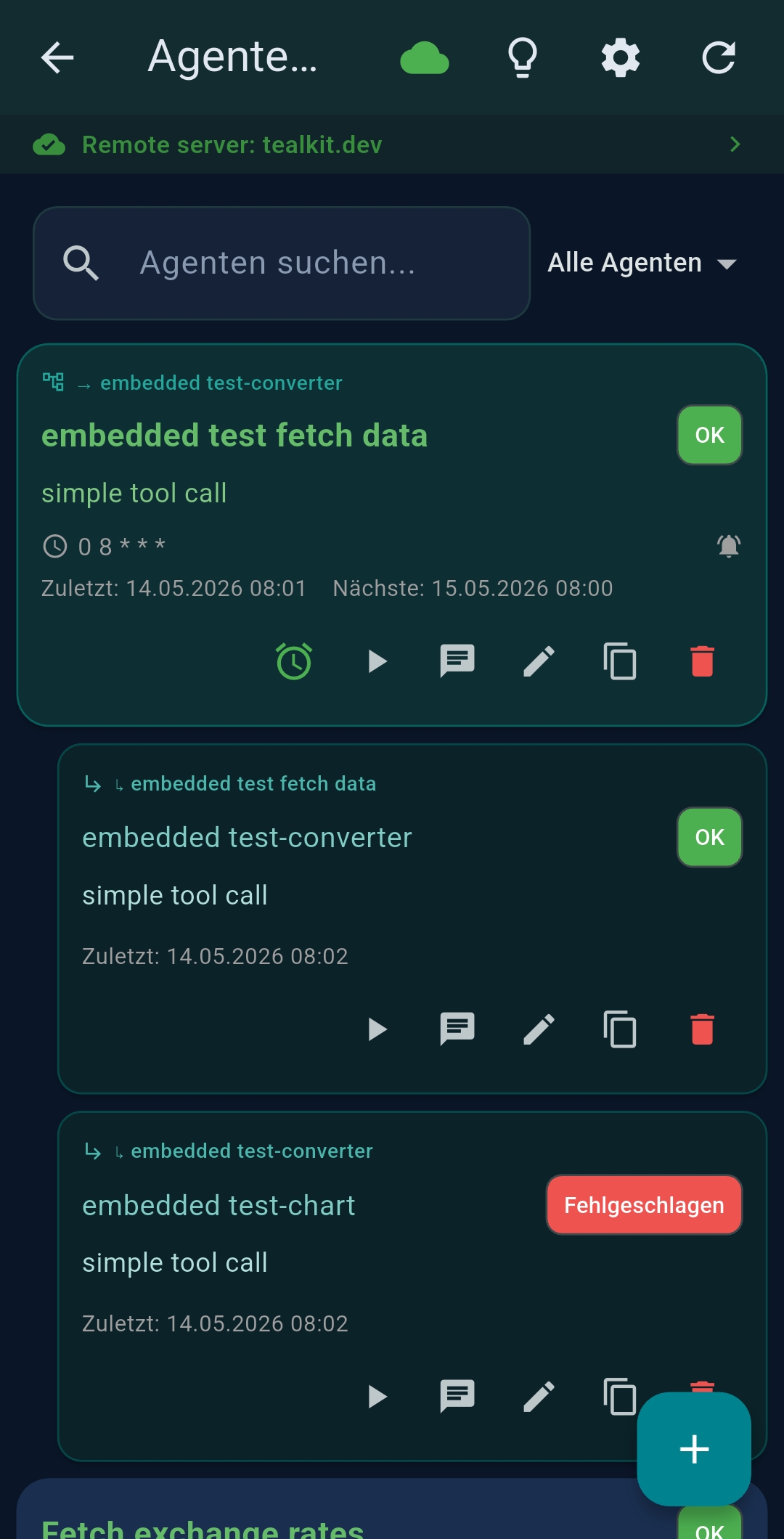
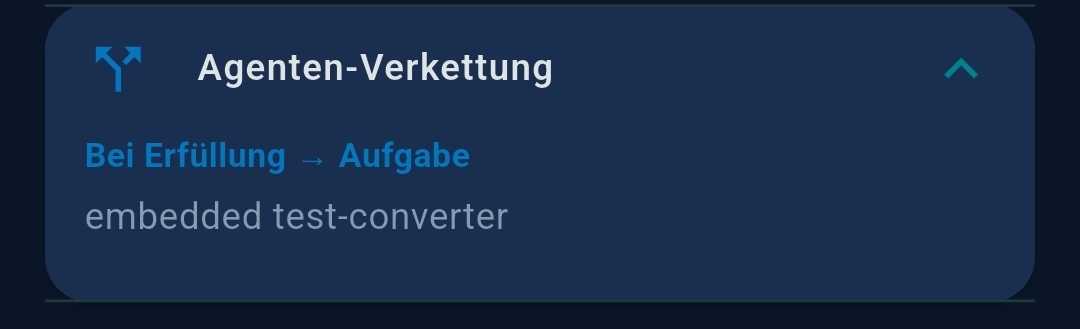
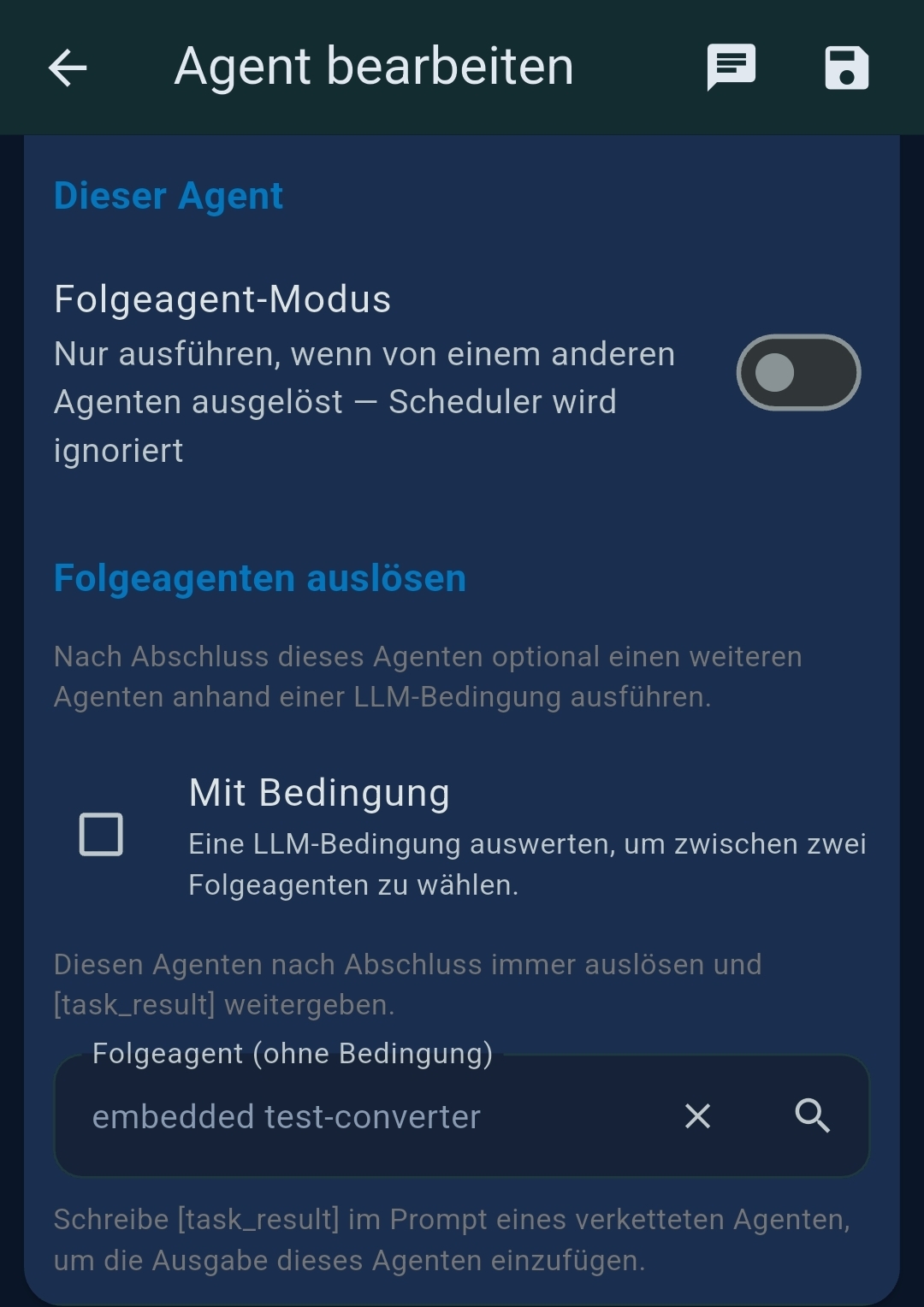
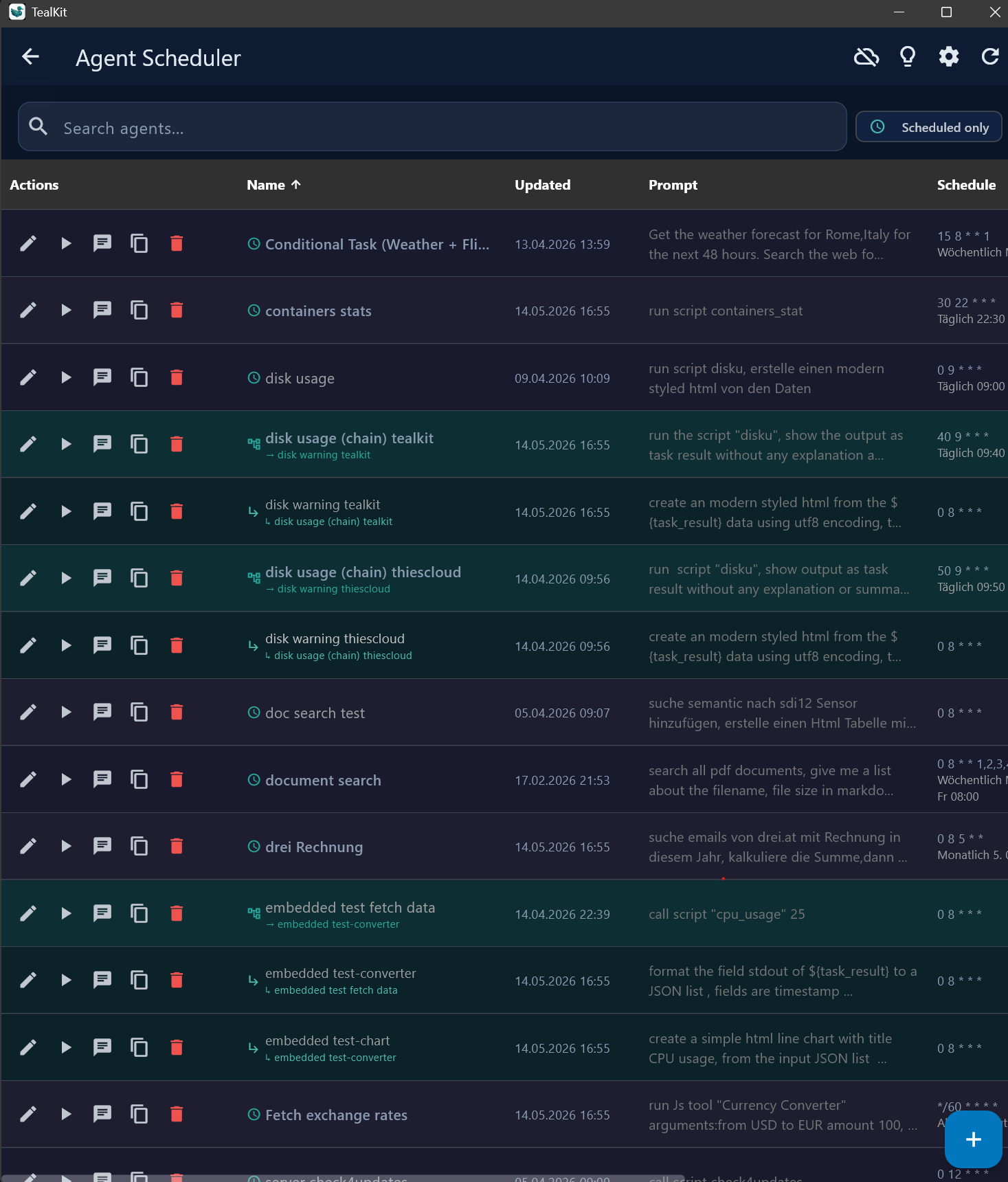
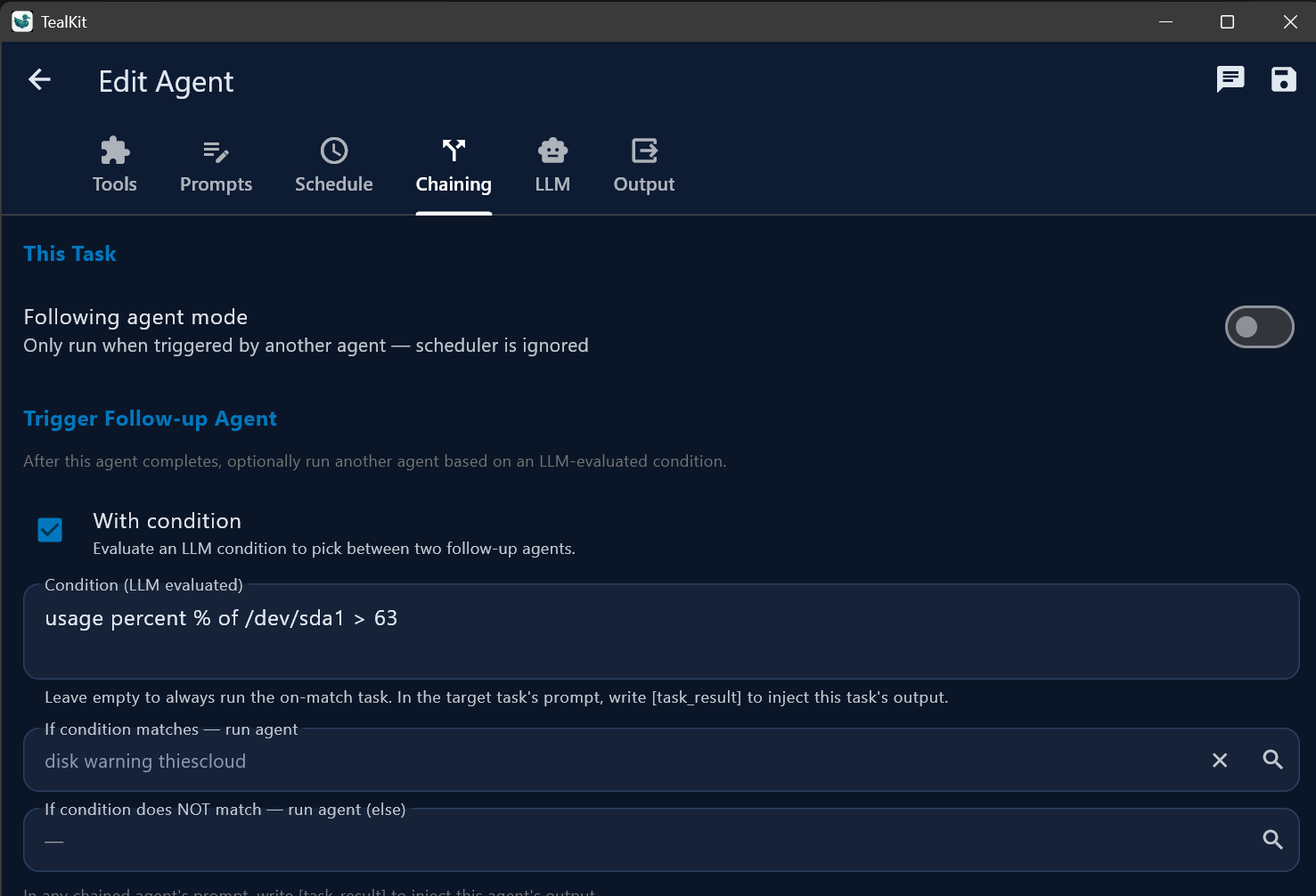
Chain agents so the output of one feeds into the next. Wherever ${task_result} appears in a chained agent’s system prompt or initial message, it is replaced with the triggering agent’s output.

Following agent mode

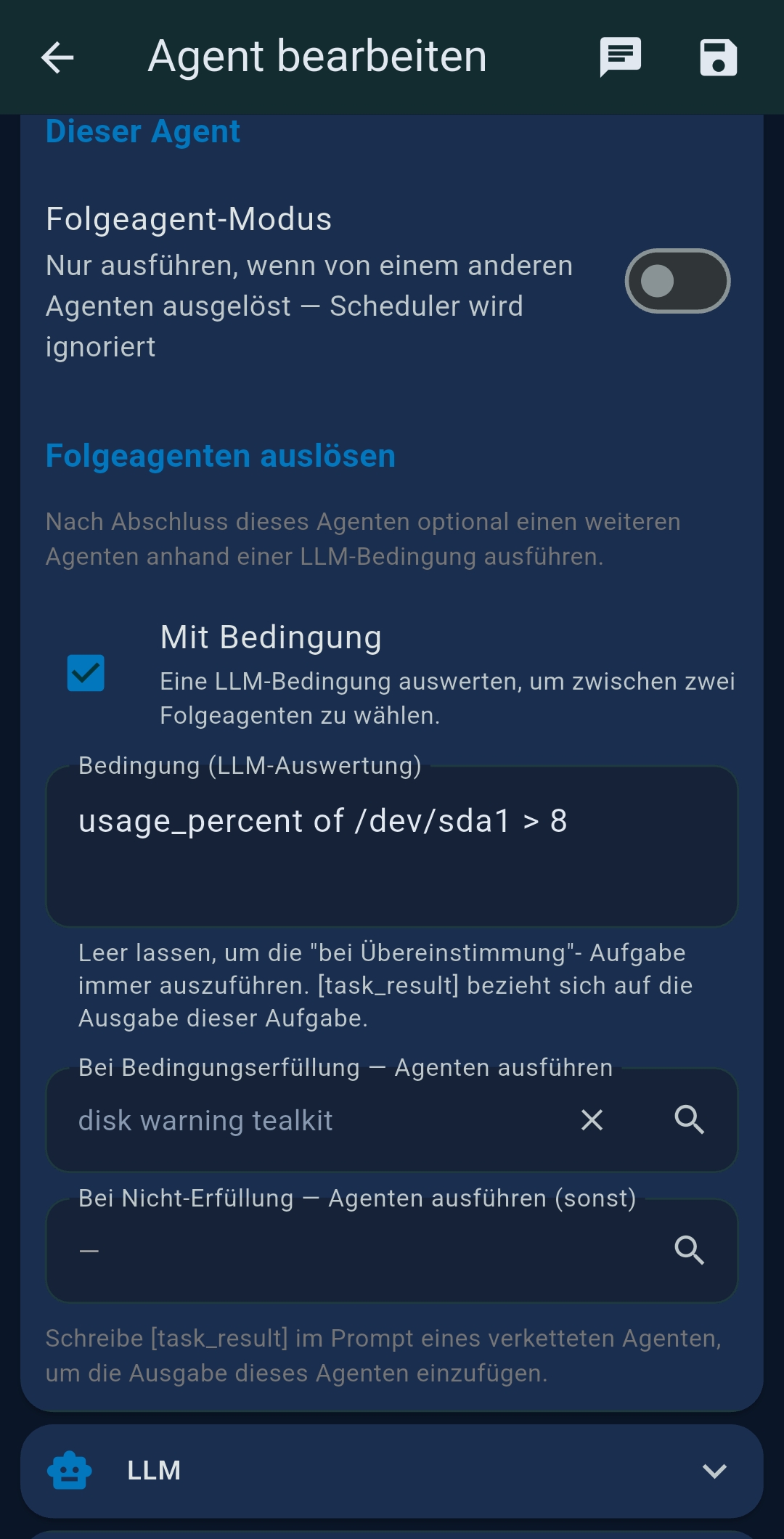
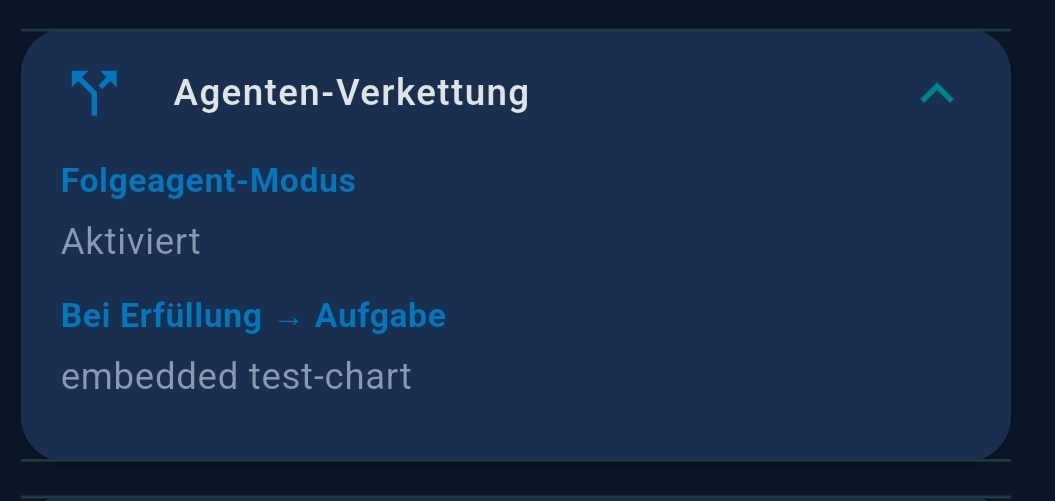
Enable Following agent mode on an agent (Basic tab) to mark it as a chained follow-up. Following agents only run when triggered by another agent — they are hidden from standalone agent lists and scheduling.

With condition & unconditional

When setting up a trigger on an agent, choose between:

Stop after tool call

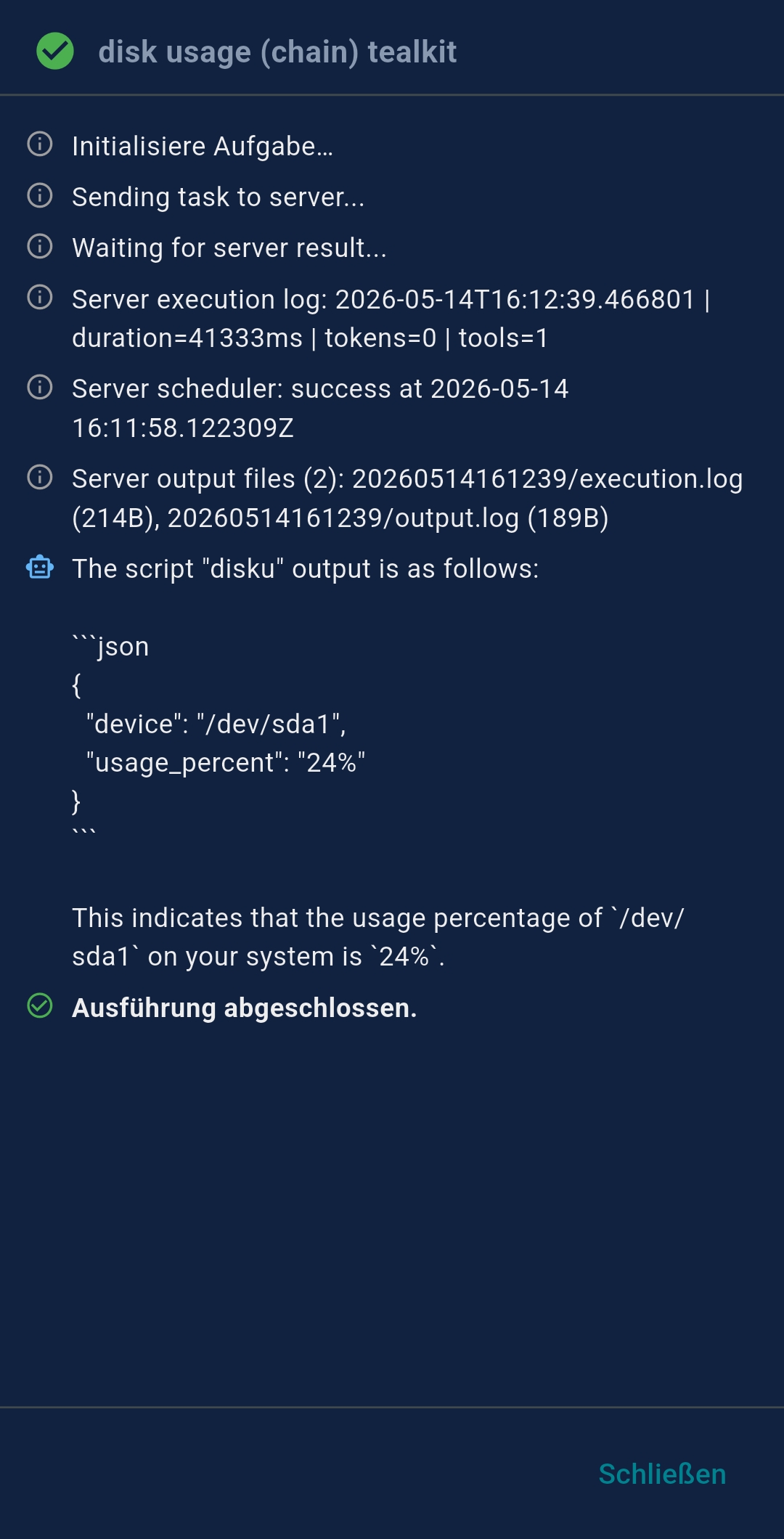
Enable Stop after tool call on an agent (Basic tab) or in Playground setup. When set, the agent executes one tool call, captures the raw output, and stops immediately — the raw tool output becomes ${task_result} for the next chained agent with no further LLM processing. Ideal for data-extraction agents where you need the exact, unmodified tool response (e.g. SSH output, search result, document snippet) to flow into a downstream agent.

Example chain: Agent A (SSH + Stop after tool call) runs script disk_usage → raw output becomes ${task_result}Agent B checks condition “usage > 80 %” → on match: Agent C (Email) sends an alert → on no match: silent — chain ends.

Unconditional example: Agent A fetches & summarises emails → Agent B always formats and sends the summary via Slack.
Tip: Use ${task_result} anywhere in the chained agent’s prompt. Example: “You received the following data: ${task_result} — identify the top 3 action items.”
Tip: Load an example agent via the Examples button to get started quickly.

✏️ Multi-step System Prompt Editor

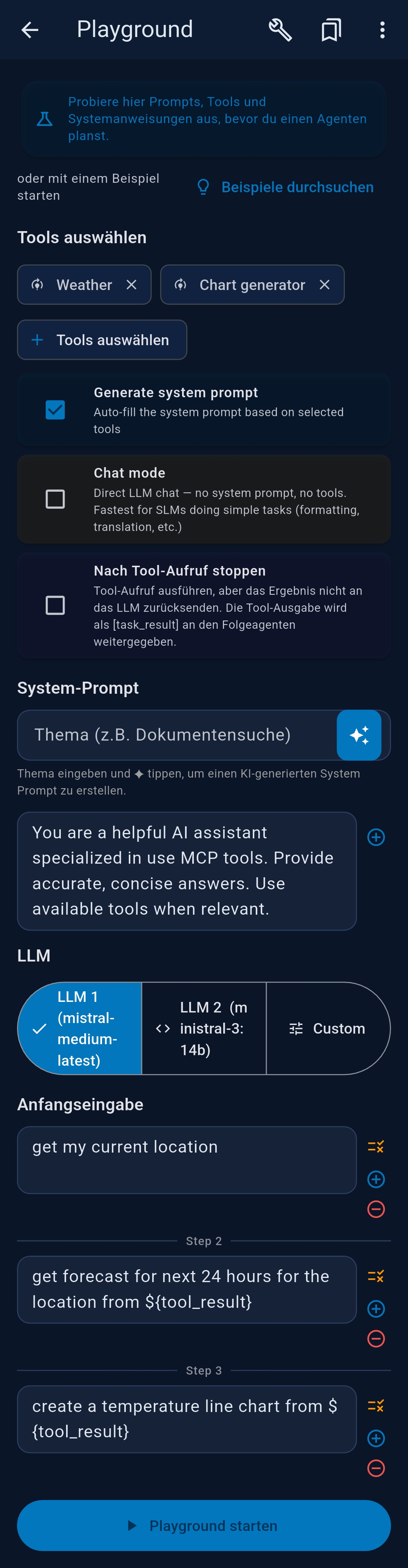
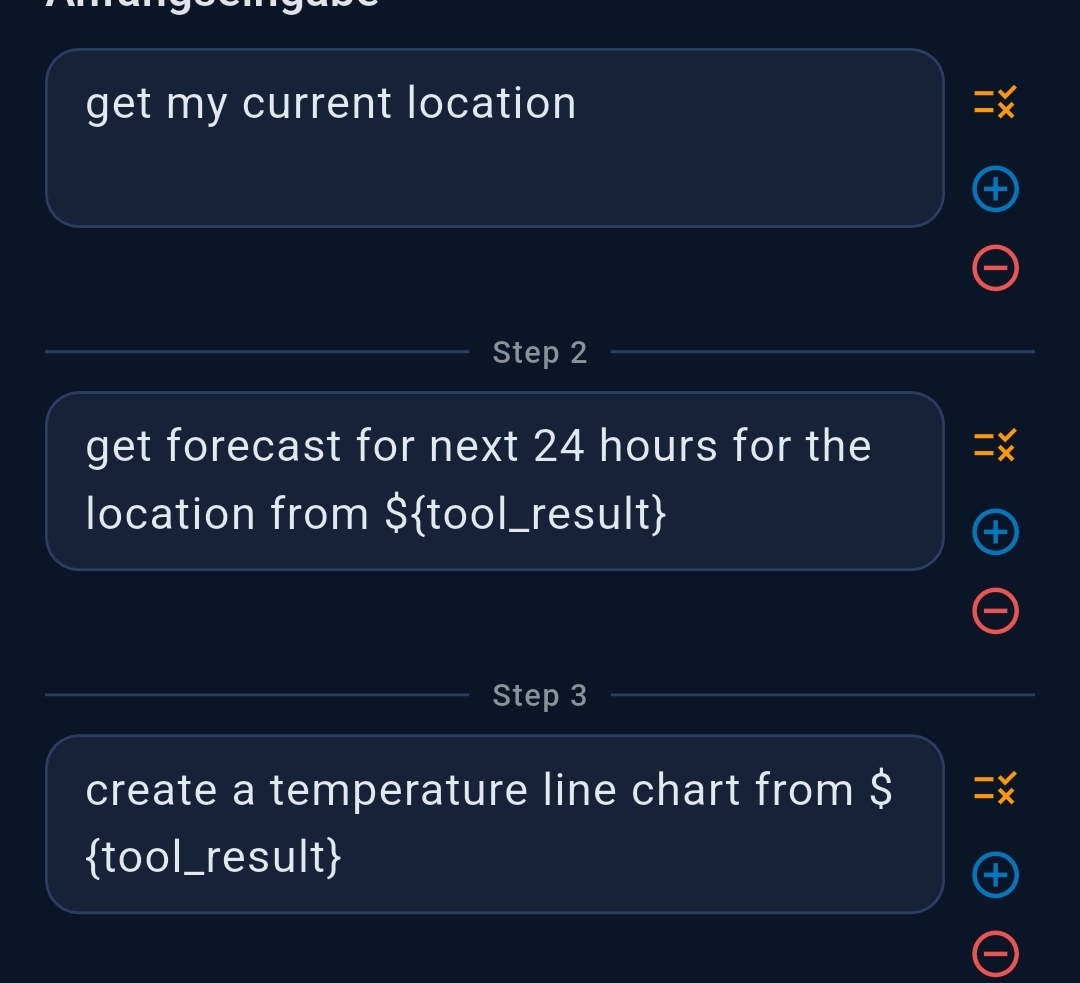
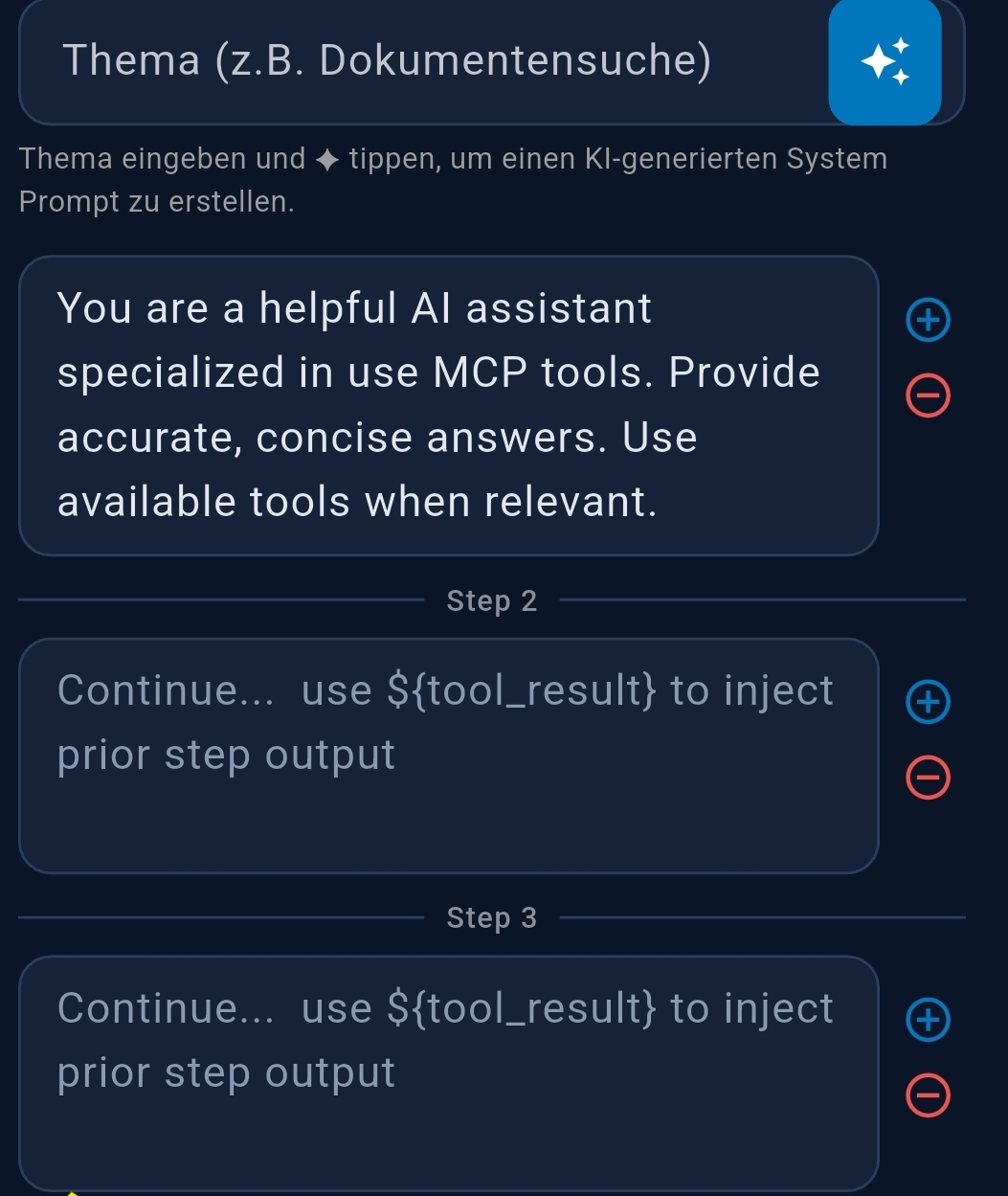
The system prompt field in the agent editor supports multi-step prompts using the ++#++ separator. TealKit visualises each section as a separate collapsible tile, making it easy to read and edit individual steps without scrolling through a single large text block.

For the full syntax, placeholder reference, and worked examples, see Section 5.1 — Prompt Splitting.

👁️ Preview Full Prompt

The agent editor shows a Preview button (👁 eye icon) next to the System Prompt header. Tapping it assembles the complete effective prompt that will be sent to the LLM at runtime — including the date/time header, toolbox guidance, tool capability hints, and any auto-injected tool skills — and displays it in a scrollable, editable dialog.

Tip: Use Preview Full Prompt before saving a new agent to verify the exact text the LLM will receive — especially useful when you are unsure how much the automatic skill injection or toolbox guidance adds to the prompt length.

5.1   Prompt Splitting

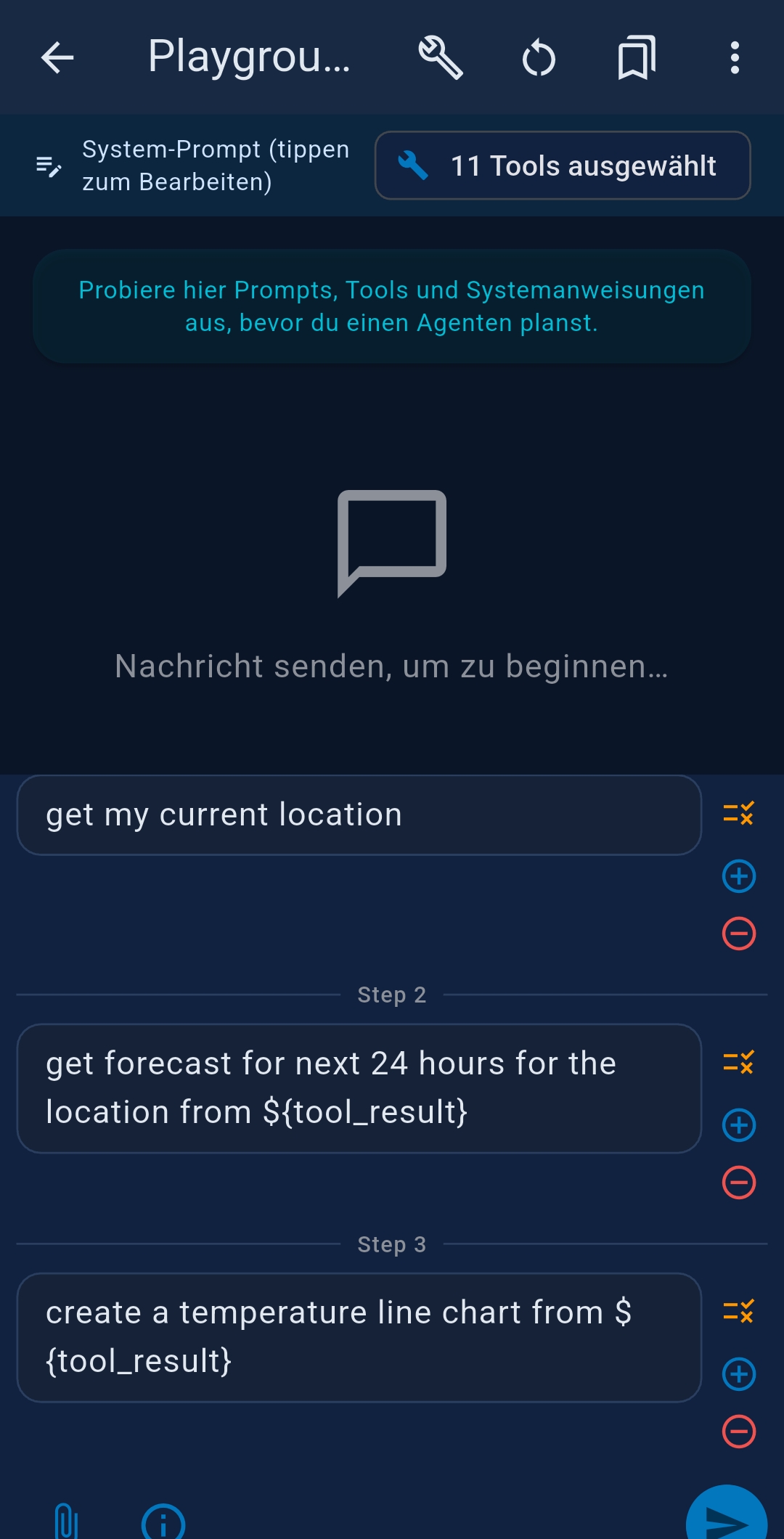
Prompt Splitting lets you break a single agent or Playground prompt into sequential steps using the ++#++ separator (on its own line). Each step runs as a complete, independent LLM call — the model handles one focused task at a time instead of trying to do everything in one long prompt. Use the ${tool_result} placeholder in a later step to inject the raw tool output (or LLM response text) from the previous step.

Syntax

First step prompt
++#++
Second step prompt that uses ${tool_result}
++#++
Third step ...

Example — fetch, format, and summarise with a small model

Fetch the disk usage report by calling the check_disk_usage tool.
++#++
Here is the raw disk data:
${tool_result}
Format this as a Markdown table. Highlight any partition above 80 % in bold.

In this example the first step calls the tool; the second step receives the raw tool output and formats it. Each step is simple enough for a 7–14 B local model to handle reliably.

When to use Prompt Splitting vs Agent Chaining

Prompt Splitting (++#++) Agent Chaining PRO
Setup One agent, one prompt field Multiple separate agents
Pro required No Yes
Model per step Same model for all steps Different model per agent
Conditional branching No Yes (LLM-evaluated condition)
Individual schedules No — single schedule, single task Yes — each agent can run independently
Data handoff ${tool_result} — raw tool output or LLM text from previous step ${task_result} — full output of previous agent
Best for Small/local models; sequential fetch → format → summarise within one agent; keeping each step focused and reliable Cross-model pipelines; conditional routing; different output channels per step; complex multi-agent workflows
Tip: If you are running an Ollama, embedded, or other small model and it fails to complete a multi-step prompt reliably, try splitting the prompt into two or three focused steps with ++#++. Small models usually handle one clear task per turn much better than a long multi-goal prompt.
Availability: Prompt Splitting works in the Playground, in scheduled agents (both local and Server Mode), and in the Live View. No Pro subscription required.

5.2   Tool Skills

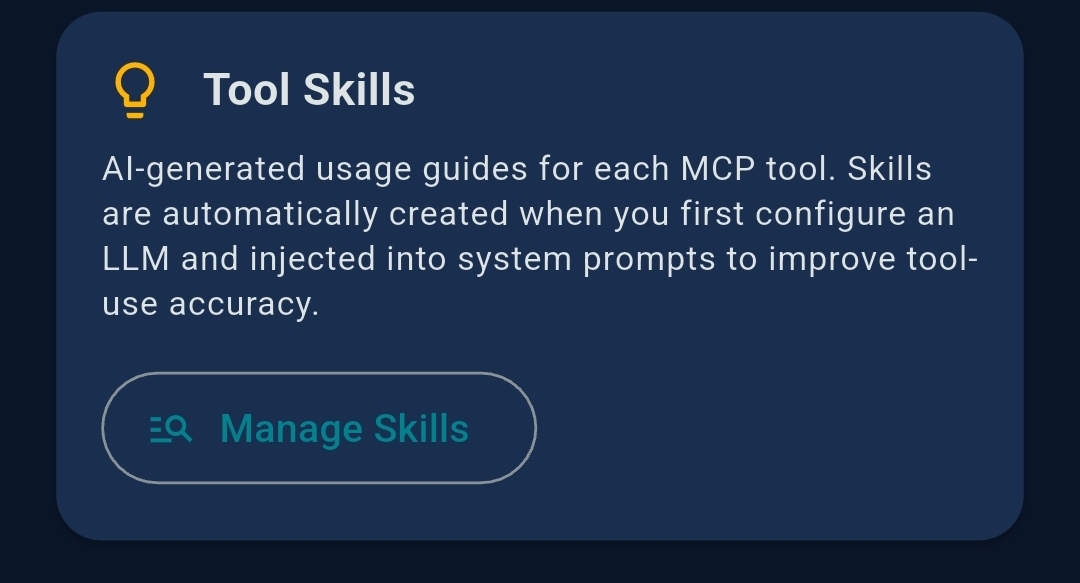
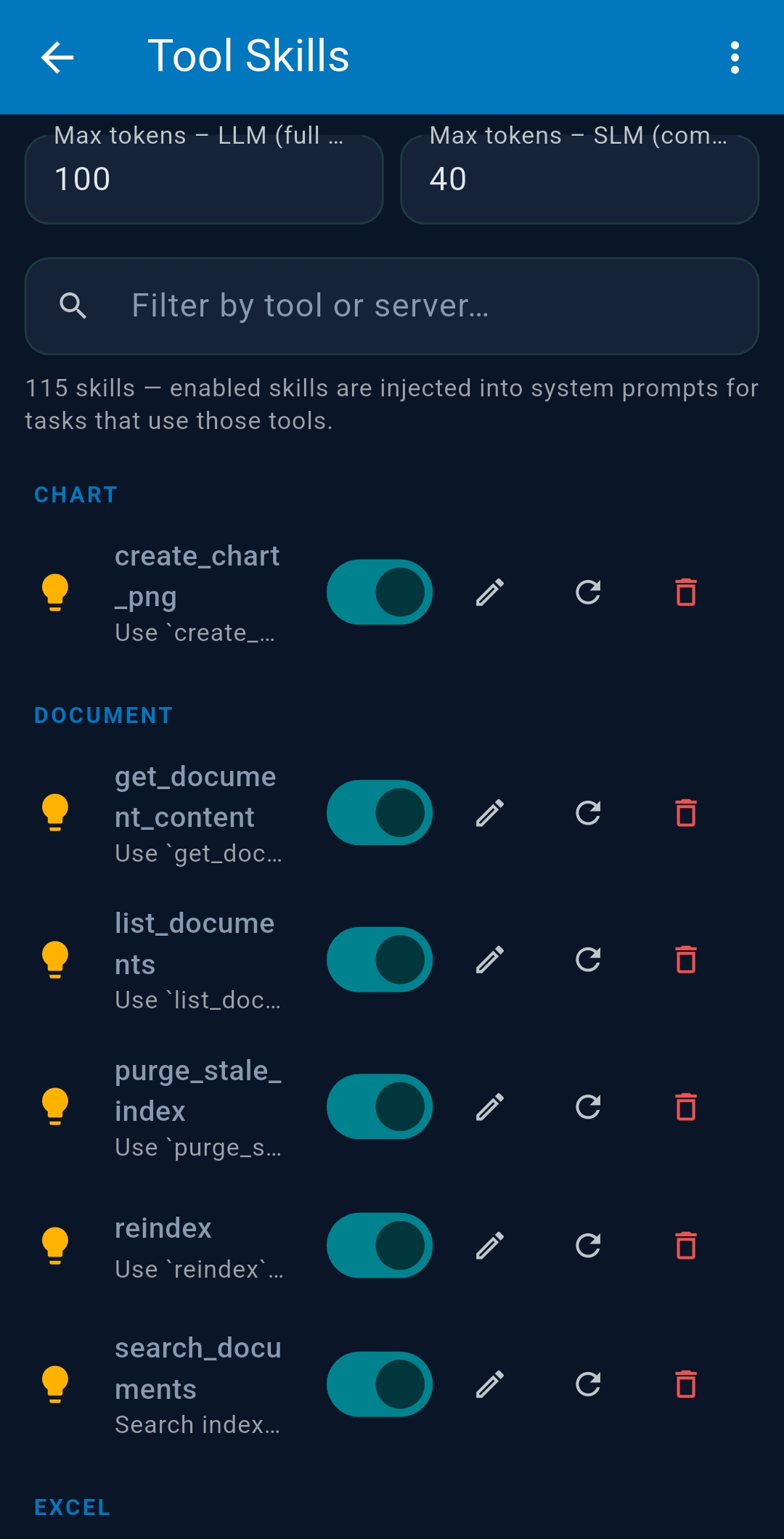
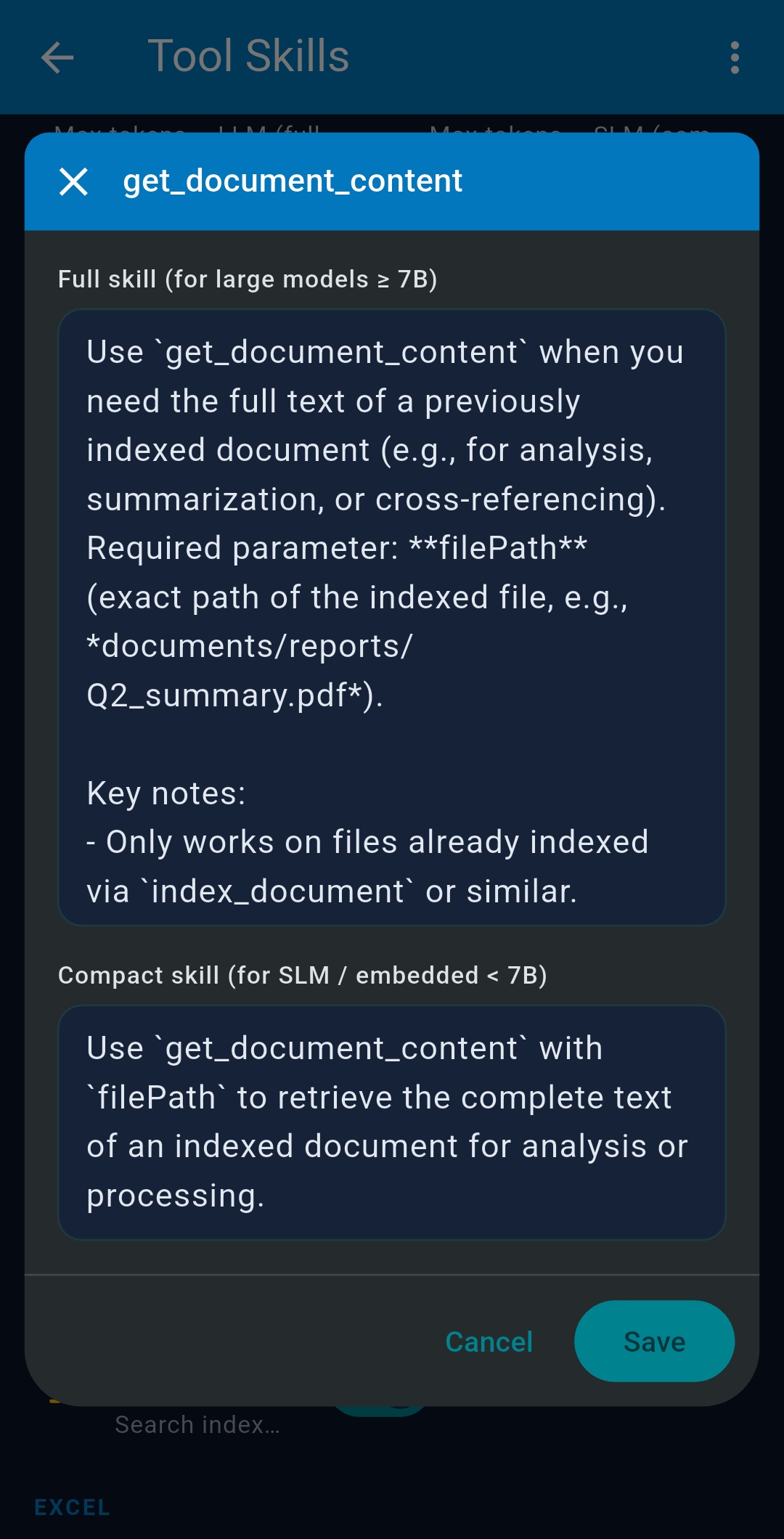
Tool Skills are concise usage hints stored per MCP server tool and automatically injected into the effective system prompt at runtime. They help the LLM understand when and how to call each tool correctly, without you having to write this guidance yourself in the system prompt.

Automatic injection by model size

TealKit adjusts how much skill text is injected based on the active model:

Model typeSkill text injectedWhen injected
Large models
e.g. GPT-4o, Claude Sonnet, Gemini 2.5 Pro
Full skill text — detailed description of tool parameters and best-practice usage Always, for every enabled tool
Small / compact models (SLMs)
≤7 B parameters: phi, mini, nano, tinyllama, qwen2.5:3b …
Compact mini skill text — one short line per tool, keeping the prompt lean Only when the agent has a substantive system prompt (multi-line or >50 characters). A very short or empty prompt receives no skills to avoid token bloat.
Why the difference? Large models absorb verbose skill text without performance loss. Small models have tighter context budgets — injecting long skill descriptions into a nearly-empty prompt wastes tokens without benefit. Write a meaningful system prompt for an SLM (e.g. role instructions, output format) and TealKit will add compact skill hints as a supplement.

Auto-generating skills

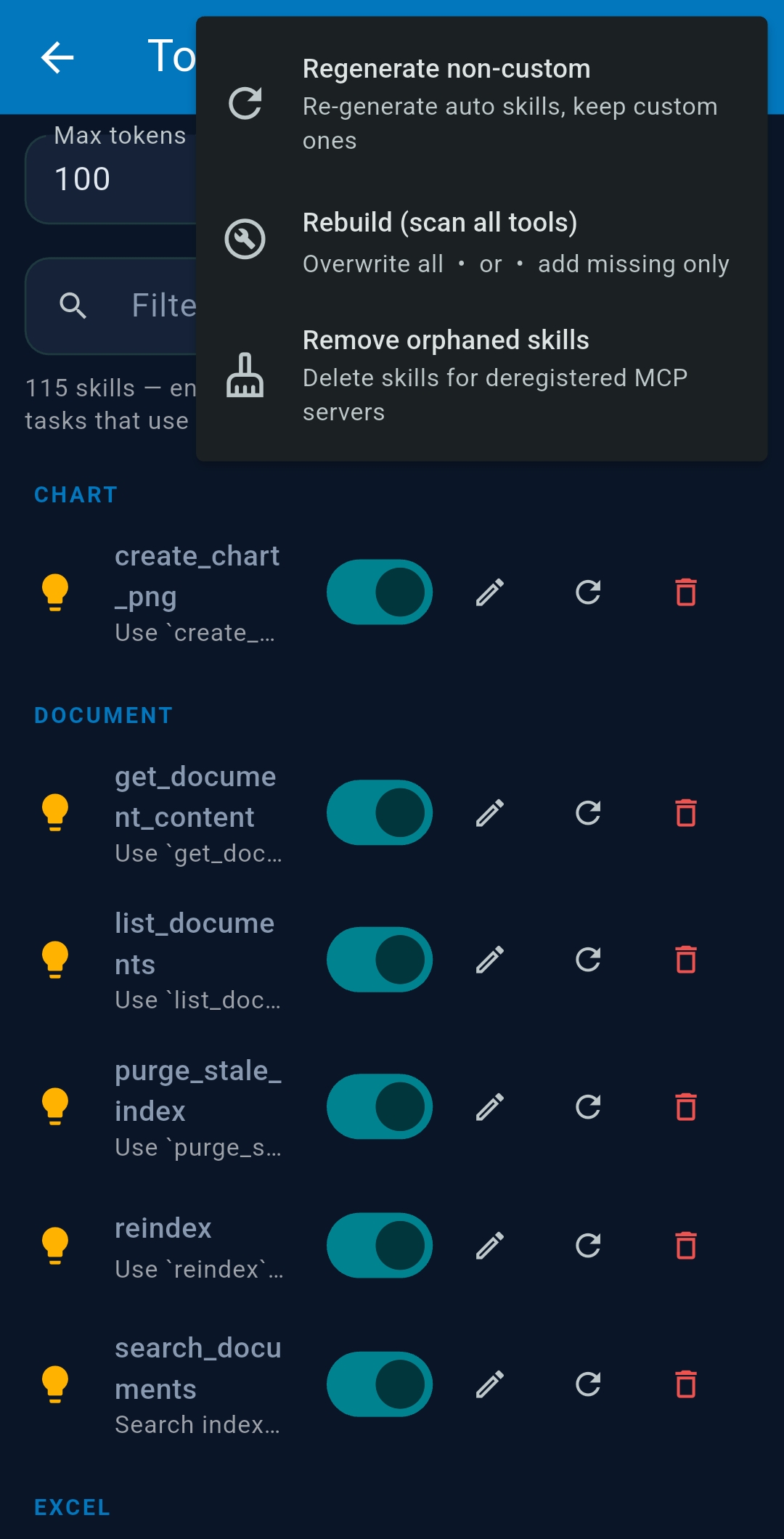
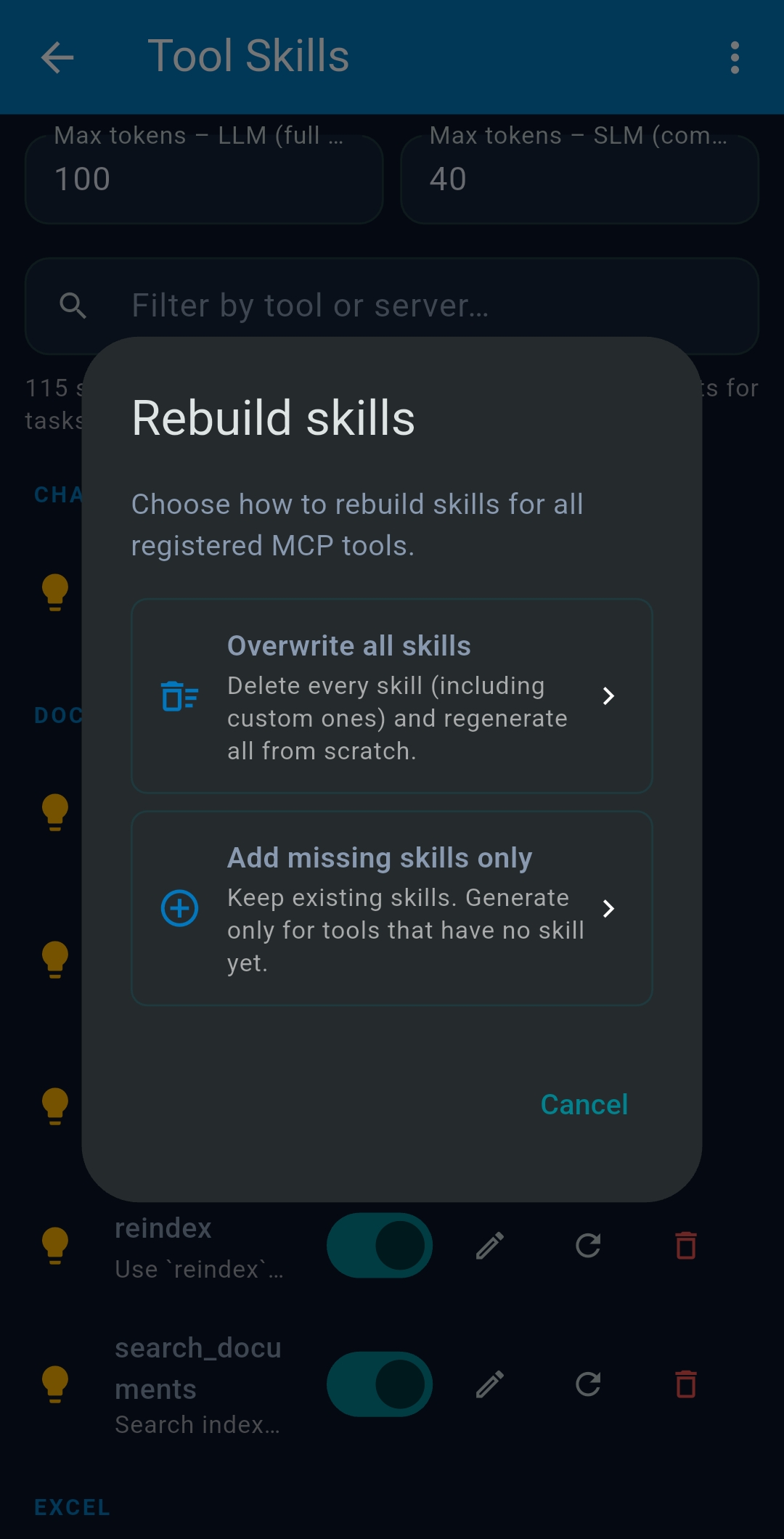
Skills can be generated automatically for any MCP server with a single tap:

  1. Open the Playground or an Agent editor and switch to the Tools tab.
  2. Find the MCP server card for the server you want to enrich.
  3. Tap the ✨ (sparkle) icon on the server card.
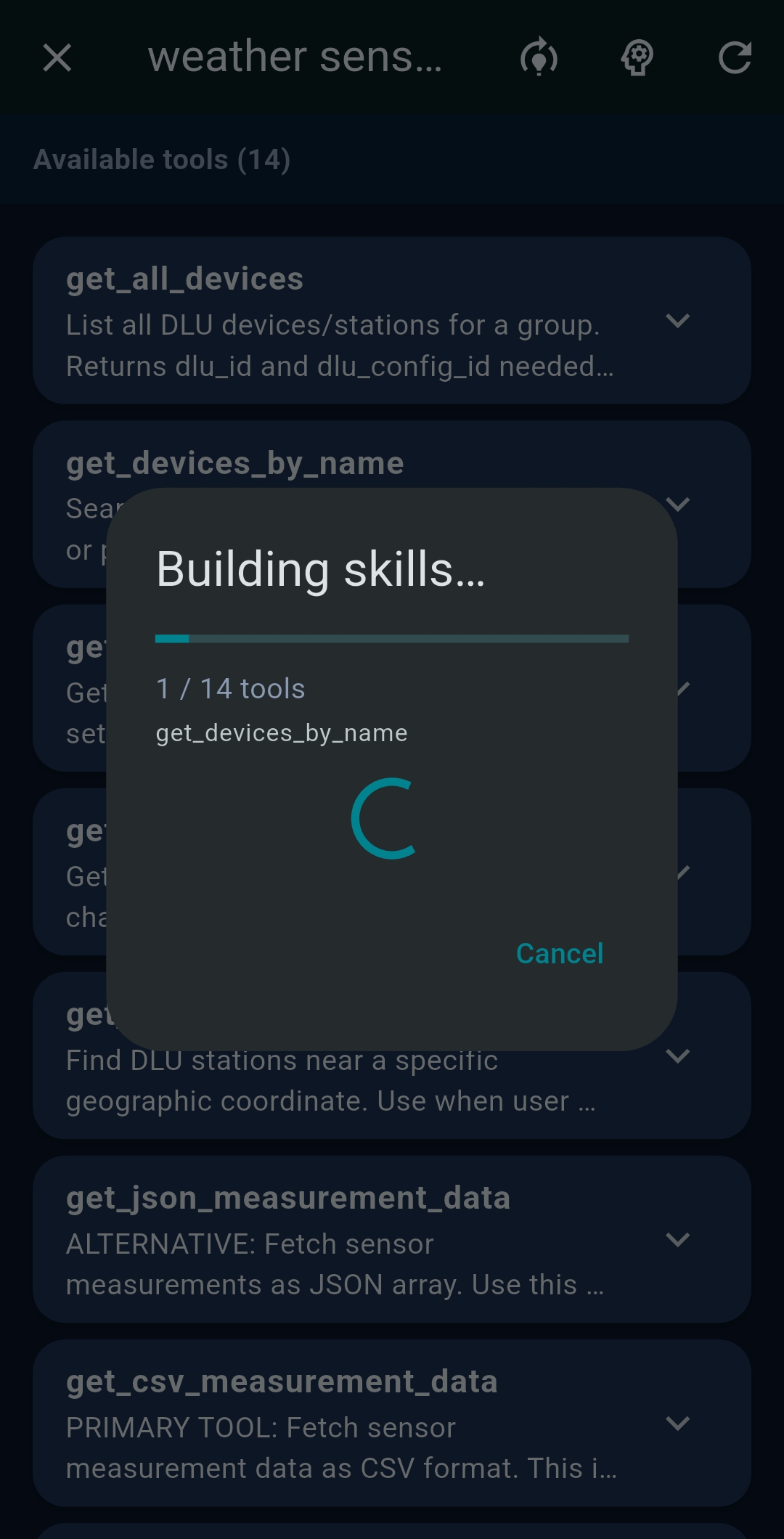
  4. TealKit calls the LLM to analyse the server’s tool list and write concise skill descriptions — both full and compact (SLM) versions — for each tool.
  5. The Skill Editor opens automatically with the generated skills for review.
  6. Tap Save to store the skills.

Editing skills manually

You can also write or adjust skills by hand at any time:

  1. On any MCP server card in the Tools tab, tap the 🧠 (brain / psychology) icon.
  2. The Skill Editor opens showing all tools for that server. Each tool has two fields:
    • Full skill — for large models. Describe the tool’s purpose, key parameters, and usage tips in a few sentences.
    • Compact skill (SLM) — for small models. One or two short sentences maximum.
  3. Edit, clear, or rewrite any skill entry. Tap Save to apply.
Note: Skills are stored per MCP server in TealKit’s local database and shared across all agents that use that server. Editing a skill affects every agent that has the same server enabled.
Tip: If the AI is calling a tool with wrong parameters or ignoring a tool that would help, add a targeted skill for that tool explaining exactly when and how to use it. A well-written skill often fixes incorrect tool usage without any changes to the system prompt.

6   Data Sources

Configure data sources in Settings → Data Sources. Each source can be toggled on/off per agent independently.

📧 Email (Gmail / IMAP)

Connect Gmail via OAuth or configure any IMAP server. The AI can search, read, and optionally send emails.

🔍 Web Search

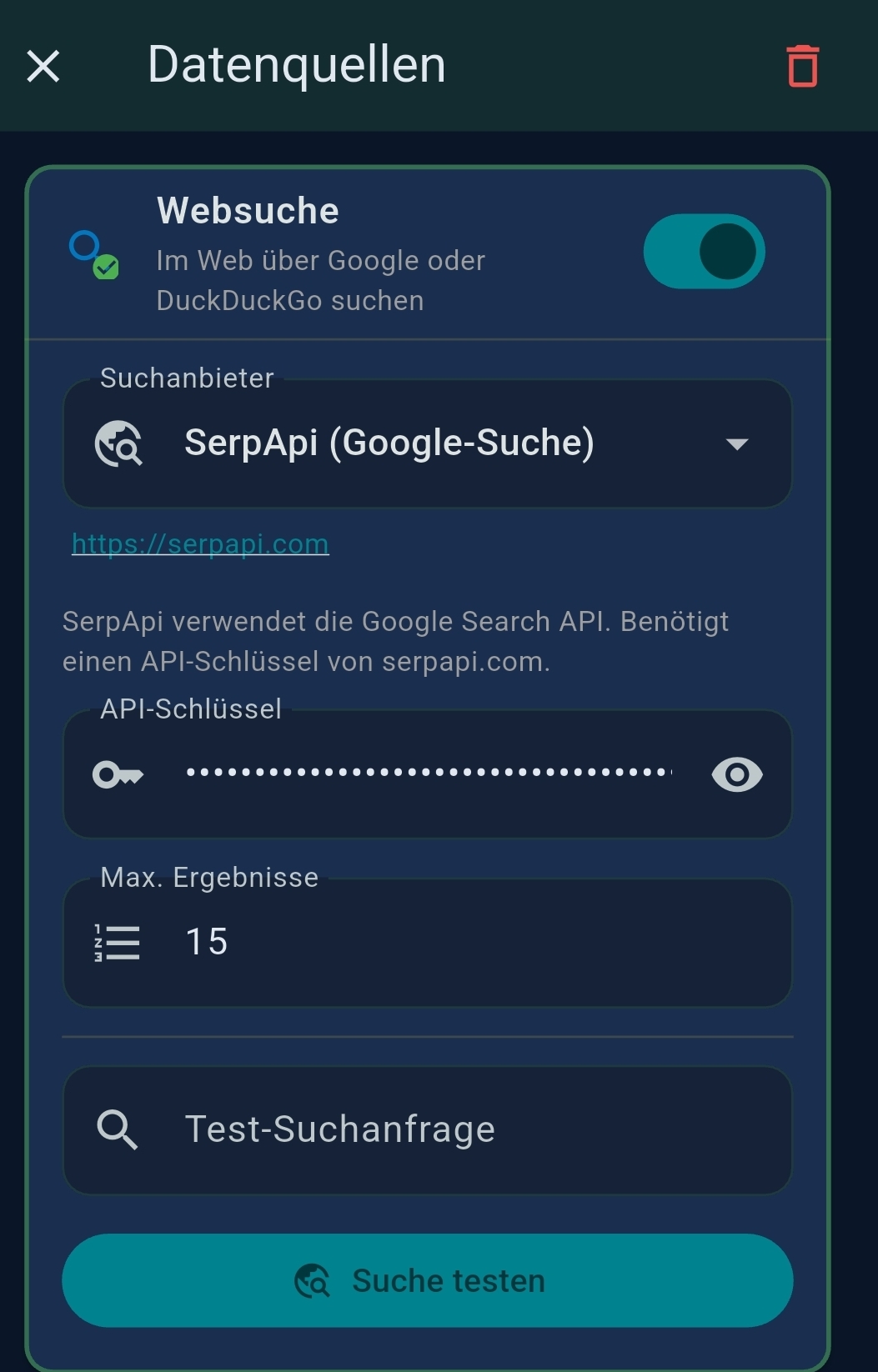
Choose DuckDuckGo (free, no key needed), Serper.dev, or SerpAPI. Enter your API key for premium providers.

📄 Documents

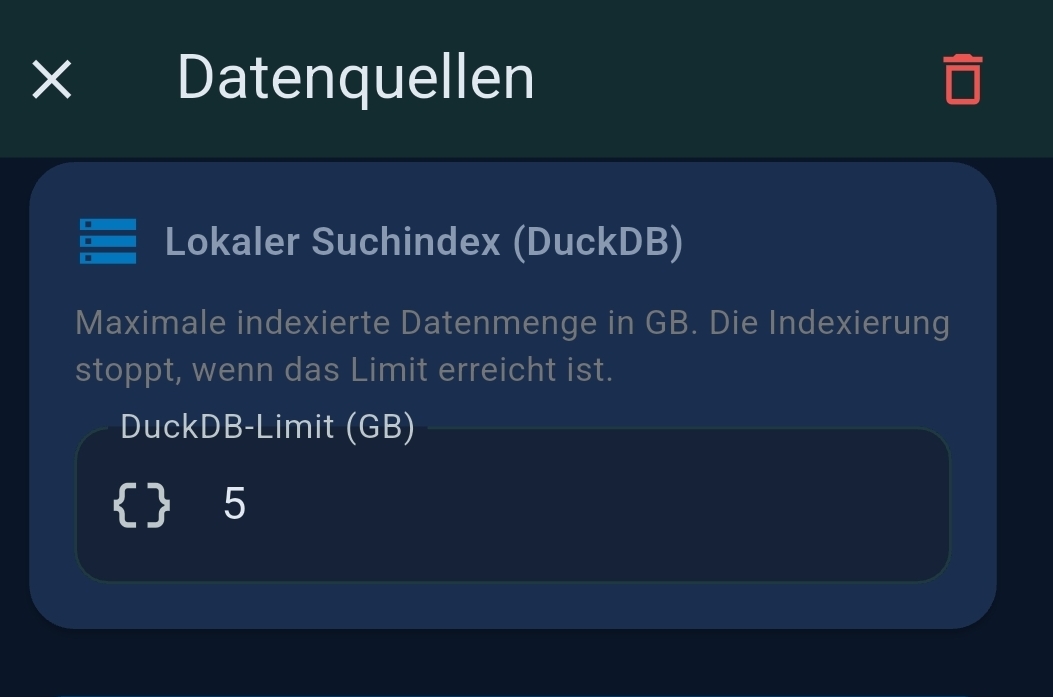
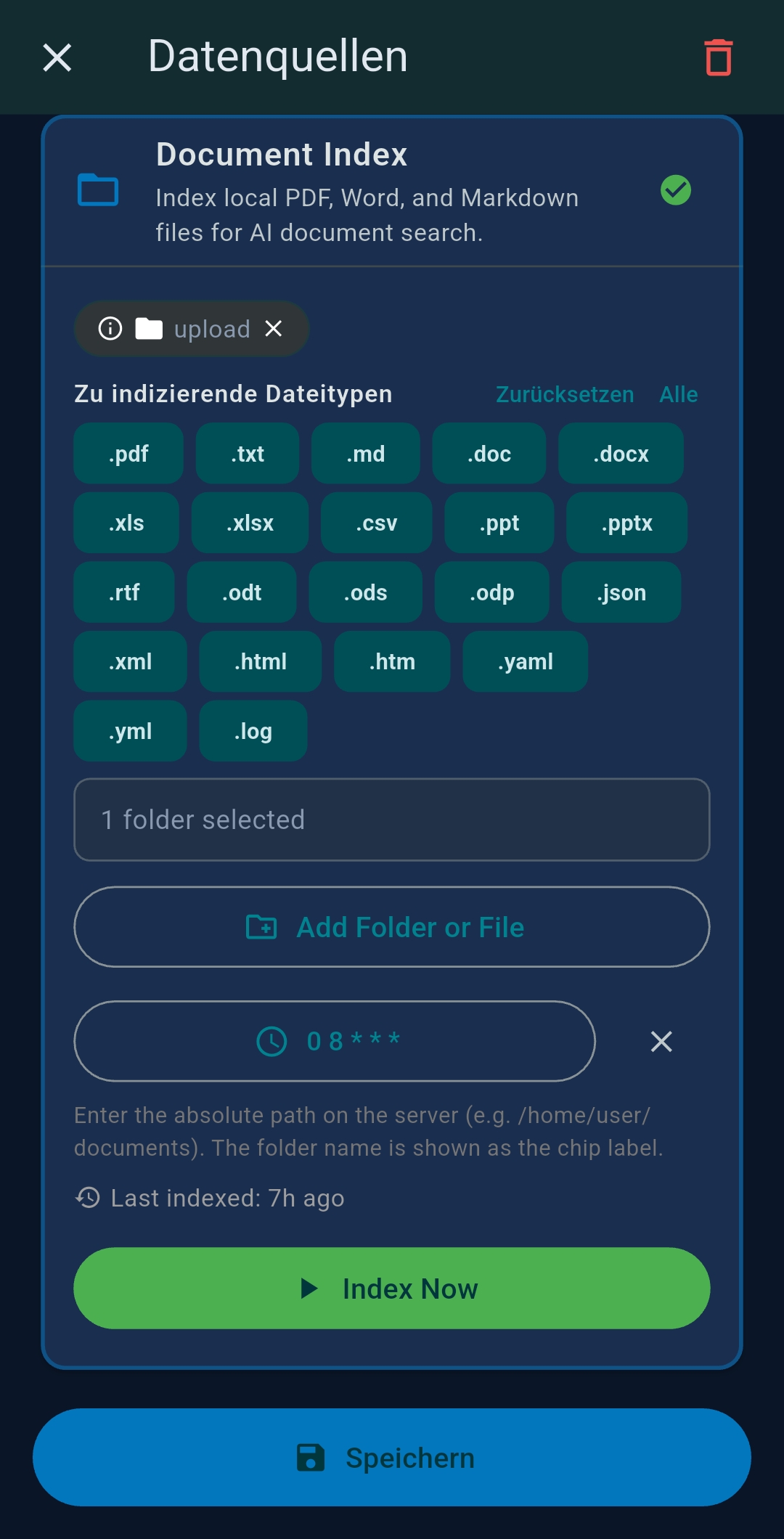
Point to one or more local folders. TealKit indexes all documents into a local DuckDB database using hybrid semantic + keyword search. See Document Search for details.

🌐 Website Search

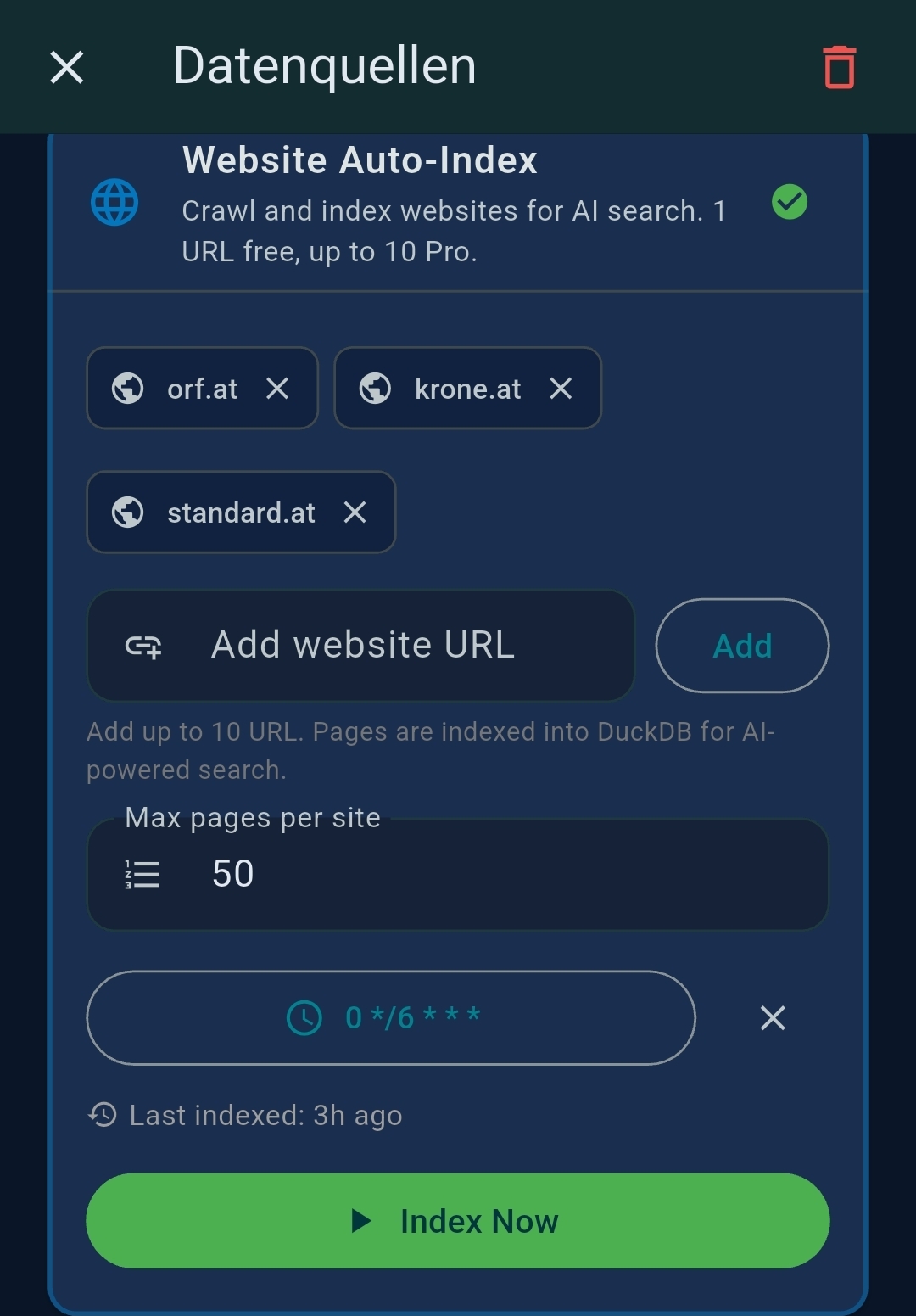
Add seed URLs and let TealKit crawl and index them locally into a full-text search index. Index before starting the Playground or Agent — crawling can be stopped at any time.

Indexing can be scheduled automatically on a cron schedule (minimum 1-hour intervals: hourly, daily, weekly, or monthly). A Last indexed timestamp is shown and a manual Index Now button is always available. Scheduled re-indexing runs in the background without any user interaction. PRO

📍 Location

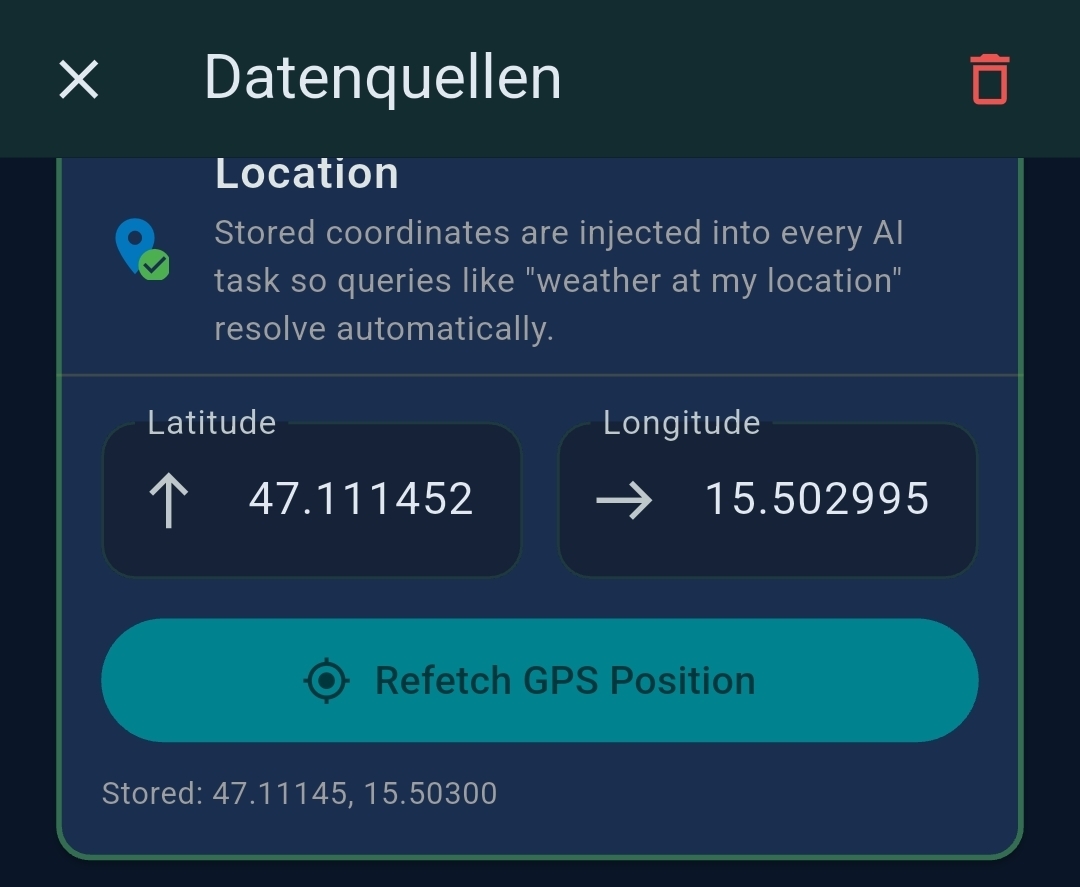
Optionally save GPS coordinates. They are injected into every agent so queries like "weather at my location" resolve automatically. Coordinates never leave your device.

☁ Google Drive

Connect via OAuth to search and read files from your Drive.

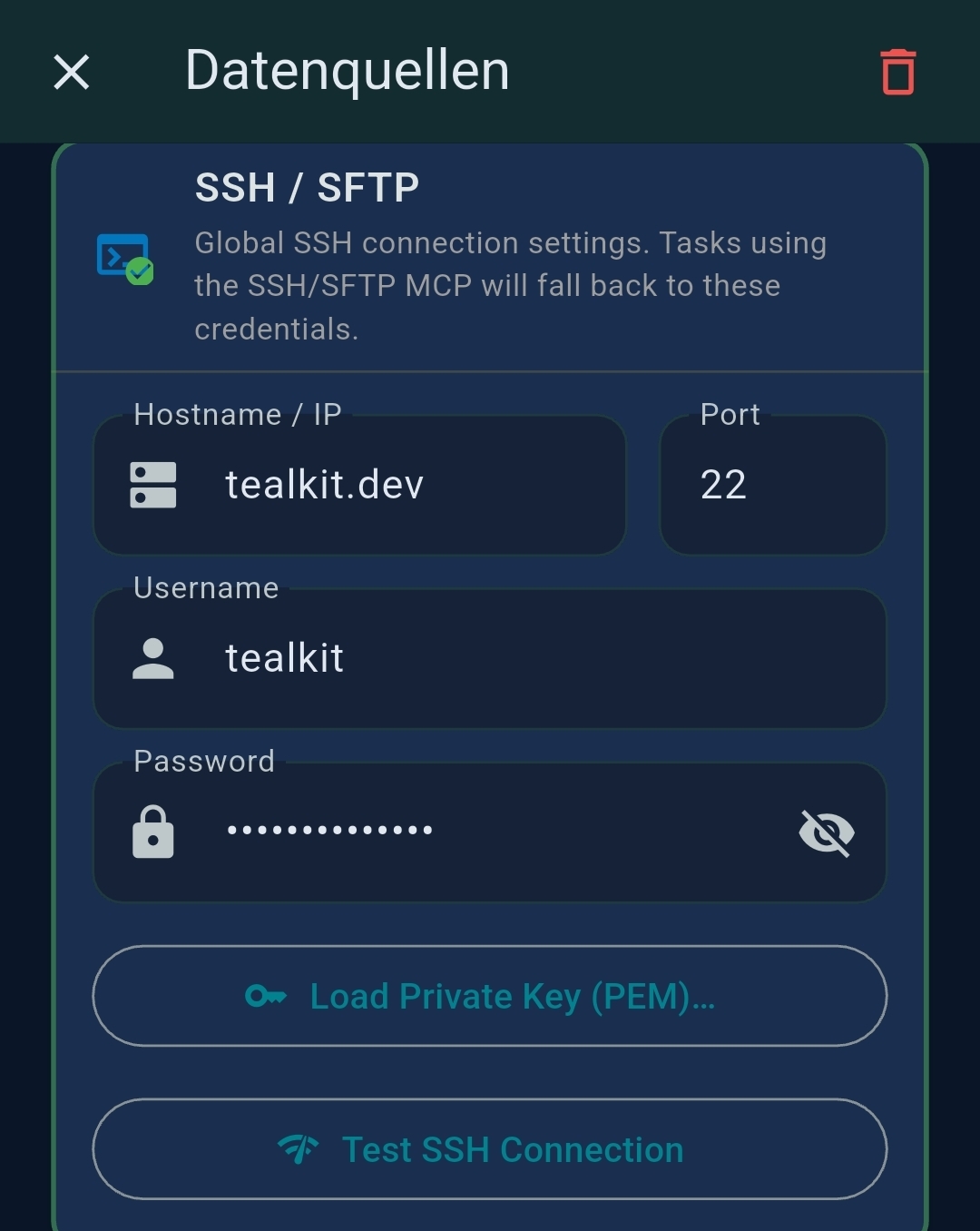
🖥 SSH

Connect to a remote SSH server. See the SSH section for full details.

🏠 Home Assistant

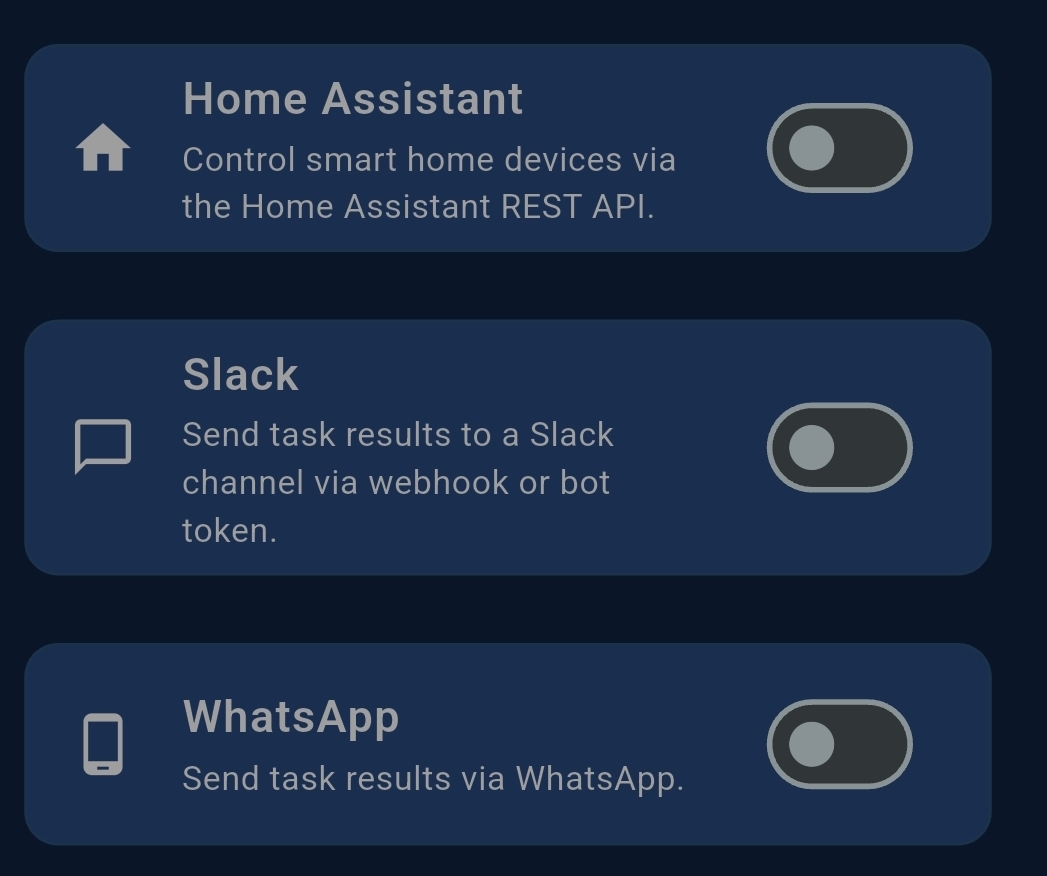
Control your smart home via Home Assistant. Configure the Base URL and a Long-Lived Access Token once in Settings → Data Sources → Home Assistant and the AI can query and control any entity. See the Home Assistant section for full details.

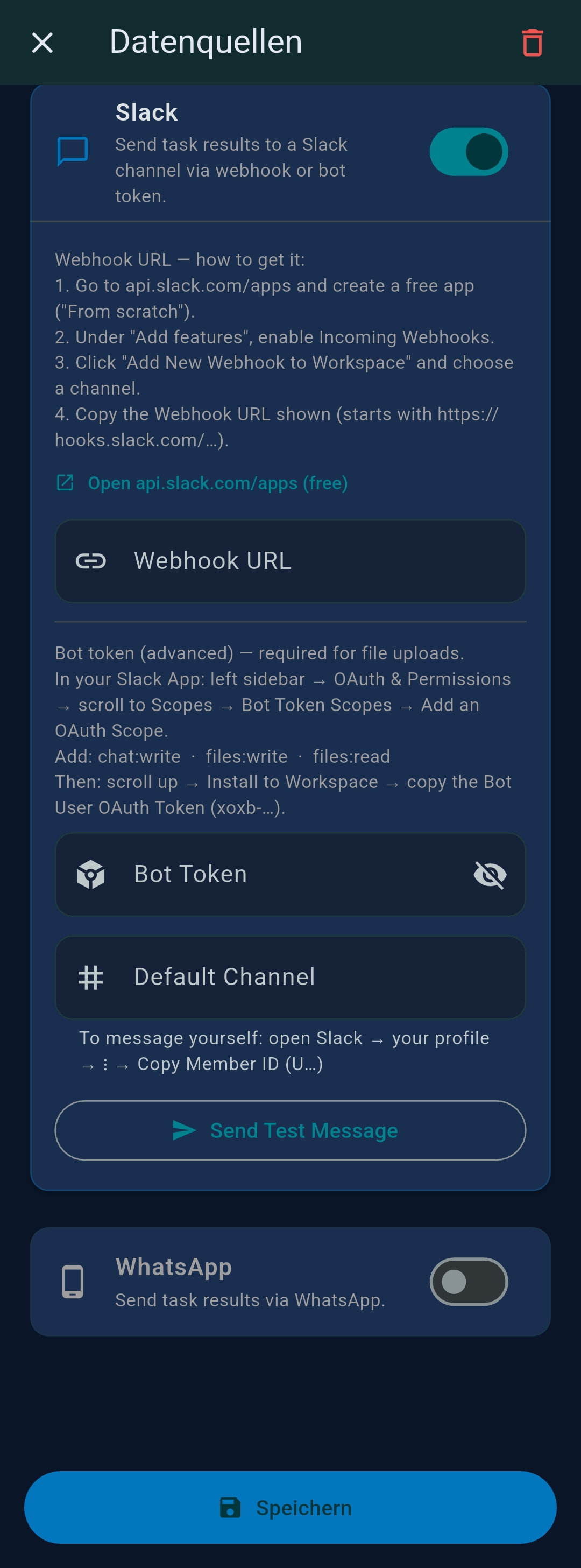
💬 Slack

Configure Slack credentials for automatic agent output delivery. Creating a Slack App is freecreate one at api.slack.com. Two modes:

Tip: Tap Send Test Message to verify the connection before saving.

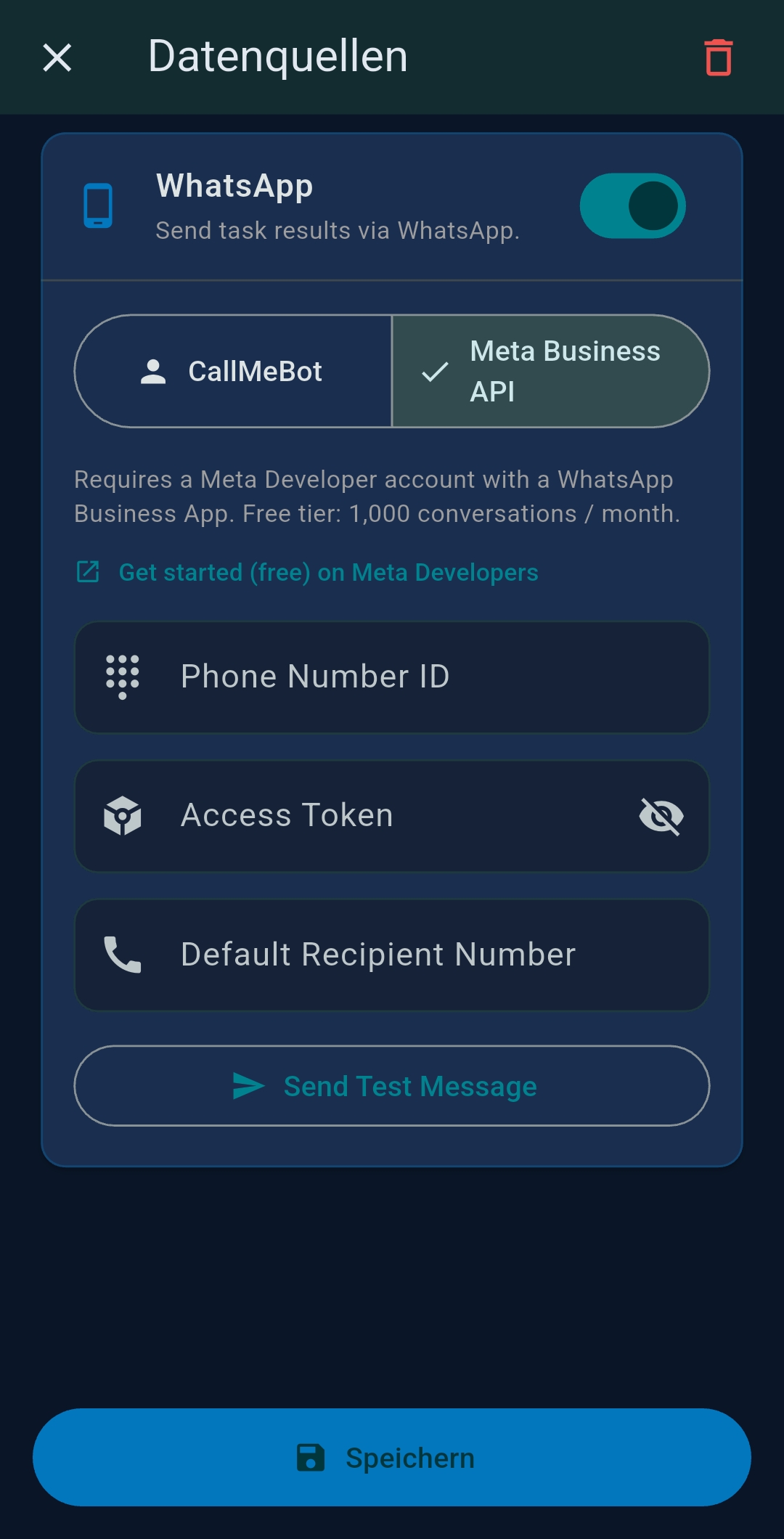
📲 WhatsApp

Configure Meta Business Cloud API credentials for WhatsApp output delivery. Registration is free and includes 1,000 conversations / month at no cost — get started on Meta Developers.

Tip: Tap Send Test Message to verify your credentials before running a agent.

7   MCP Servers

TealKit ships with a set of built-in MCP servers and supports external servers from the broader ecosystem.

Built-in servers

ServerWhat it provides
documentsSemantic + keyword search over your local document folders
website_searchCrawl and search indexed websites
web_searchLive web search (DuckDuckGo / Serper / SerpAPI)
emailRead, search, and send emails via Gmail or IMAP
google_driveSearch and read files from Google Drive
toolboxCurrent time, timezone, device location, and city geocoding
sshRun shell commands on remote SSH hosts PRO
home_assistantControl smart home devices via the Home Assistant REST API PRO
weatherCurrent weather and forecast (uses location if available)
fileCreate text, Markdown, or HTML output files
excelConvert CSV / JSON / text data to an Excel .xlsx file PRO
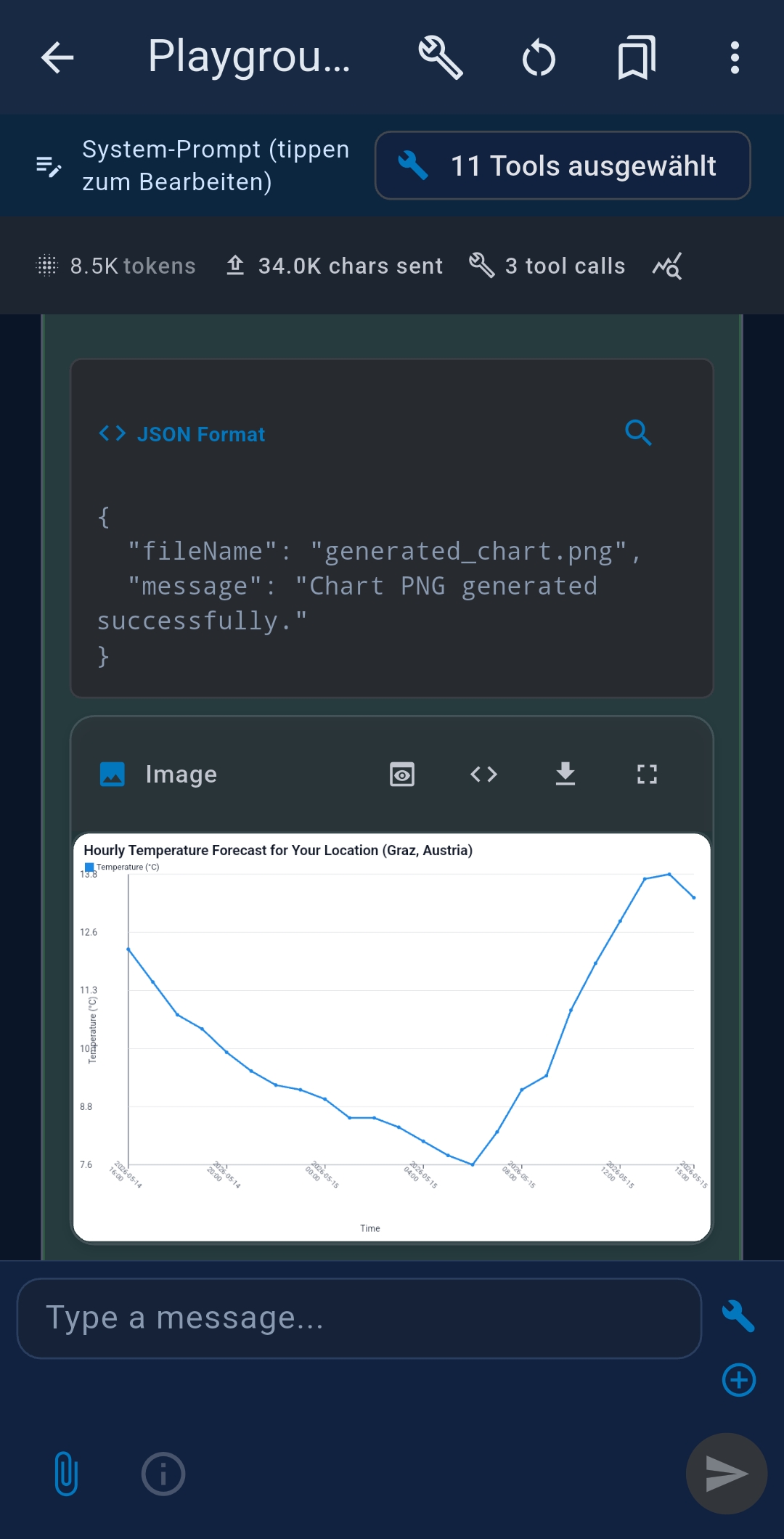
chartGenerate PNG charts from numeric data series — chart types: line, bar, area, pie, scatter, histogram, and statistics_summary (4-panel dashboard). Optional parameters: title, axis labels, axis rotation, and custom line colors. PRO
mermaidRender Mermaid diagram syntax (flowcharts, sequence diagrams …) to PNG images PRO
pdfGenerate PDF documents from AI-produced content PRO

💡 Three ways to extend the AI with tools

TealKit gives you three distinct and complementary ways to add tools to the AI. Understanding the difference helps you pick the right approach for each agent:

ApproachWhat it isPlatforms
Remote MCP ServersCloud-hosted servers you connect to over HTTPS/SSE — nothing installed locallyAll (mobile + desktop)
MCP Server Registry PROPublic Node.js & Python servers you install locally with one clickDesktop only
Custom Tools / Scripts PROYour own mini MCP servers — shell scripts, JS snippets, or Python tools the AI calls as standard MCP toolsAll (mobile + desktop)

☁️ Remote MCP Servers — cloud / hosted (all platforms)

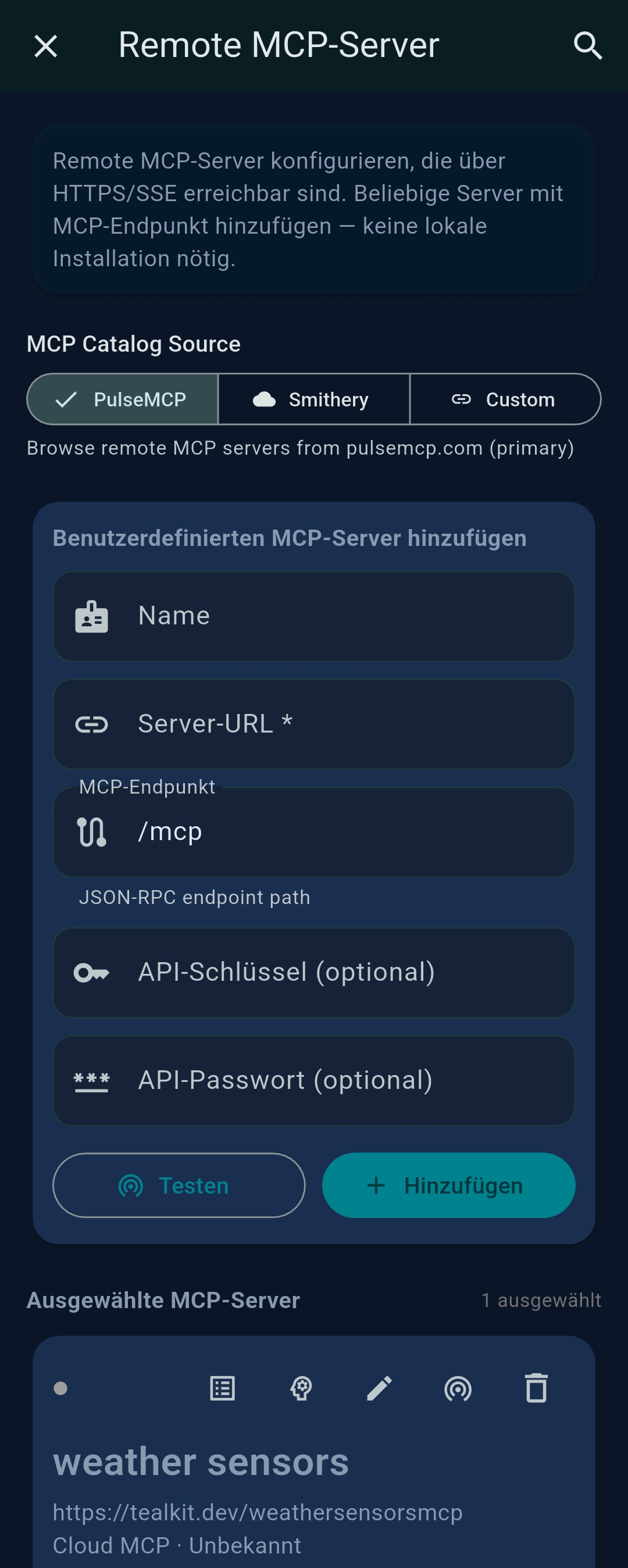
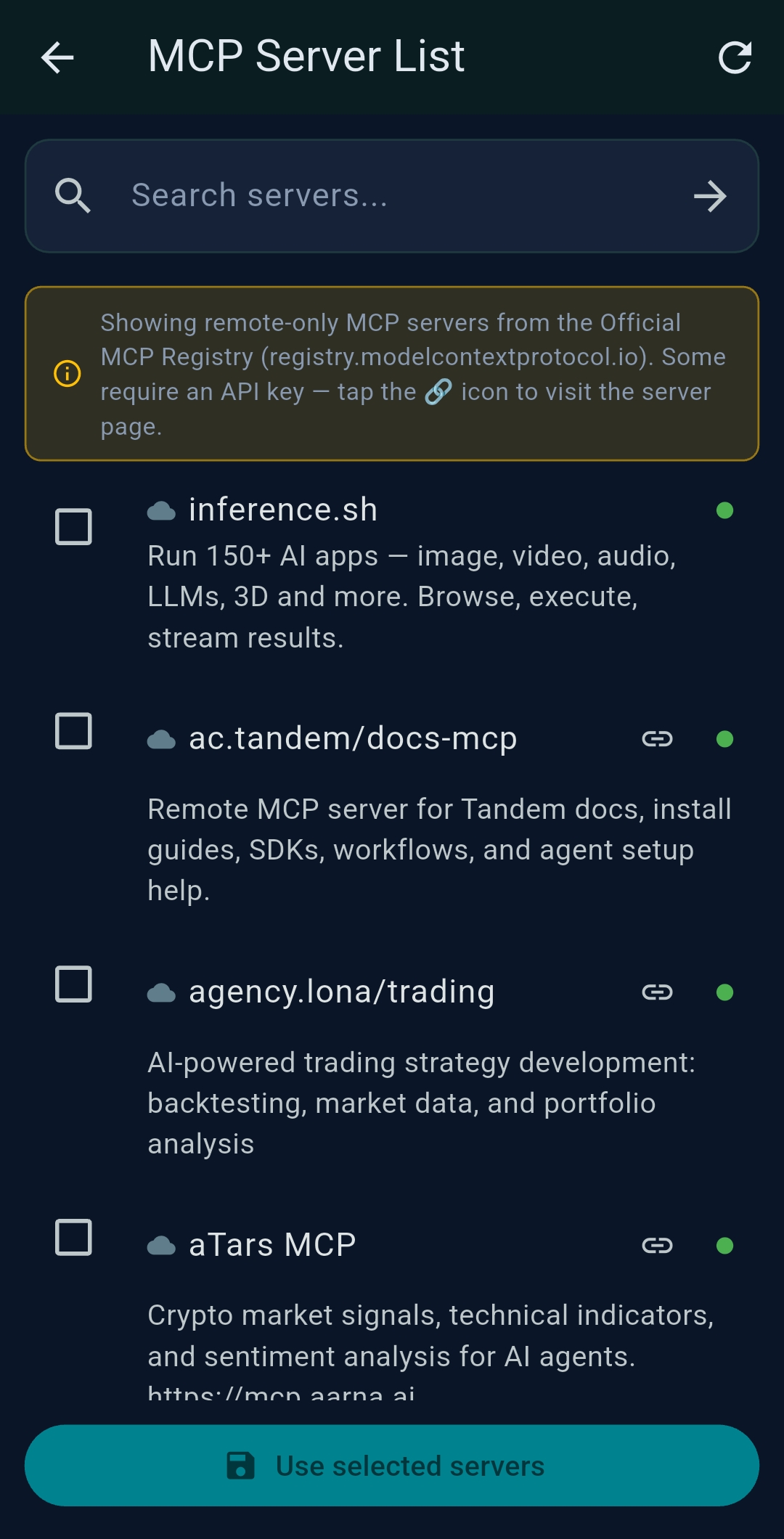
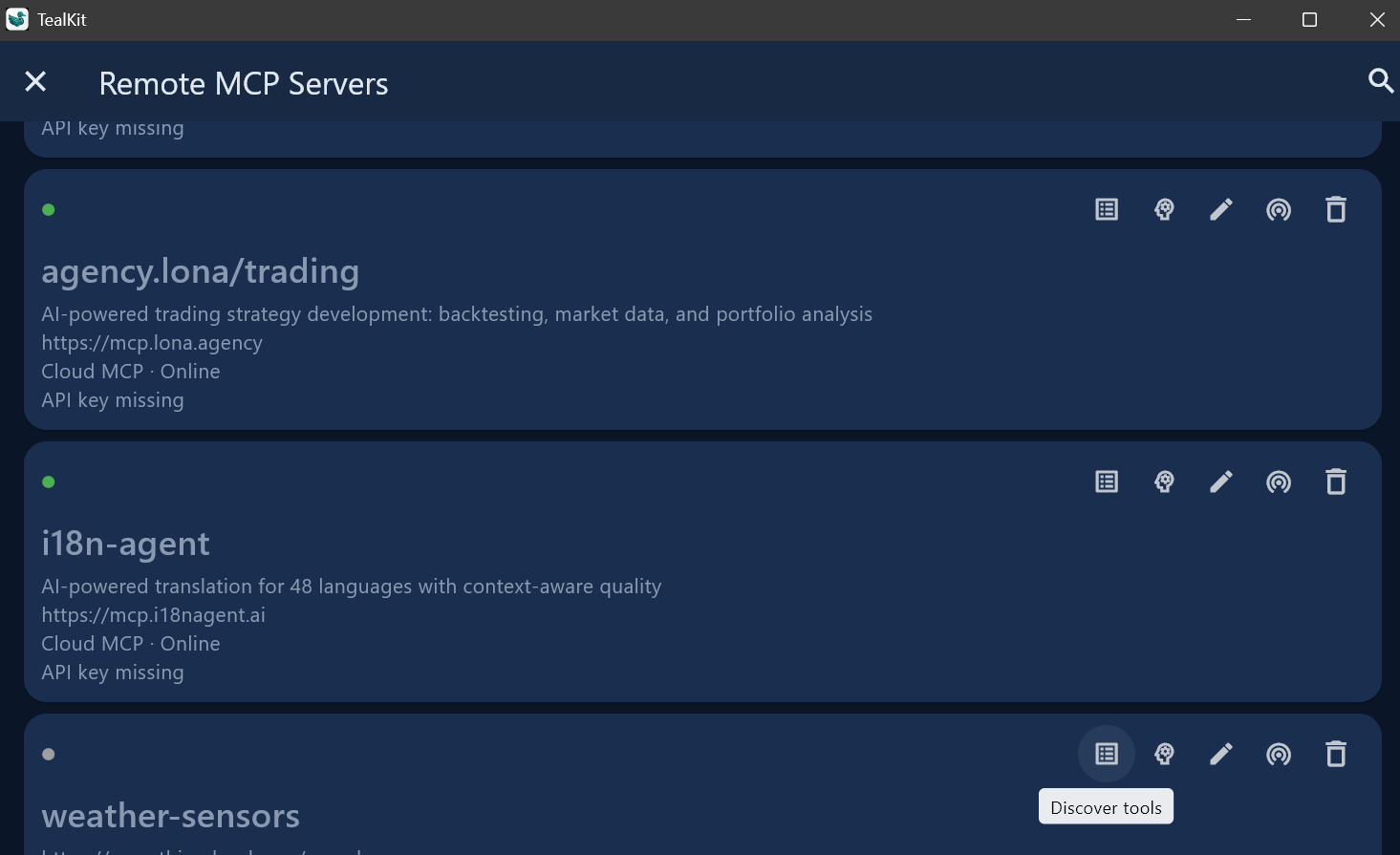
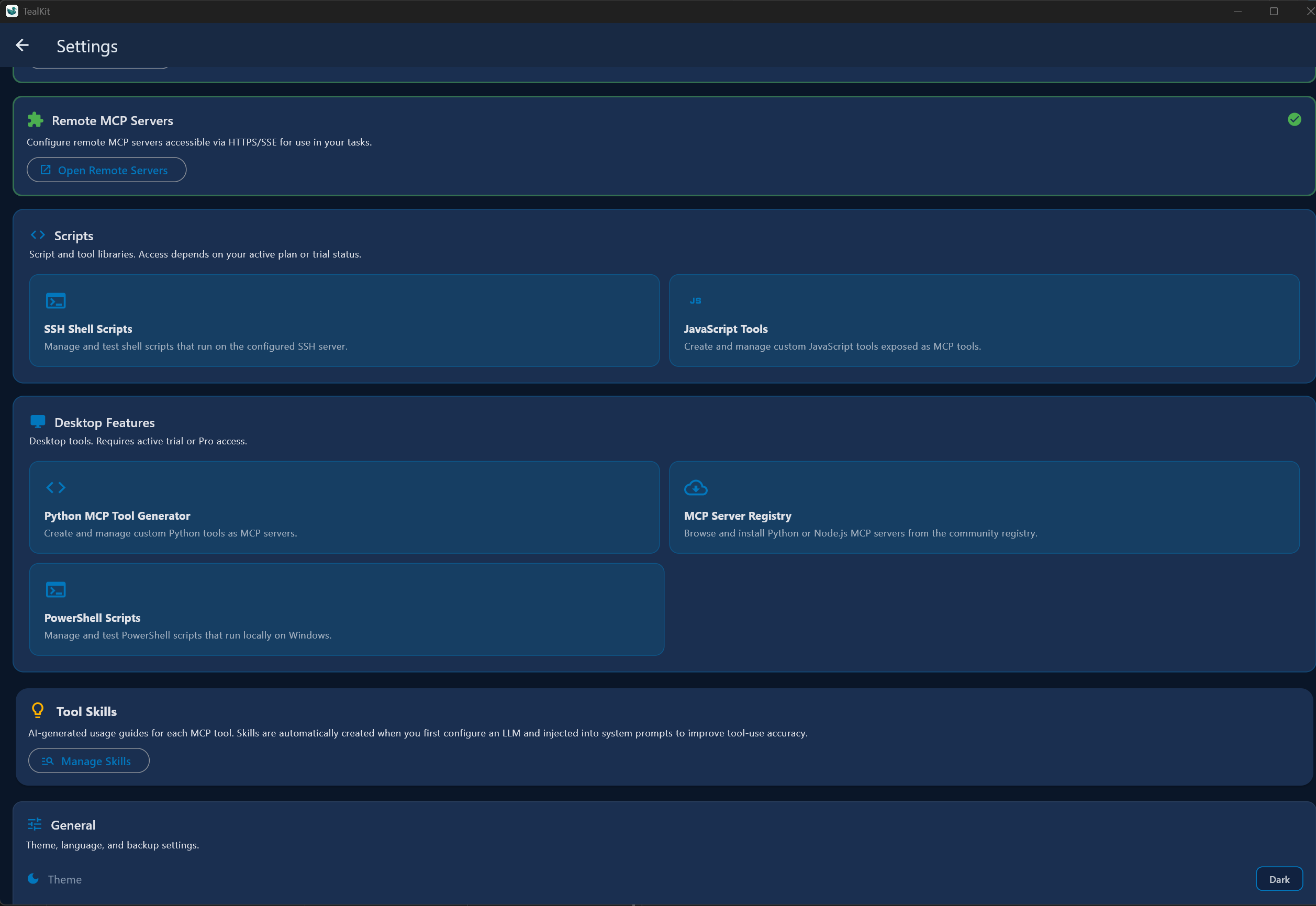
Connect to any MCP-compatible server running in the cloud over HTTP Streaming or SSE — no local installation needed. Go to Settings → Remote MCP Servers and choose a catalog source:

TabSourceNotes
PulseMCPregistry.modelcontextprotocol.ioBrowse & connect to hosted MCP endpoints
Smitherysmithery.aiOptional global API key applied to all Smithery endpoints
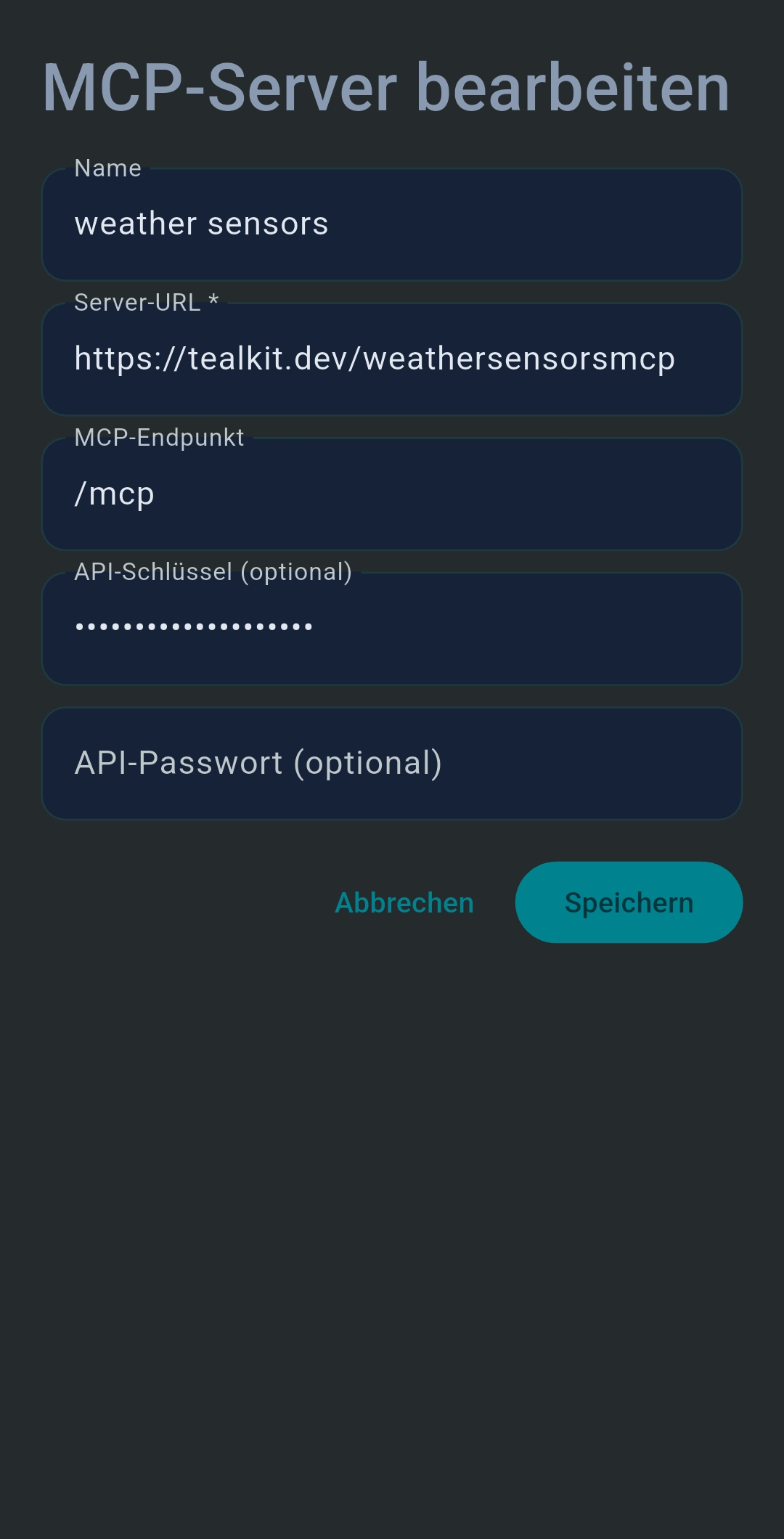
CustomAny URLServer URL, endpoint path (/mcp), optional API key & password

Each configured server exposes its tools directly in the Playground and Agents tool selector. Remote servers work on all platforms including Android and iOS.

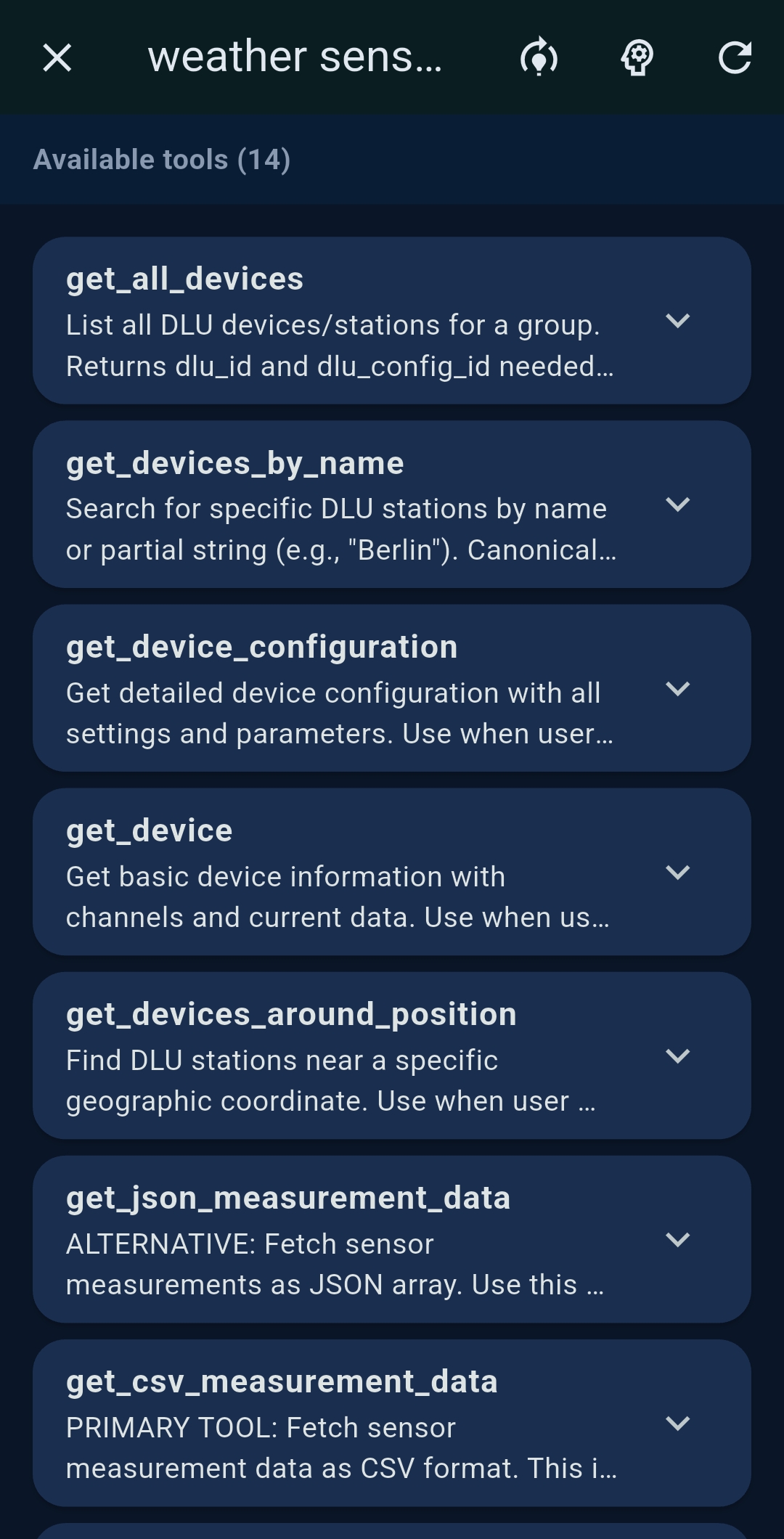
Tip: Tap Test before saving a custom server to verify the connection and see the tool list returned by the server.

📥 MCP Server Registry — installable local servers PRO (desktop only)

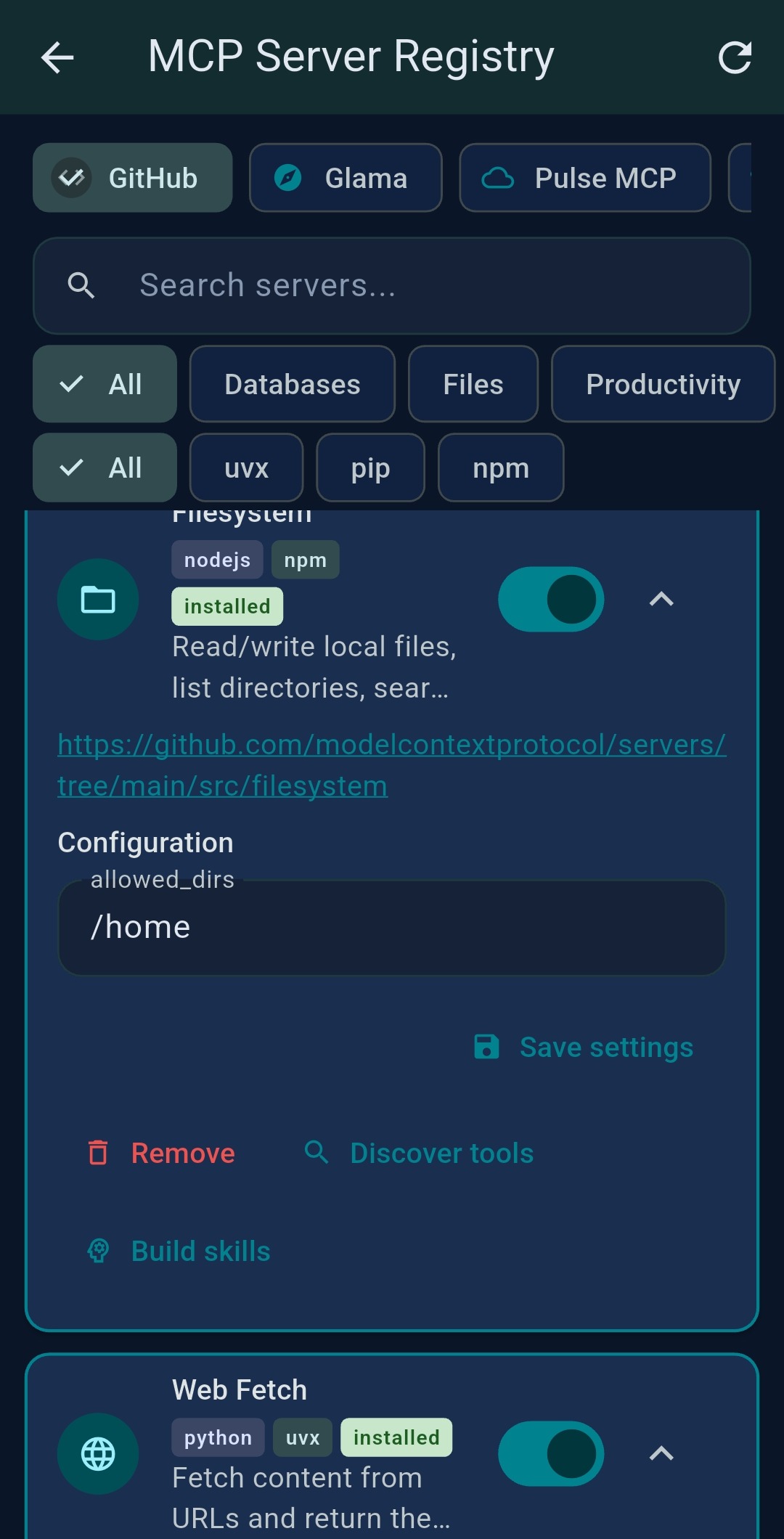
On desktop (Windows, Linux, macOS) TealKit can download and run MCP servers locally. These are real Node.js and Python servers installed on your machine with one click — no terminal needed. Go to Settings → MCP Server Registry and browse four public catalogs:

TabSourceInstall method
GitHubHand-picked catalog maintained by TealKitPython (uvx / pip) & Node.js (npm / npx)
Glamaglama.ai/mcp/serversPython & Node.js installable
PulseMCPregistry.modelcontextprotocol.ioPython & Node.js installable
Smitherysmithery.aiPython & Node.js installable

Tap Install on any entry — TealKit runs npm install -g, uvx, or pip in the background. The installed server appears immediately in the tool selector. Uninstall removes the package and cleans up the entry.

Remote MCP vs Registry: Remote servers run in the cloud and are accessed over the network (all platforms). Registry servers run locally on your machine (desktop only) and are installed once then launched automatically by TealKit.
Tip: Node.js 18+ is required for npm/npx servers. TealKit shows a banner in the Registry screen if Node.js is not detected. Install Node.js LTS from nodejs.org.

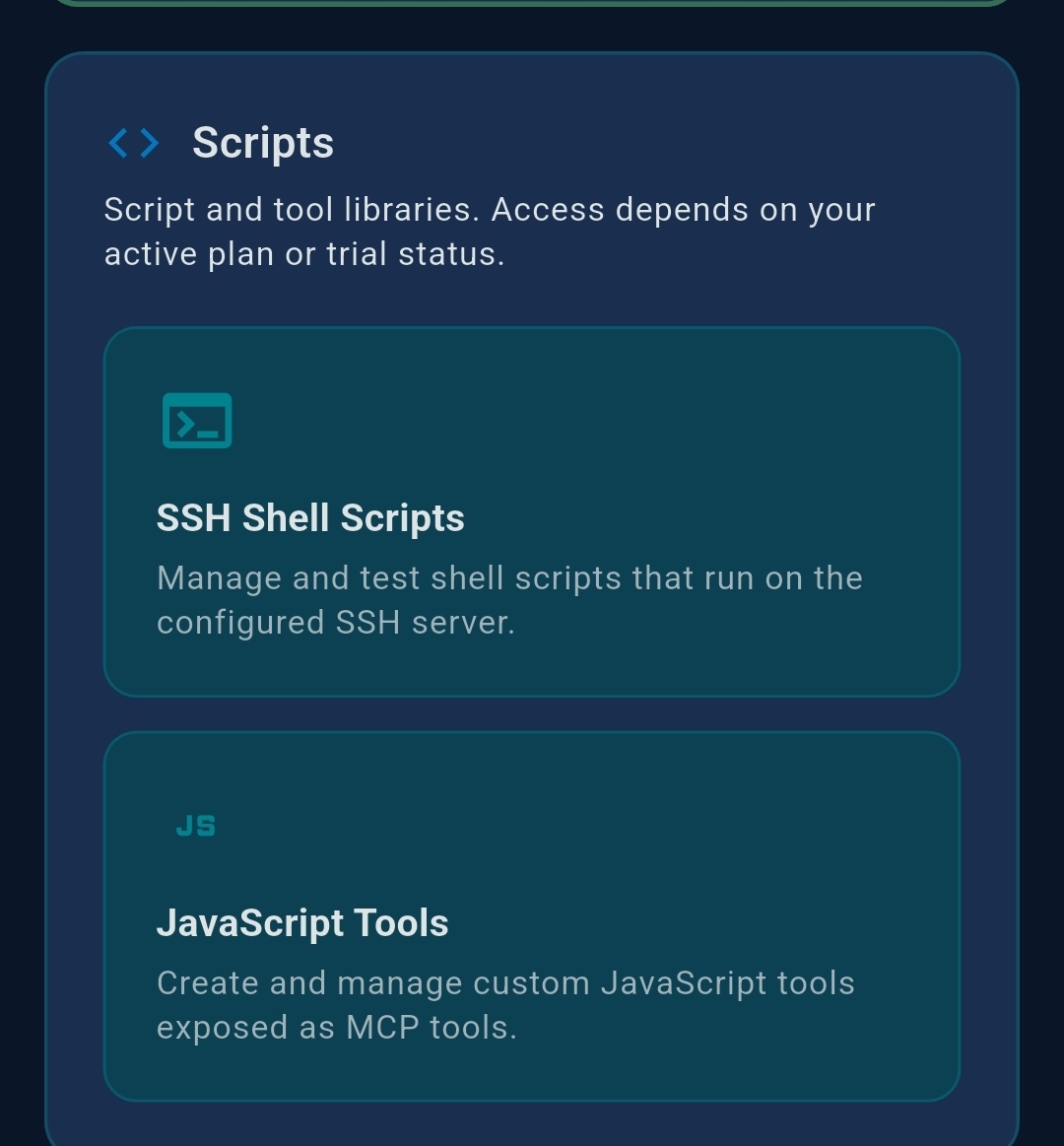
🔧 Scripts & tools as mini MCP servers

Every script or tool you create in TealKit is exposed to the AI as a local MCP server tool — the AI calls it in exactly the same standardised way it calls any cloud server. This means you can build powerful agent automation without writing MCP server boilerplate:

Tool typeRuns onHow the AI calls it
Shell / PowerShell scriptSSH remote host or local machineVia ssh_bridge / ps_bridge MCP server
JavaScript snippetOn-device secure sandboxVia js_bridge MCP server
Python toolLocal Python environment (desktop)Via python_bridge MCP server

The LLM sees a clean tool name and input schema — it never knows (or cares) whether the tool is a cloud endpoint, an npm package, or a 20-line PowerShell script you wrote yesterday. All three share the same MCP protocol.

🔧 Custom Tools PRO

TealKit lets you build your own tools without writing any native code. Two wizards are available — accessible from the Tools tab in Playground settings or when editing a Agent. Free tier: 1 Shell script, 1 JavaScript tool, and 1 Python tool. PRO gives unlimited tools of each type.

📜 Shell Script Wizard

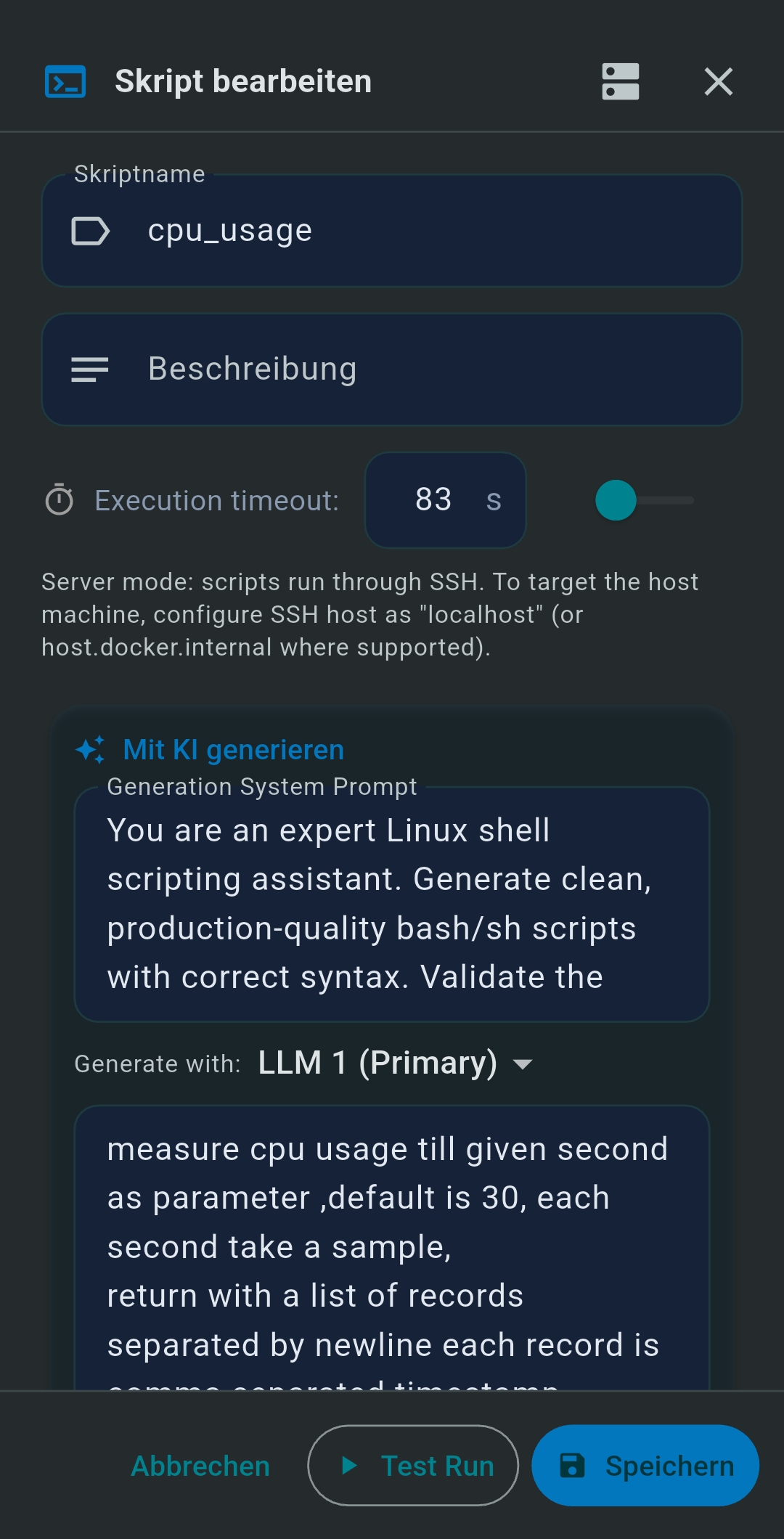
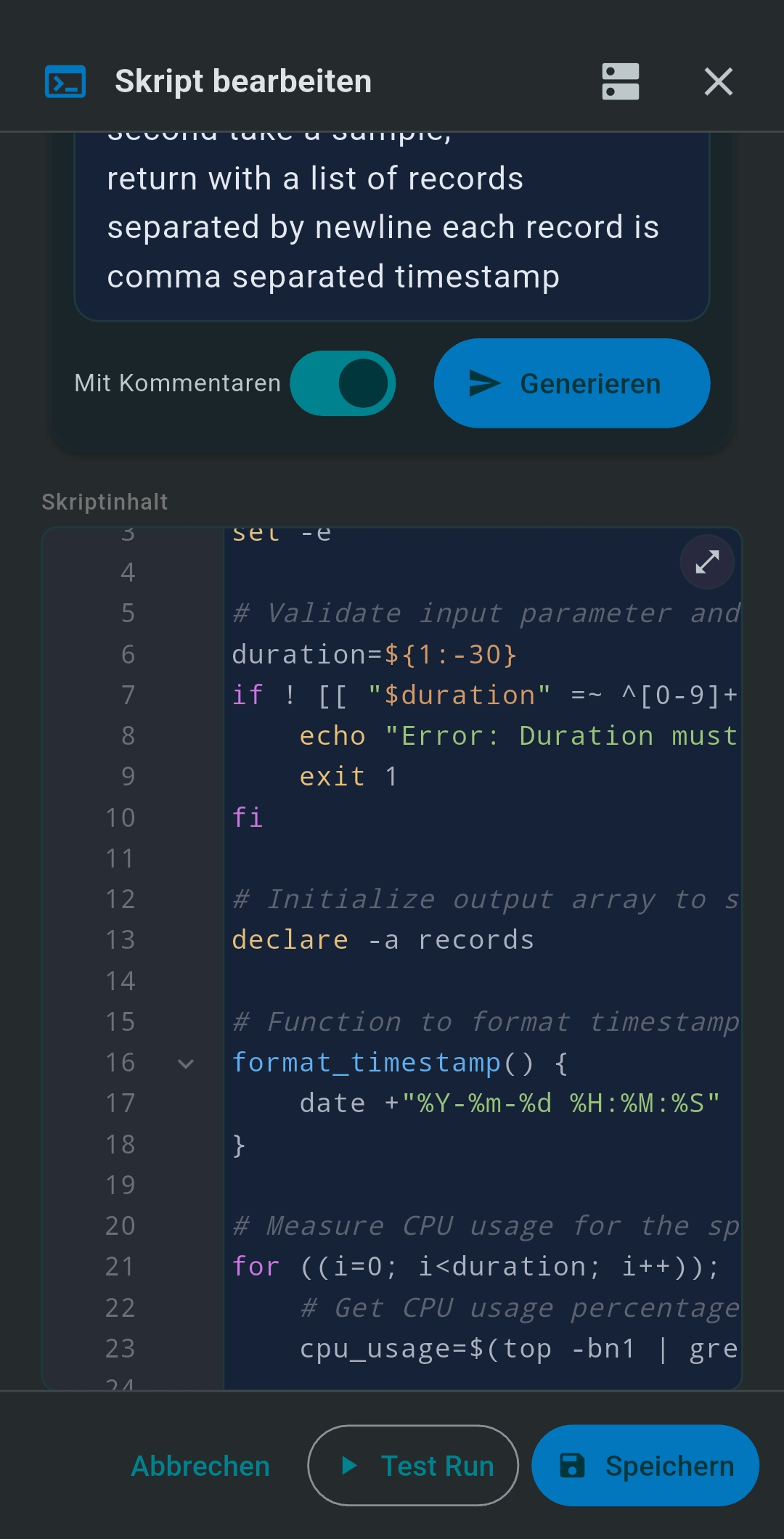
Describe what you need in plain language and the AI writes a ready-to-use shell script. The script type is chosen automatically based on the target platform:

Saved scripts are auto-discovered by the SSH server and can be referenced by name in any agent.

Tips for a good shell script prompt:

Tip: After generating, use the Test Run button in the editor to execute the script immediately via SSH (with optional parameters) and view stdout/stderr — all without leaving the editor.
Tip: Use the model picker at the top of the wizard dialog to switch to LLM 2 for script generation — keep your main model for reasoning and use a cheaper model for code generation.

🧩 JavaScript Tool Wizard

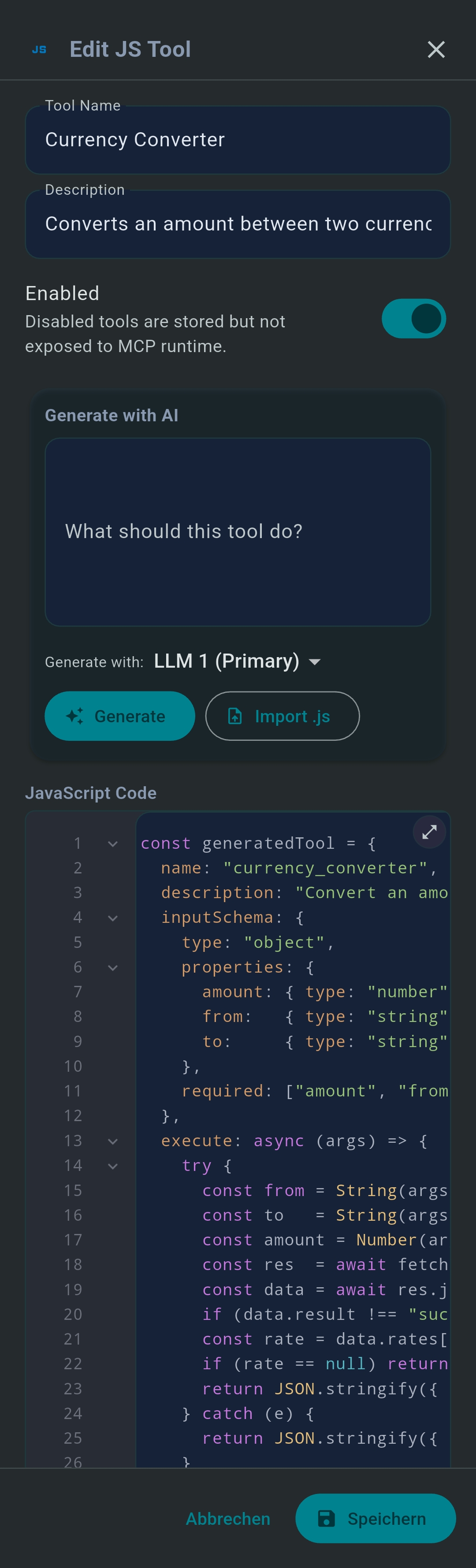
Write a custom MCP tool as a small JavaScript snippet. The snippet runs in a secure on-device sandbox and can call REST APIs with fetch(). Saved tools appear immediately in the tool selector for Playground and Agents.

Tips for a good JavaScript tool prompt:

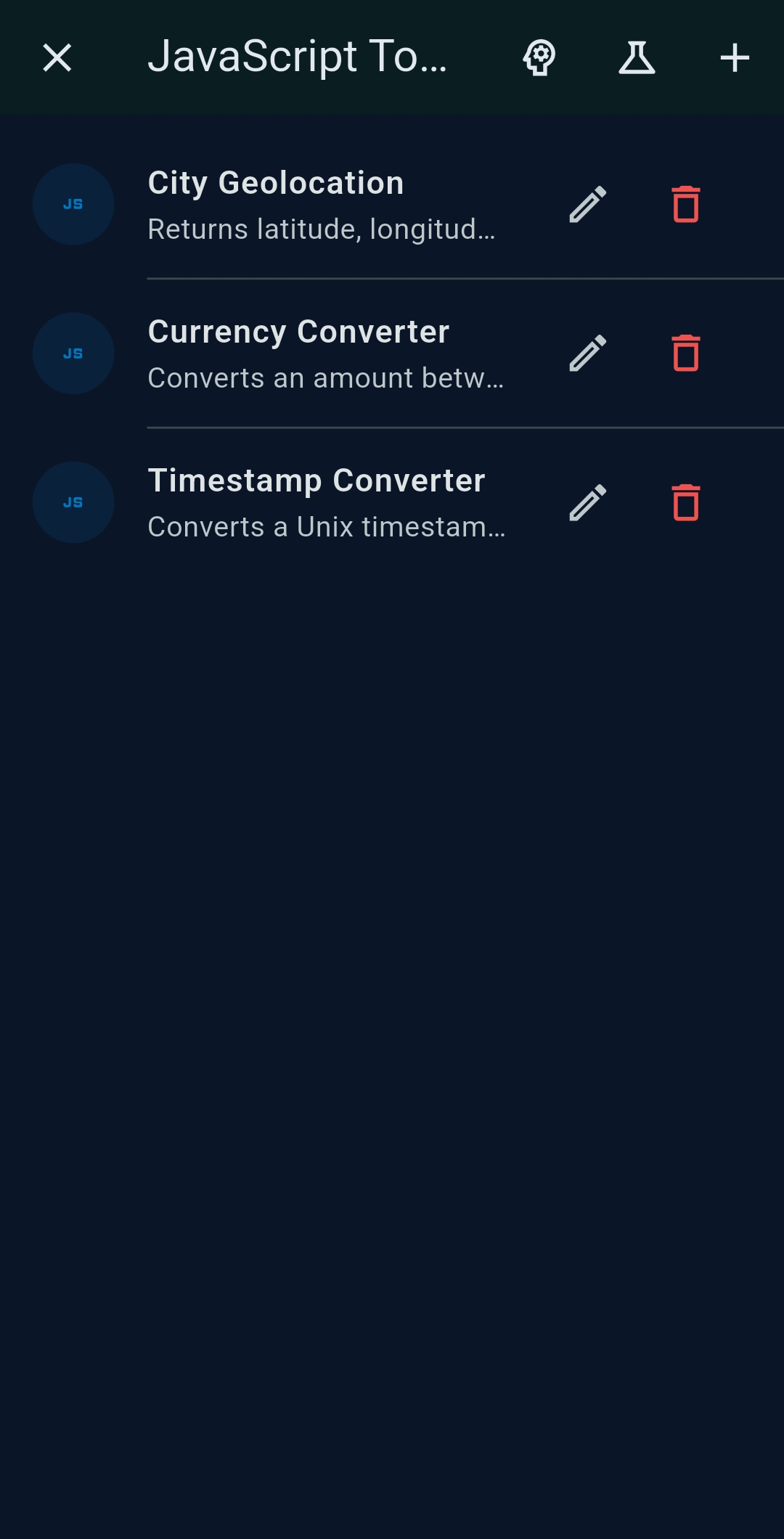
Tip: Use the Browse Example Prompts button in the JS Tool editor to load working examples (calculator, currency converter, city geocoding) and see the expected tool structure.
Tip: Use the model picker in the JS Tool wizard to switch to LLM 2 for code generation — a lightweight model is often sufficient for JavaScript tool scaffolding.

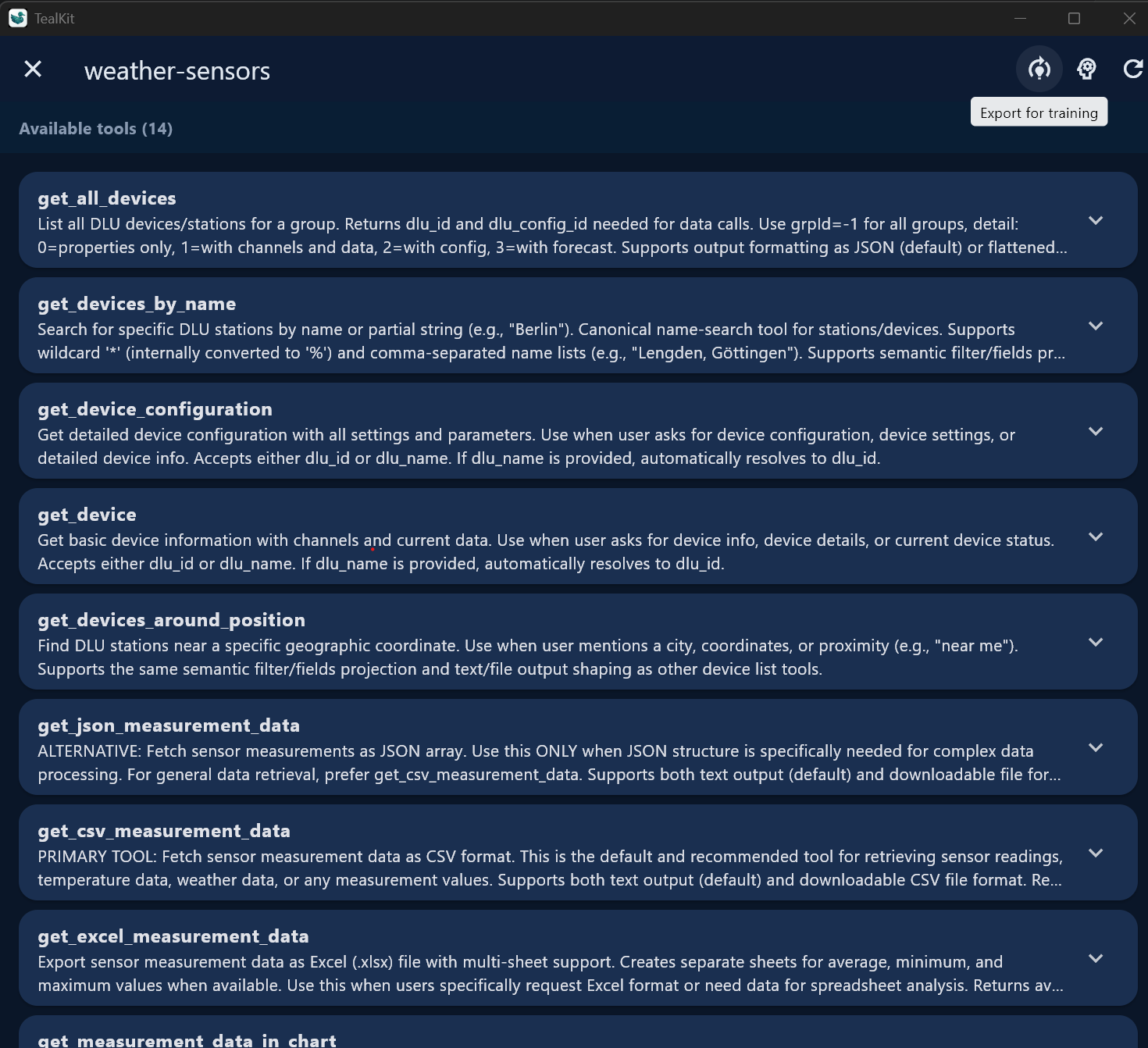
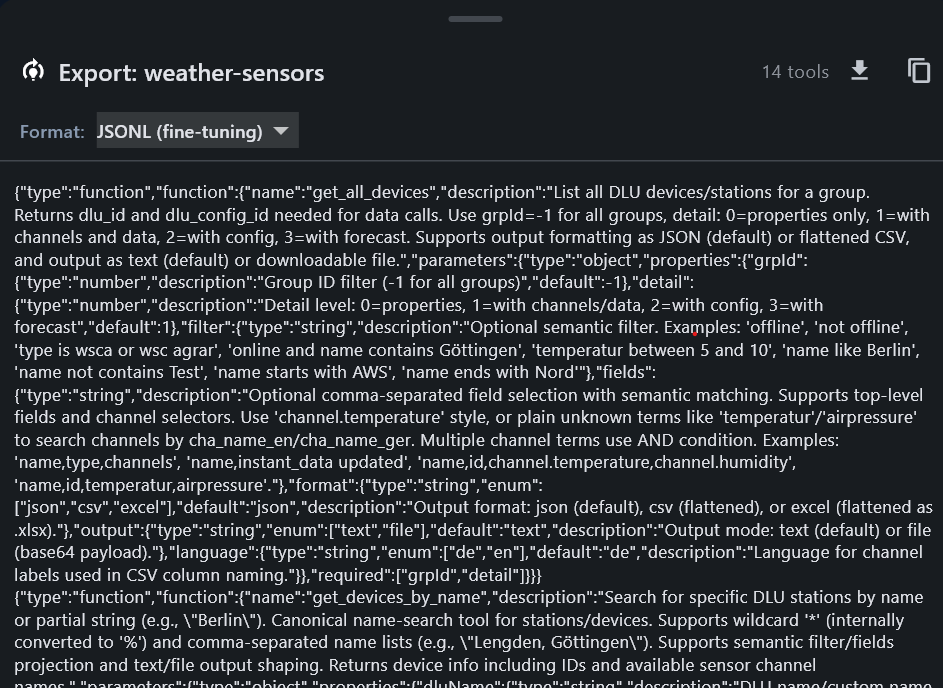
🧠 Tool List Export for Model Training

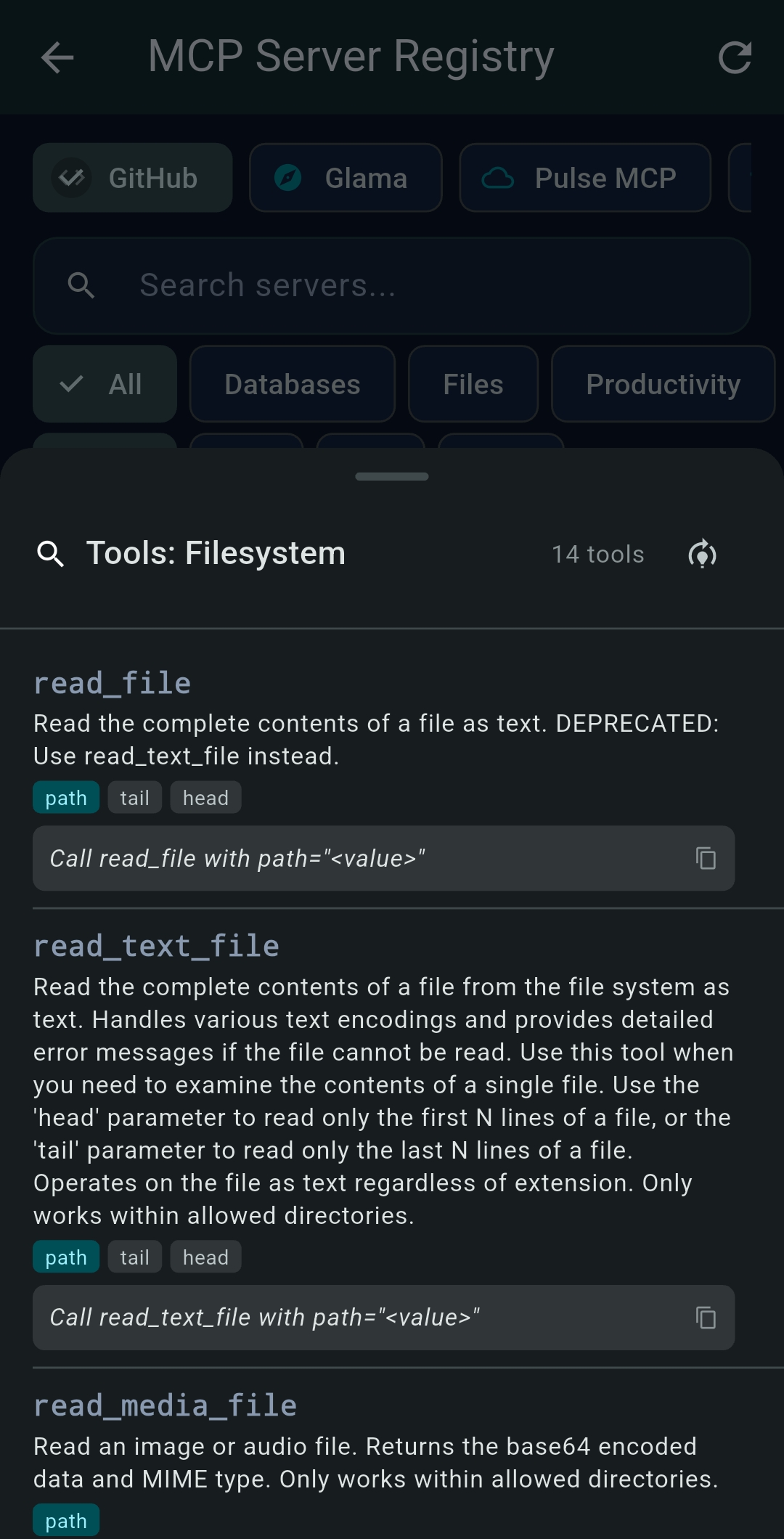
Export the complete tool list of any MCP server in a machine-readable format — ideal for fine-tuning LLMs on tool-use data or for documenting your available tools.

The export icon (🧠 model_training) appears in multiple places:

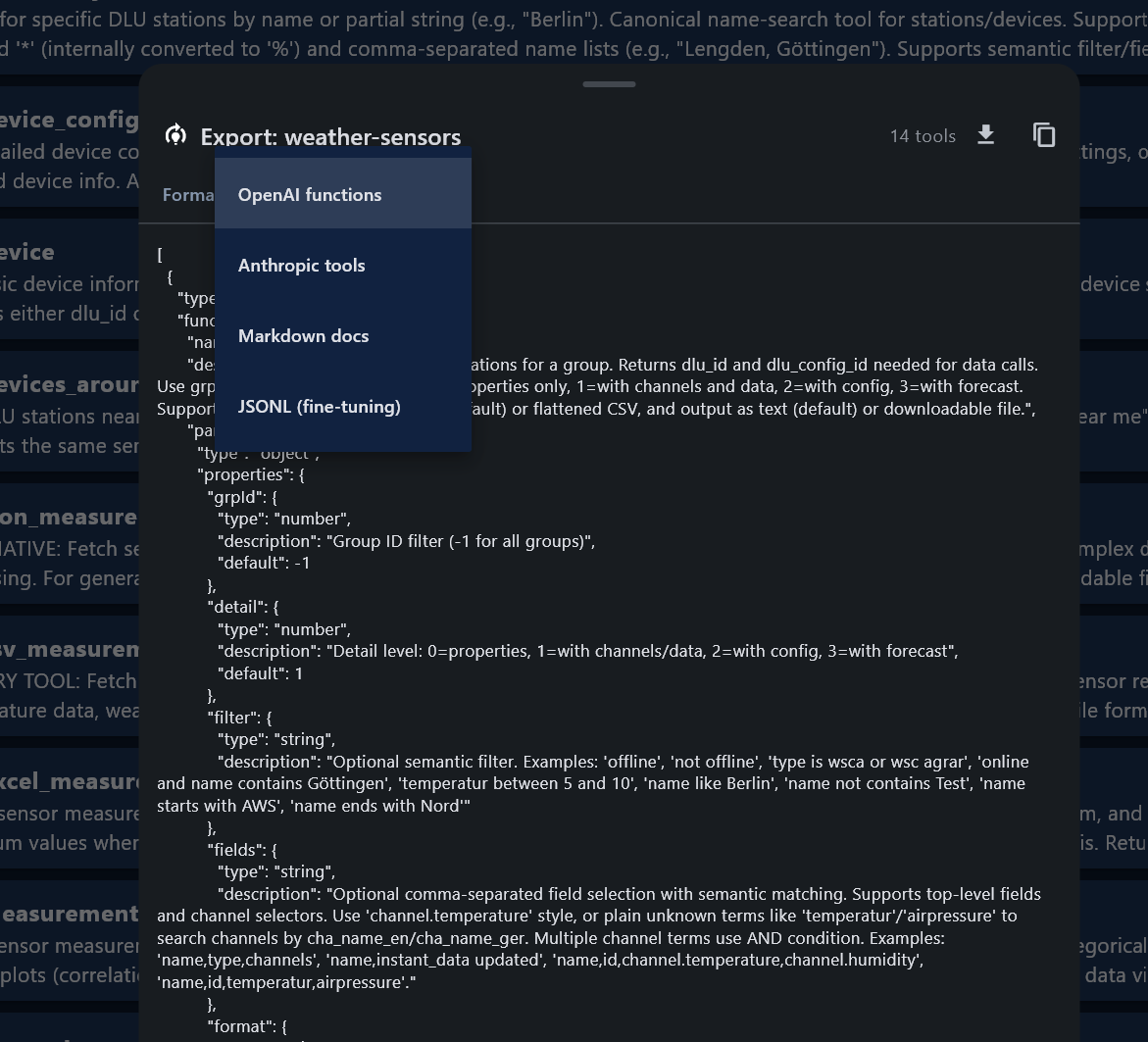
Choose from four export formats:

FormatUse case
OpenAI FunctionsJSON array in OpenAI tools schema (function calling)
Anthropic ToolsJSON array in Anthropic tools schema
MarkdownHuman-readable documentation with tool names, descriptions, and parameters
JSONL Fine-tuningOne JSON object per line, formatted for LLM fine-tuning datasets

Tap Copy to copy the output to the clipboard, or Save to file to write it directly to disk (desktop platforms).

8   Document Search

TealKit's document search uses a local DuckDB database with hybrid semantic embedding + BM25 keyword search for high-quality results — no cloud dependencies.

Adding folders

  1. Tap + Choose Directory in the Documents data source settings.
  2. Use the quick-access chips (Downloads, Documents, Desktop) to add common folders in one tap.
  3. Add multiple folders — all are indexed together into a single unified index.

File type filter

Select which file types to include using the chip selector. Supported types:

pdf docx doc txt md html htm csv json xml xlsx xls pptx ppt rtf odt ods odp epub mobi log

Use All to select every type or Reset to deselect all.

Indexing

Tip: For very large folders, index overnight with the device plugged in.

9   SSH

The SSH server gives the AI the ability to run shell commands on a remote host. Configure the connection in Settings → Data Sources → SSH:

What the AI can do via SSH

LLM-generated scripts

Ask the AI to write and immediately execute a script. Example prompt:

Connect to the server, write a bash script that gathers CPU usage every 5 seconds
for 1 minute and saves the results to /tmp/cpu_report.txt, then show me the summary.

The AI writes the script, uploads it via SSH, executes it, and returns the full output — all in one agent run.

Stored local scripts

Place your own .sh or .ps1 scripts in the Scripts Directory (set in Settings → General → Scripts Directory). The AI auto-discovers all scripts and you can reference them by name in prompts:

Run the "backup_db.sh" script on the server and tell me if it completed successfully.
Tip: Keep a small library of maintenance scripts and let the AI choose the right one based on your natural-language request.

Script Library & built-in samples

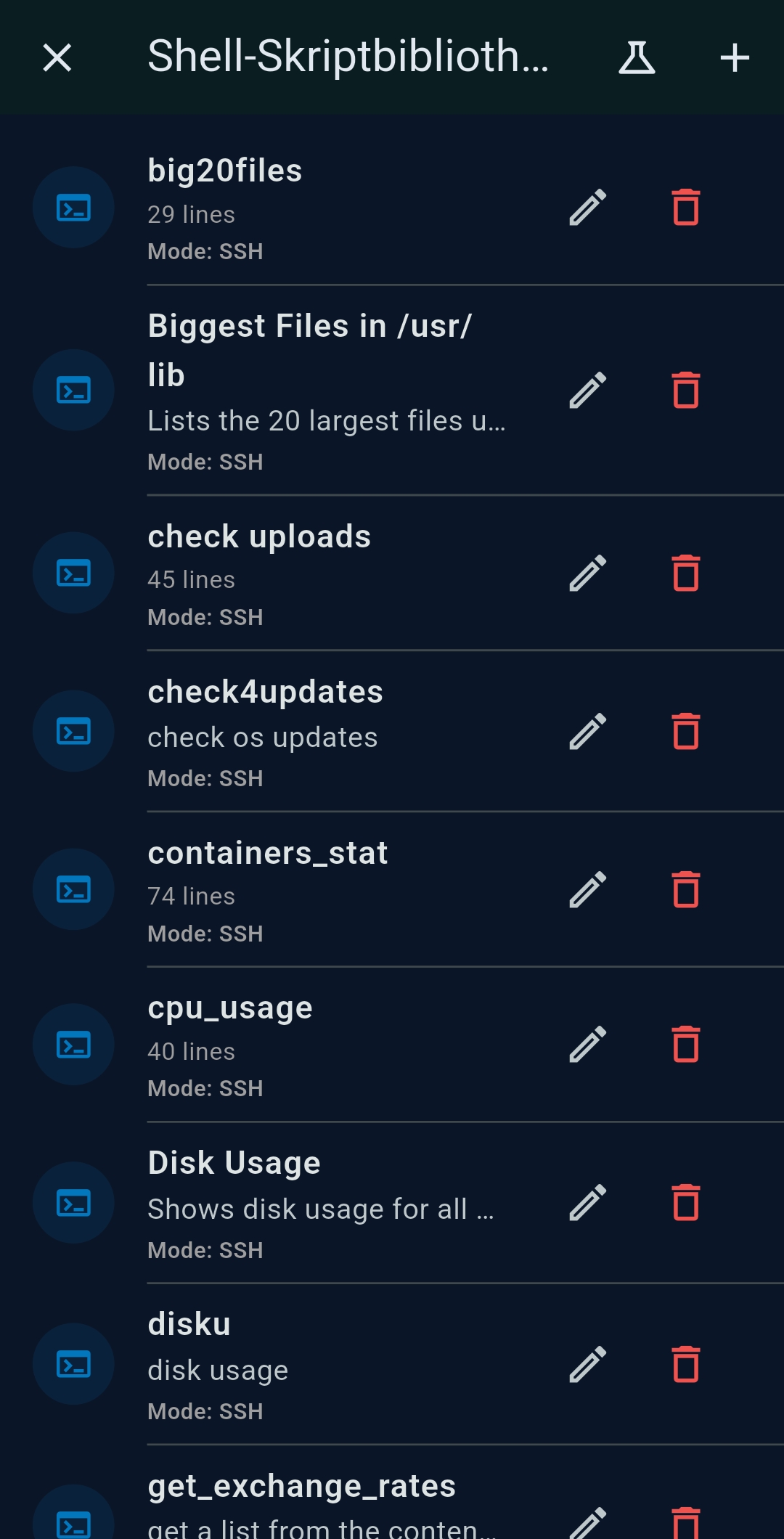
The Shell Script Library (accessible from the SSH configuration panel) lets you save, manage, and reuse scripts. Tap the 🔬 Load Samples button in the toolbar to instantly add three ready-to-use examples:

Tip: Loading samples is safe to tap multiple times — scripts with the same name are never duplicated.

10   Home Assistant

The Home Assistant MCP server lets the AI query and control any entity in your smart home via the Home Assistant REST API.

Setup

  1. Open Settings → Data Sources → Home Assistant.
  2. Enter your Base URL — e.g. http://homeassistant.local:8123 for local installs or your Nabu Casa cloud URL (https://<id>.ui.nabu.casa).
  3. Create a Long-Lived Access Token:
    In Home Assistant open your Profile (bottom-left avatar) → scroll to Long-Lived Access Tokens → tap Create Token, give it a name (e.g. “TealKit”), and copy the token.
  4. Paste the token into the Long-Lived Access Token field and tap Save.
Tip: No per-agent configuration is needed — once the global credentials are saved the home_assistant server is ready to use in any Playground session or Agent.

What the AI can do

Example prompts

Turn off all lights in the living room.
What is the current temperature in the bedroom?
Set the thermostat to 21 degrees and lock the front door.
Which lights are currently on?
Tip: You can combine Home Assistant with other servers in one agent — e.g. “Check the temperature sensors, generate a chart of today’s readings, and email it to me.”

11   Output Files

TealKit saves core files per agent run to a timestamped subfolder:

In addition, any file the AI generates during the run is saved automatically:

Tip: Forward files to Email / Slack / WhatsApp. Enable Include output files on the agent’s Output tab to have all generated files (xlsx, png, md, html …) delivered automatically via every active output channel — as email attachments, native Slack file uploads (Bot Token required), or WhatsApp document messages (Meta Cloud API).

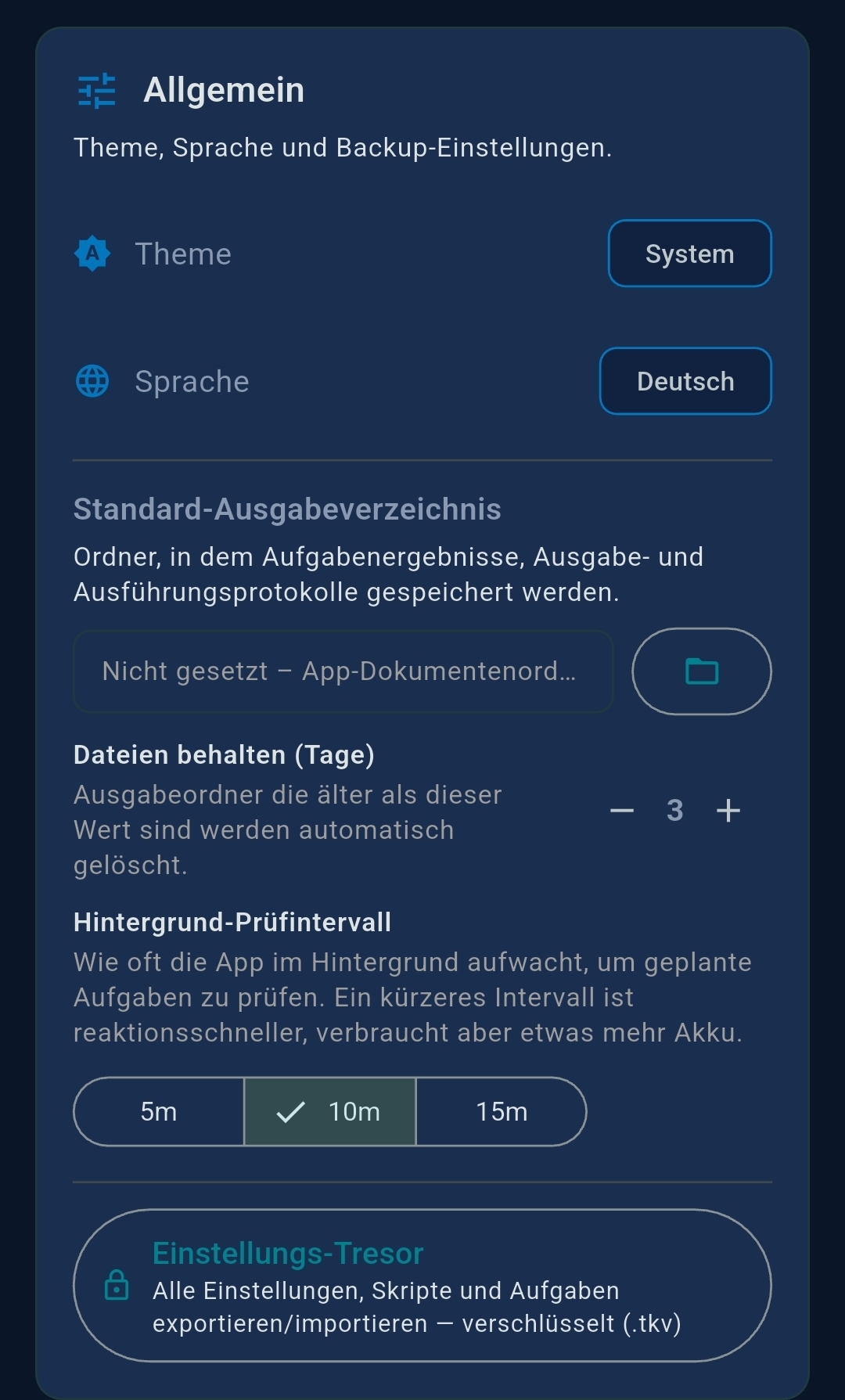
Configuring the output directory

Go to Settings → General and tap Output Directory to choose a folder. Defaults to an internal app folder if left blank.

Automatic cleanup

Use the Keep files for (days) setting (1–60 days, default 3) to automatically delete old runs. Cleanup runs on app start and every hour.

12   Settings

13   FAQ

Does TealKit store my API keys on a server?

No. All API keys are stored exclusively in the device's OS secure keychain (iOS Keychain / Android Keystore) and never leave your device.

Can I use TealKit offline?

Local Ollama models work fully offline. Cloud AI providers and web search require an internet connection.

How do I delete all my data?

Uninstall TealKit. All local databases, keys, and settings are removed automatically.

The indexing is slow or stuck

Large document folders or websites with many pages take time. Tap the red Stop button to cancel at any point.

Where is the output folder on Android?

By default, files go to internal app storage. Set a custom path in Settings → General → Output Directory to use a visible folder (e.g. Downloads).

What is the difference between Prompt Splitting and Agent Chaining?

Prompt Splitting (++#++) breaks a single agent’s prompt into sequential steps within the same agent. All steps share the same model, tools, and settings. Use ${tool_result} in a later step to inject the raw tool output from the previous step. No Pro required — works in Playground, scheduled agents, and Server Mode. Best for small/local models that struggle with long multi-step prompts: split the work into focused single-purpose steps that each model can handle reliably.

Agent Chaining PRO connects separate agents: each agent has its own model, tools, schedule, and output configuration. The previous agent’s full output is injected as ${task_result} into the next agent’s prompt. Supports conditional routing — different follow-up agents depending on the LLM’s evaluation of a condition expression.

Short rule: use Prompt Splitting when you want to break a complex task into micro-steps within one agent; use Agent Chaining when you need different models, conditional logic, or independent schedules across steps. See Section 5.1 for a full comparison table.

How does agent chaining work?

Each chained agent starts after its predecessor finishes. The predecessor’s output is injected as ${task_result} into the chained agent’s prompt. Chaining can be unconditional (always runs the next agent) or conditional (the LLM evaluates an expression and routes to different agents depending on the outcome). Enable Stop after tool call on an agent to capture the raw tool output directly as ${task_result} without further LLM processing.

What is the difference between Run and Interactive mode?

Run executes the agent autonomously and saves the result to disk. Interactive opens a full chat with the same LLM and tools, so you can guide the AI step by step — useful for exploration or debugging a agent.

What is the advantage of using a European AI provider?

If GDPR compliance or data sovereignty is important to you — for example in a business or regulated environment — choose Mistral AI, a provider headquartered in France that processes all data within the European Union. TealKit is fully compatible with Mistral out of the box: enter your API key under Settings → LLM 1 and select Mistral AI as the provider. Your prompts and data stay in EU infrastructure at all times.

Can I run models directly on my device without the internet?

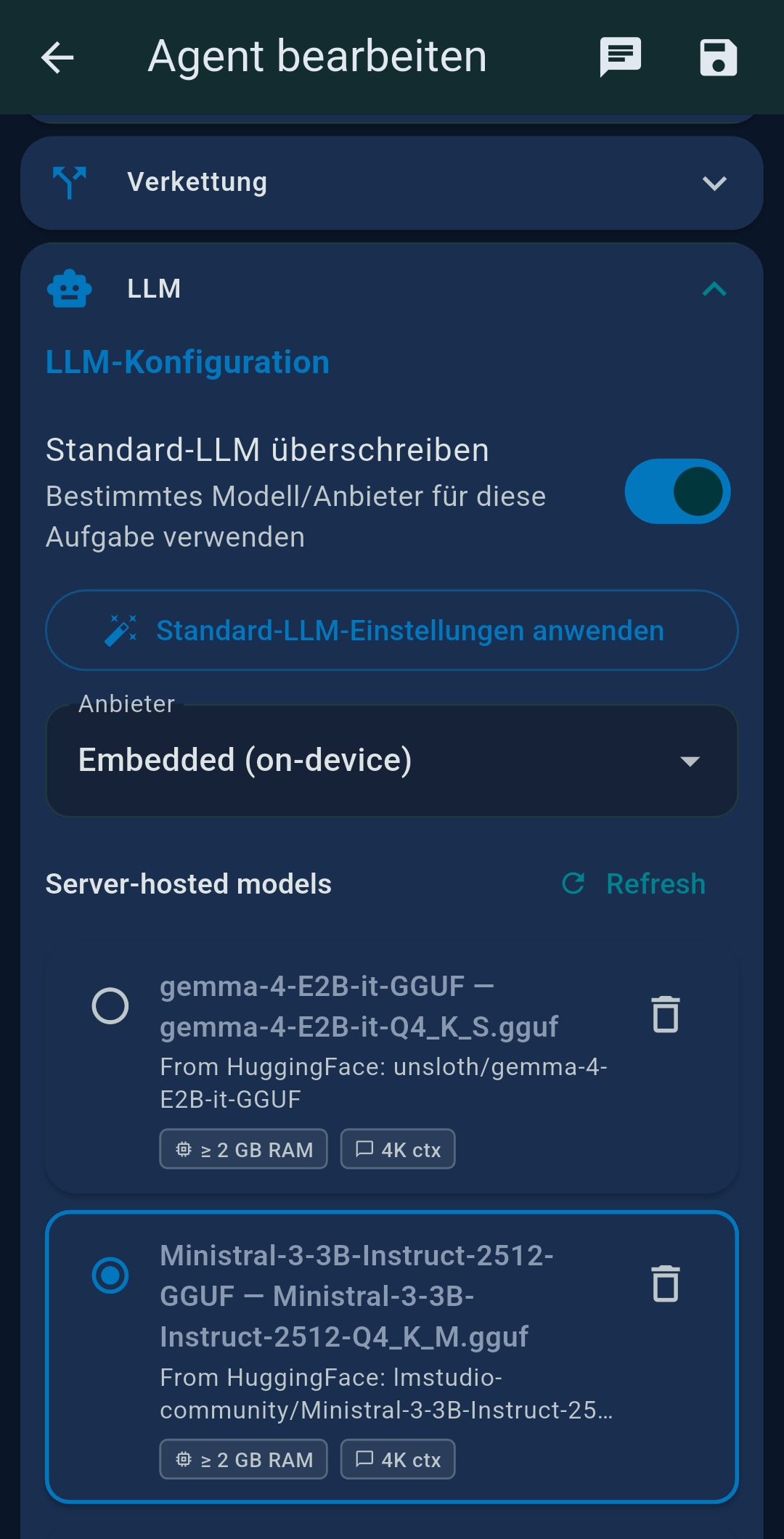
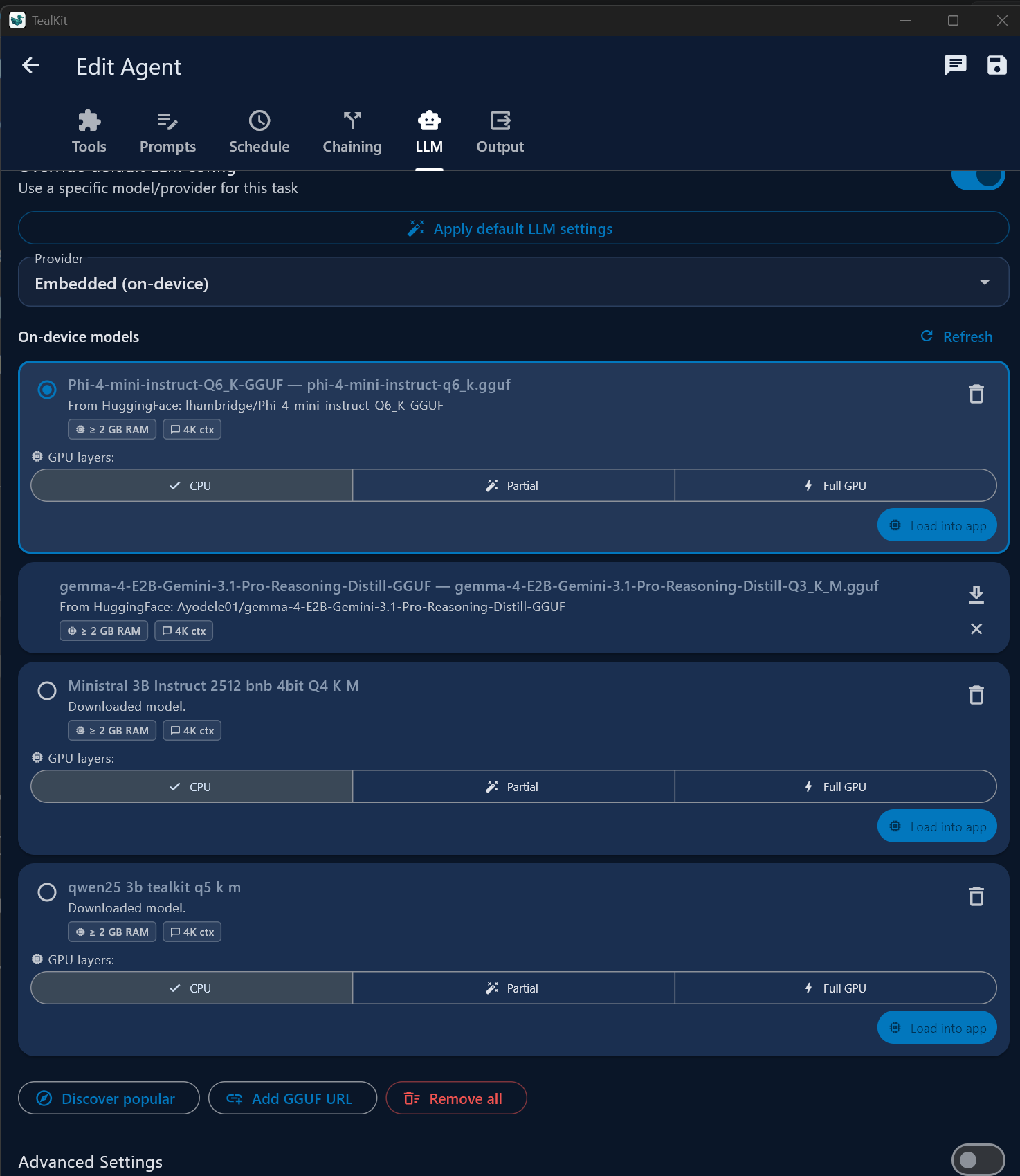
Yes. Go to Settings → Embedded Models to download GGUF models and run inference fully on-device — no API key, no cloud connection. Browse the built-in HuggingFace catalog or paste any direct GGUF URL. Choose CPU-only, partial GPU, or full GPU offloading per model. Embedded models work best for text formatting, translation, and summarisation in Chat Mode. For agentic tool calling you need both a model explicitly trained for function calling (e.g. Qwen2.5-3B-Instruct) and enough GPU VRAM to load it fully — otherwise inference is too slow or tool schemas are ignored. See Section 19 — Embedded Models for the full hardware and capability guide.

Can TealKit run with smaller models on limited hardware?

Yes. TealKit supports Small Language Models (SLMs) through Ollama, LM Studio, or any OpenAI-compatible local endpoint — no cloud costs, no data sent externally. Keep in mind that every model has different strengths: a prompt that works perfectly with one model may need adjustment for another. Use the Playground to experiment with prompts across different models and find the best fit for each agent before turning it into an automated workflow. For pure text agents (translation, formatting, summarisation) enable Chat mode in Playground or agent settings to skip all tool overhead and send your prompt directly to the LLM — the fastest path from prompt to response for SLMs.

My scheduled agent with an embedded model did not run on Android when the app was closed

This is expected behaviour. Embedded (on-device) GGUF models require the app to be open (foreground or background-alive). When Android fully kills the app, the background alarm wakes a lightweight isolate that cannot load the on-device model — doing so would risk a crash or out-of-memory kill. TealKit skips the task and sends a 📱 “Open TealKit to run ‘…’” notification instead. Tapping the notification opens the app and the missed run is caught up automatically.

For reliable unattended execution, switch the agent’s LLM to a cloud provider (Gemini, OpenAI, Anthropic, Mistral) or your own Ollama server. Cloud- and Ollama-based agents run fully in the background regardless of whether the app is open. On Desktop (Windows, Linux, macOS) the app always stays alive in the system tray, so embedded-model agents run normally there. The upcoming Server Mode also keeps a persistent scheduler running 24/7 without the mobile app needing to be open.

Scheduled agents don’t run reliably on iOS / iPad

On iOS, Apple’s BGAppRefreshTask system controls when background work is allowed. Unlike Android’s exact AlarmManager wakeup, iOS decides the timing itself based on battery level, network conditions, and recent app-usage patterns. Tasks may be delayed by minutes to several hours and will not fire at all when Low Power Mode is on or the app has not been used recently. TealKit registers a best-effort periodic background task; keep the app in the foreground or background (not fully closed / force-quit) for the most reliable scheduled execution on iOS.

14   JavaScript Tool PRO

The JavaScript Tool Wizard lets you create lightweight custom MCP tools using pure JavaScript — no native code or external packages required. Tools run in a secure on-device sandbox (QuickJS / JavaScriptCore) and are available immediately in Playground and Agents after saving.

Tool structure

Every generated tool must define exactly one object named generatedTool:

const generatedTool = {
  name: "bitcoin_price",
  description: "Fetch the current Bitcoin price from CoinGecko",
  inputSchema: {
    type: "object",
    properties: {
      currency: { type: "string", description: "Target currency code, e.g. usd" }
    },
    required: ["currency"]
  },
  execute: async (args) => {
    try {
      const cur = String(args?.currency ?? "usd").toLowerCase();
      const res = await fetch(`https://api.coingecko.com/api/v3/simple/price?ids=bitcoin&vs_currencies=${cur}`);
      const data = await res.json();
      return JSON.stringify({ ok: true, price: data.bitcoin[cur], currency: cur });
    } catch (error) {
      return JSON.stringify({ ok: false, error: String(error?.message || error) });
    }
  }
};

Runtime rules & limits

Creating a tool step by step

1
Open Playground or a Agent, tap the Tools tab, then tap + New JS Tool (or JS Tool Library from Settings).
2
Type a description of what the tool should do. The AI generates the full generatedTool snippet including schema.
3
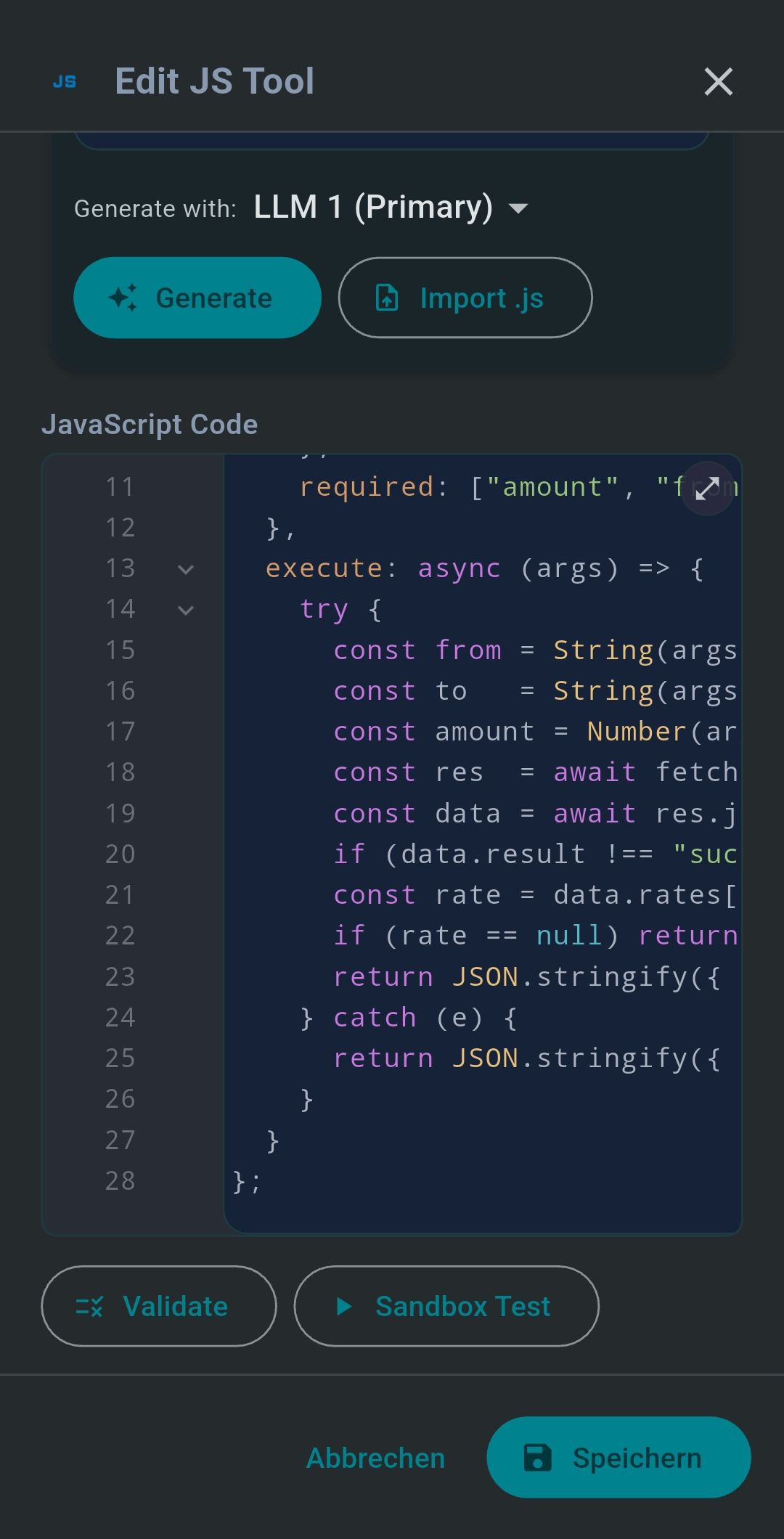
Review the generated code. Tap Test Run to execute it in the sandbox with sample arguments and see the output and any console logs.
4
Tap Save — the tool is now available in the tool selector for any Playground session or Agent.
Tip: Tap the 🔬 Load Samples button in the JS Tool Library toolbar to instantly add three working examples: Timestamp Converter, Currency Converter (live exchange rates, no API key needed), and City Geolocation (Open-Meteo, no API key needed). Already-saved tools are never duplicated.
Tip: The code editor features JavaScript syntax highlighting. Tap the ⛶ expand icon to open a full-screen editor with Save, Cancel, and Copy actions — ideal for reviewing or tweaking generated code.

Calling saved tools via MCP

When the js_bridge server is selected, the AI can discover and call your tools automatically:

Example prompts for generation

15   Token & Cost Statistics

TealKit tracks token consumption and estimates API cost per session and per agent run. No data is sent to TealKit — all calculations use built-in pricing tables on your device.

Playground — live session stats

During a Playground chat, a token counter appears at the bottom of the chat area showing the cumulative tokens consumed and characters sent in the current session. The counter turns amber when approaching the model’s configured token warning threshold.

Tap the token counter to open the full detail sheet:

FieldDescription
Cumulative TokensTotal prompt + completion tokens used since session start
Prompt TokensTokens sent to the LLM (cumulative)
Completion TokensTokens generated by the LLM (cumulative)
Last Request TokensTokens used by the most recent LLM call
Last Request CostEstimated USD cost of the most recent call
Session Cost (est.)Estimated total USD cost for the entire session
Model Pricing InfoInput / output price per 1 M tokens for the selected model
Tip: Tap the ↺ Reset Chat button to start a fresh session — this clears all conversation history and resets the token counters to zero.

Agents — run statistics

Every completed agent run records full statistics. Tap any run entry in the agent history to view:

MetricDescription
DurationTotal wall-clock time for the run
StatusSuccess / Failed / Cancelled
Tokens usedTotal prompt + completion tokens
Chars sentCharacters sent in LLM requests
Tool callsNumber of MCP tool calls made
MessagesTotal conversation turns
Last priceEstimated cost of the final LLM call (USD)
Total priceEstimated total session cost for this run (USD)

Supported providers for cost estimation

Cost estimates are calculated from built-in pricing tables for:

Note: For Ollama and custom OpenAI-compatible providers the cost is shown as — (not estimated), because no public pricing is available. Token counts are still tracked.

Playground stats example

Cumulative Tokens : 4 820
Prompt Tokens     : 4 210
Completion Tokens :   610
Last Request Cost : $0.0062
Session Cost      : $0.0241

16   Useful Tips

Quick practical suggestions to get the most out of TealKit.

🧩 Generate a JavaScript function

Open the JS Tool editor and describe the function precisely, including inputs, outputs, and the API to call:

Fetch the current Bitcoin price in EUR and USD from the free CoinGecko API.
Input: { currency: string }. Return: { price, currency, lastUpdated }.

Tap Generate, inspect the code, then Test Run it in the sandbox before saving. The tool is instantly available in any session.

📜 Write a shell script

Open the Shell Script Wizard and state the target environment, inputs, and expected behaviour:

Bash on Ubuntu. The script takes a folder path as argument,
finds all .log files older than 7 days, deletes them,
and prints a summary (count and freed space) to stdout.
Exit code 1 on error, error message to stderr.

After generation, tap Test Run to execute via SSH and verify the output before saving to the script library.

▶ Test a agent before scheduling

Before activating a cron schedule, open the agent with Interactive / Try-Out mode. This loads the agent’s configuration into a live Playground chat so you can step through the AI’s tool calls and refine the system prompt — without creating any scheduled run history.

Tip: Use Interactive mode to iterate on the prompt and tool selection until the output looks right, then save the agent and enable the schedule.

☑️ Register a remote MCP server (custom)

Go to Settings → Remote MCP Servers → Custom tab and fill in:

Tap Test to validate connectivity and list the tools, then Add. The server’s tools appear immediately in the tool selector.

Tip: Use the PulseMCP or Smithery tabs to browse and connect to hosted servers by clicking — no need to type URLs manually.

💰 Check current session costs

In the Playground: tap the token counter at the bottom of the chat → the detail sheet shows last-request cost and cumulative session cost.

For Agents: open the agent → tap a completed run entry → the Last Run Statistics card shows Last price and Total price.

↺ Reset a session (cleanup)

Tap the Reset Chat button (↺ icon in the toolbar, or the button below the last message) to:

The AI starts fresh with no memory of the previous conversation — useful when switching topics or when context has grown too large.

Tip: If a long session causes the AI to lose track of earlier instructions, reset the chat and add a concise summary of what was already done as the first message.

🖥 Pro unlocks the Windows & Linux desktop apps

Purchasing TealKit Pro on Android or iOS includes the Windows and Linux desktop versions at no extra cost — one purchase, all platforms. The Windows app is on the Microsoft Store; the Linux build is downloadable from GitHub Releases. macOS support is coming in a future release.

1
Buy Pro on your phone via Settings → Pro → Upgrade.
2
On mobile: Settings → Pro card → Desktop Key → paste the Machine ID shown in the Windows app → tap Generate.
3
On Windows: Settings → Pro → Enter Key → paste the generated TKIT-… key → tap Activate.
Tip: The key is bound to the specific machine — it will not work on a different PC. Repeat the process for each Windows machine you use TealKit on.

🔒 What Pro unlocks

TealKit includes a 31-day free trial with full Pro access. After the trial expires without Pro, TealKit stays available in a local manual mode: you can still run agents manually, save results to local files, and use the basic local bridges. Pro unlocks the advanced automation and integration features:

17   Desktop Features PRO

The Windows desktop app is available on the Microsoft Store. The Linux version is downloadable from GitHub Releases. macOS support is coming in a later release. Buying any single TealKit mobile version unlocks the desktop app at no extra cost.

Linux — keyring note: On a standard desktop (GNOME, KDE, etc.) the system keyring starts automatically at login and no setup is needed. In non-standard environments — such as a VNC session, headless server, or SSH without a display — the keyring daemon may not be running. Start it manually with eval $(gnome-keyring-daemon --start --components=secrets), or install gnome-keyring if it is not present on your system.

📜 Script Generation — Shell & PowerShell PRO

Generate ready-to-run scripts directly on your local machine. Describe your agent in plain language and the AI writes the complete script, which you can run immediately or save to your script library. The script type is chosen automatically based on your platform:

Tip: Keep a local library of maintenance scripts and ask the AI to pick and run the right one based on your natural-language request.

🧪 Shell Script Library — built-in samples PRO

The Shell Script Library retains all your generated and saved scripts. Tap 🔬 Load Samples to add three ready-to-use examples:

Tip: Samples are safe to load multiple times — existing scripts are never duplicated.
Tip: The Shell Script editor supports Bash syntax highlighting. Tap the ⛶ expand icon to open a full-screen editor with Save, Cancel, and Copy actions.

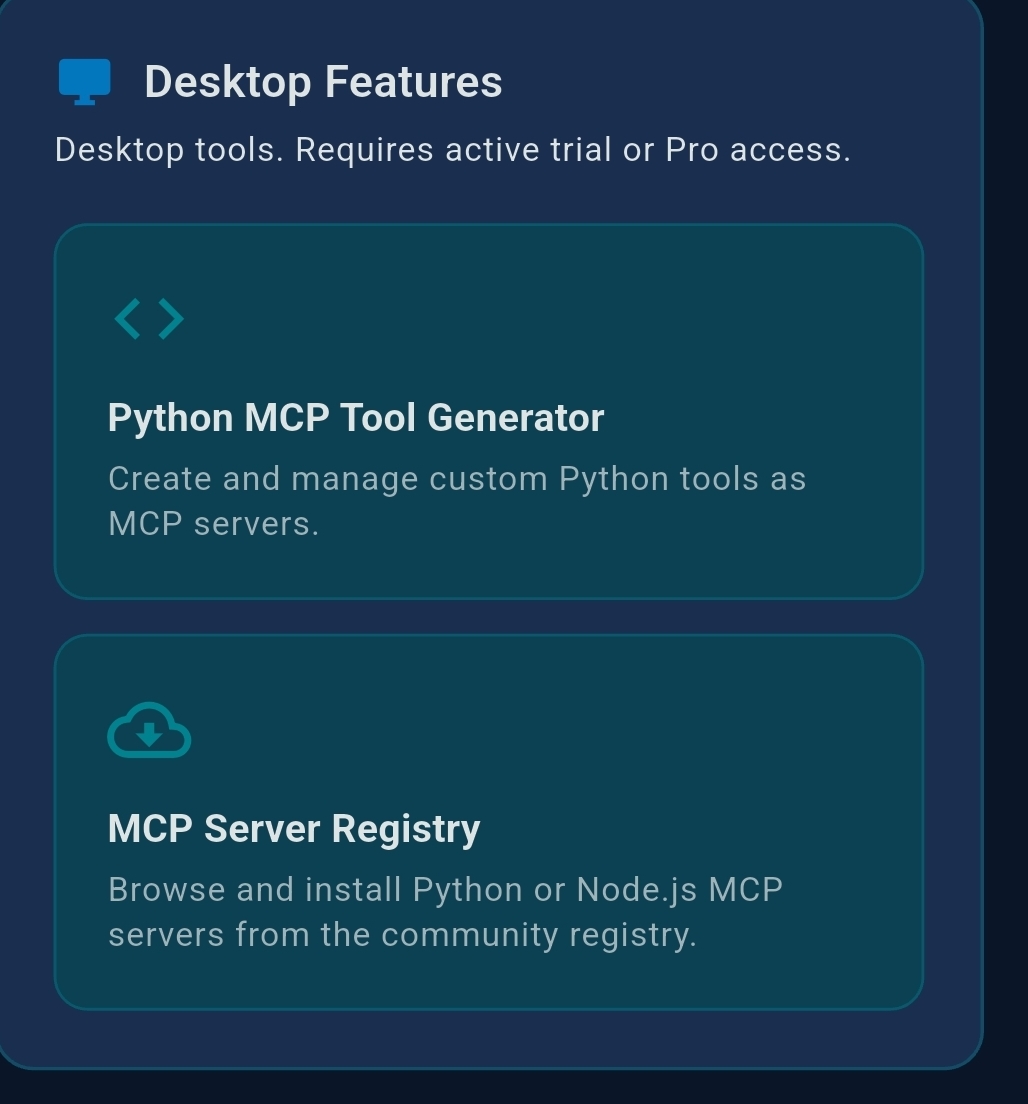
🐍 Python MCP Tool Generator PRO

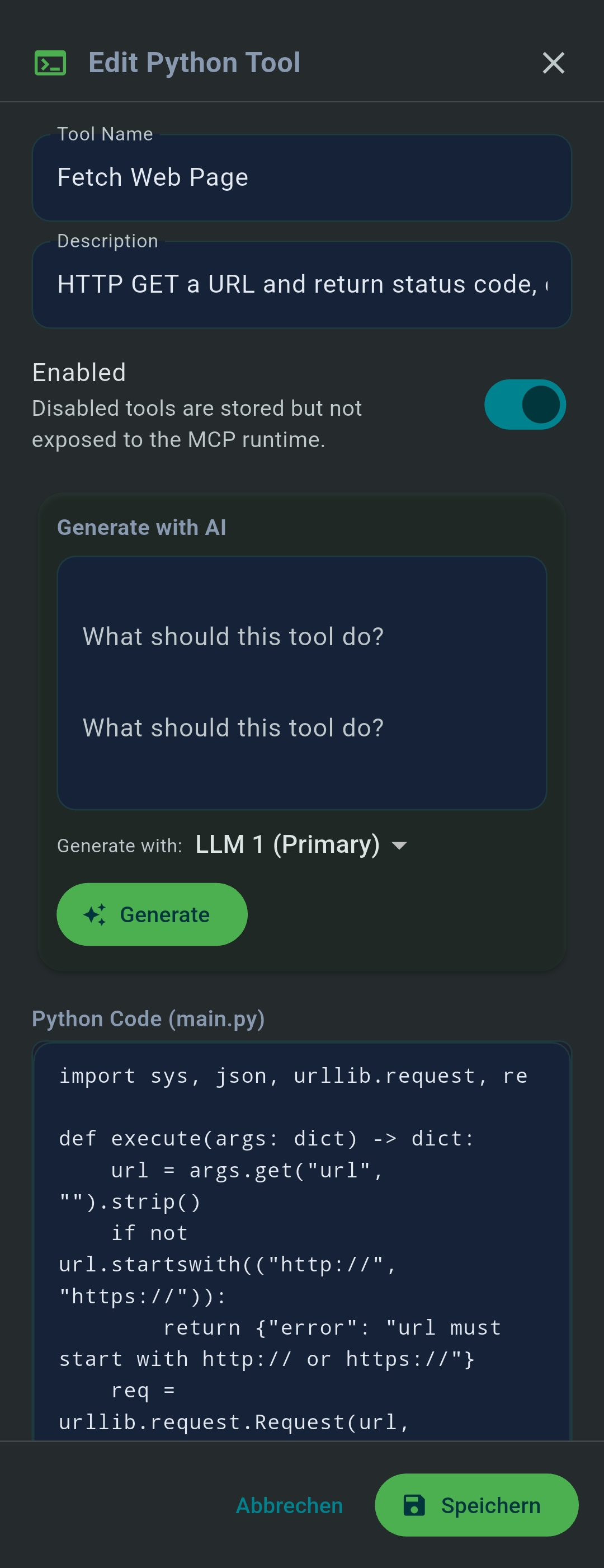
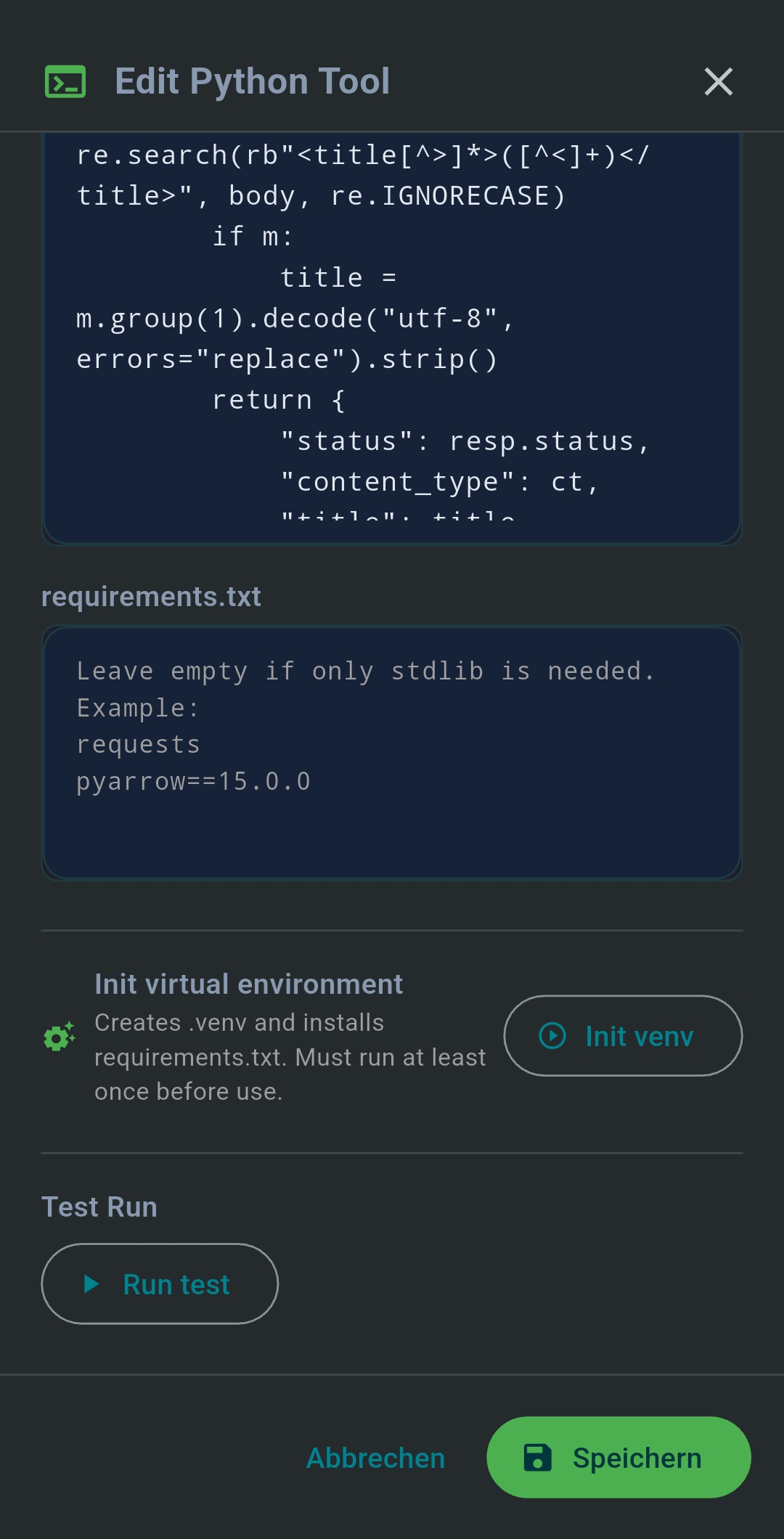
Create custom MCP server tools written in Python directly from within TealKit. Describe what you need in plain language and the AI generates a complete, runnable Python MCP tool including input schema and execute function.

Tip: Python tools are ideal for data-processing agents that exceed the size or time limits of JavaScript tools — e.g. parsing large CSV files, multi-step numerical calculations, or calling data-processing libraries.

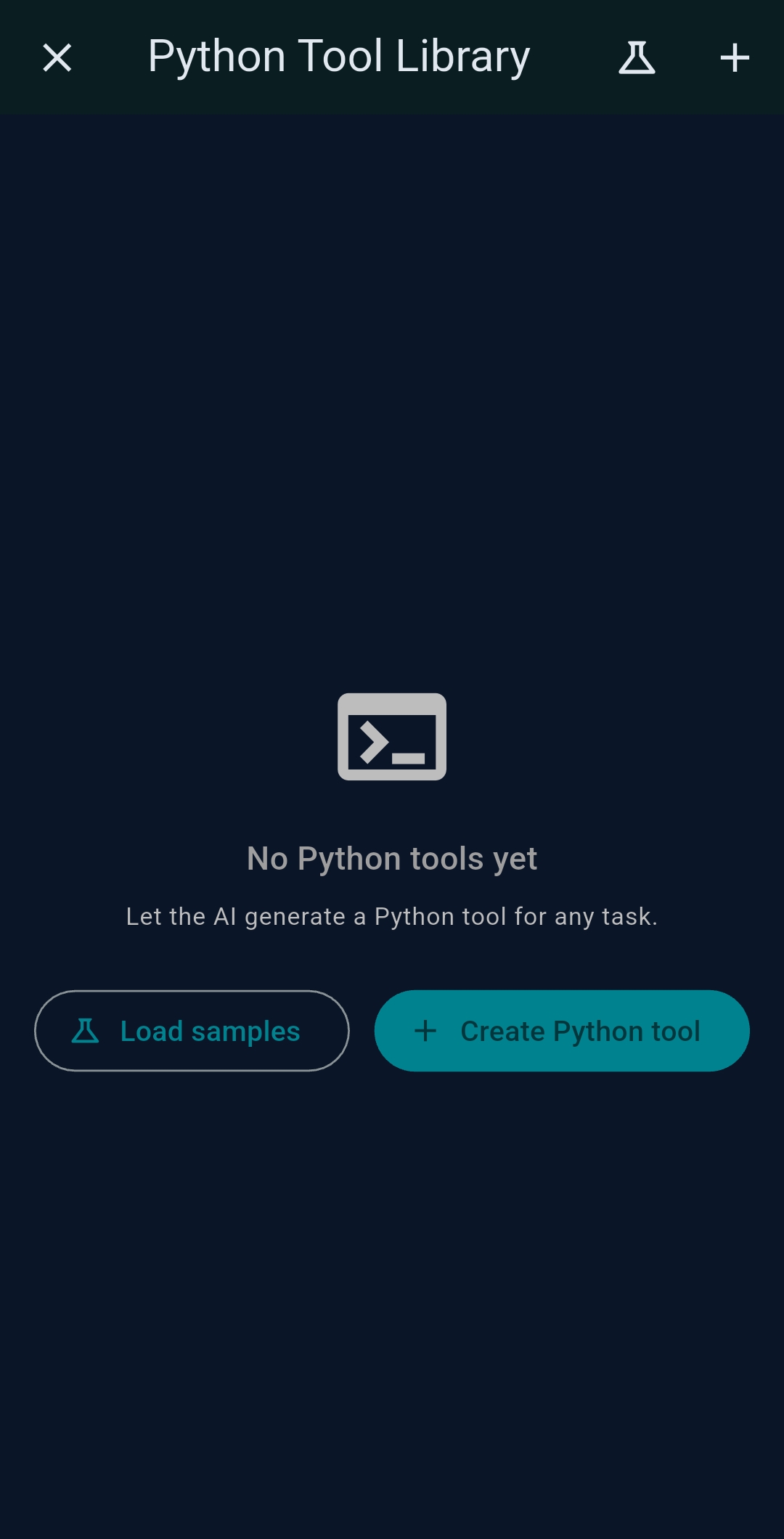
🧪 Python Tool Library — built-in samples PRO

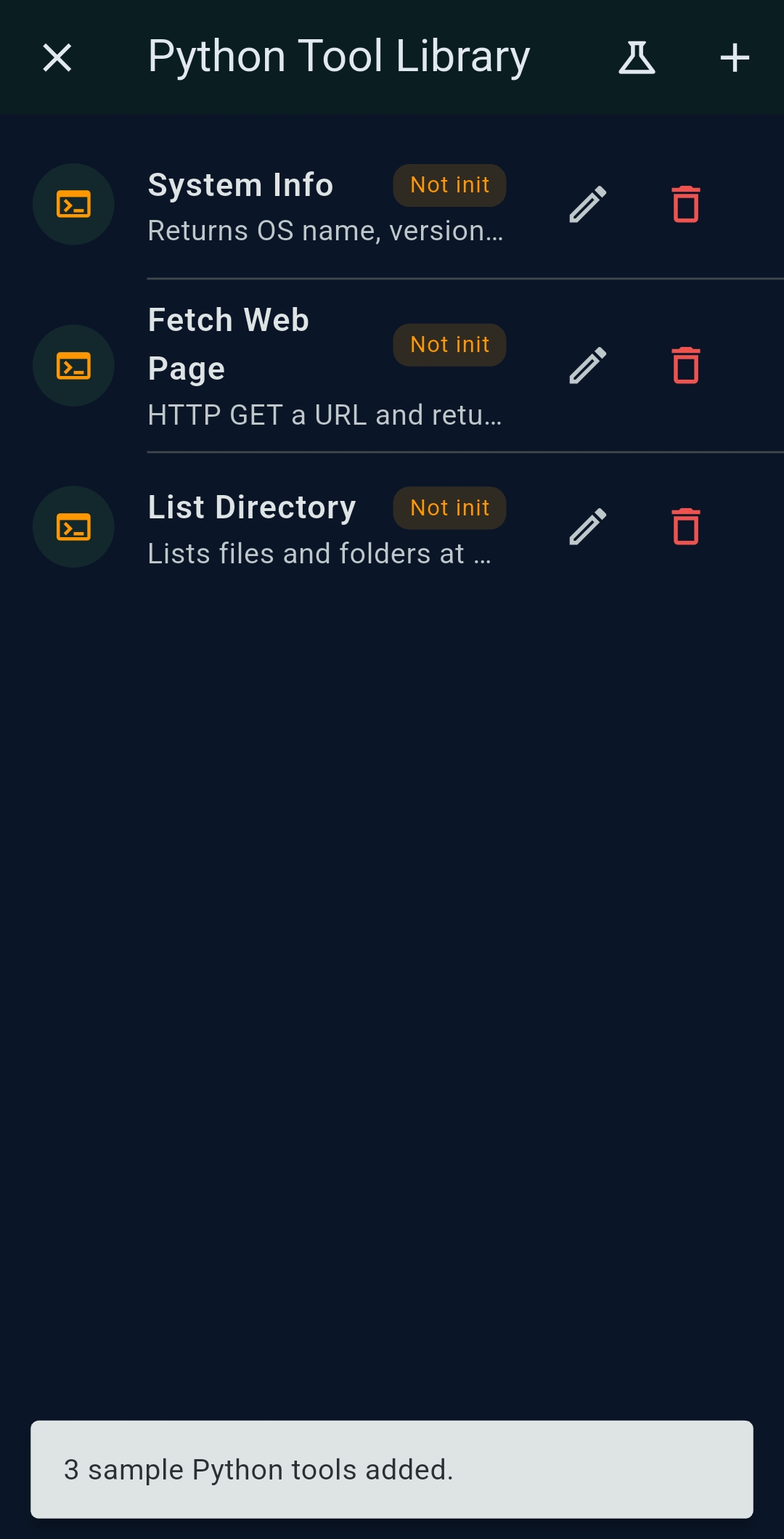
The Python Tool Library keeps all your generated Python MCP tools. Tap 🔬 Load Samples to add three starter examples:

Tip: Samples are safe to load multiple times — existing tools are never duplicated.
Tip: The Python Tool editor supports Python syntax highlighting. Tap the ⛶ expand icon to open a full-screen editor with Save, Cancel, and Copy actions.

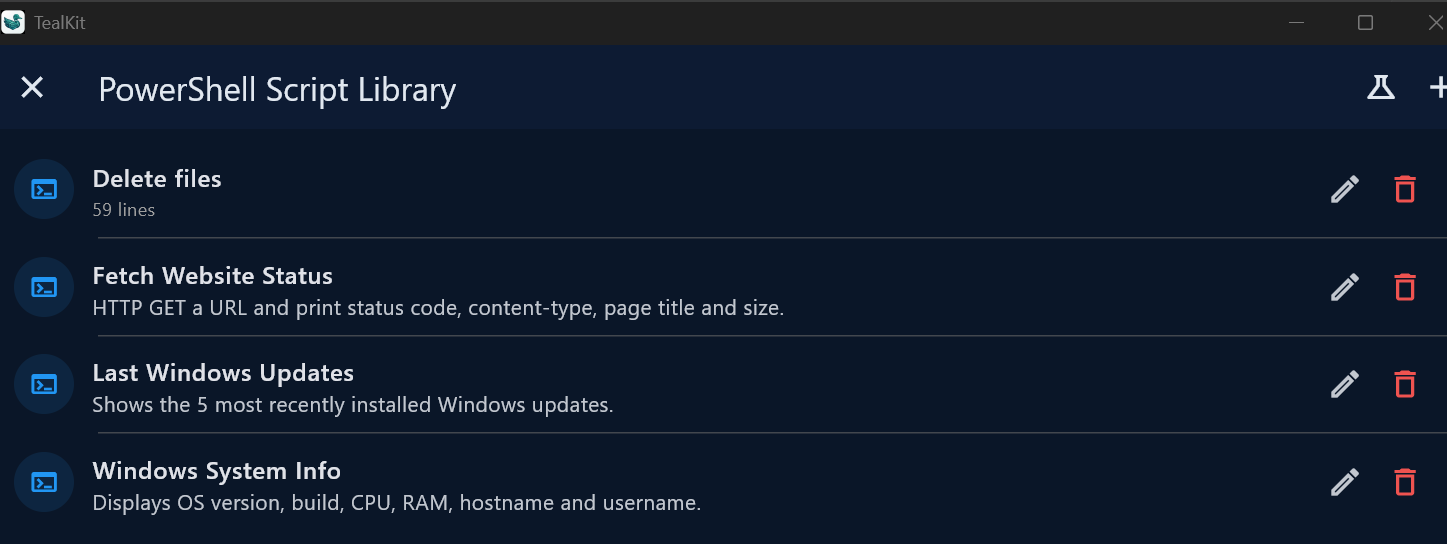
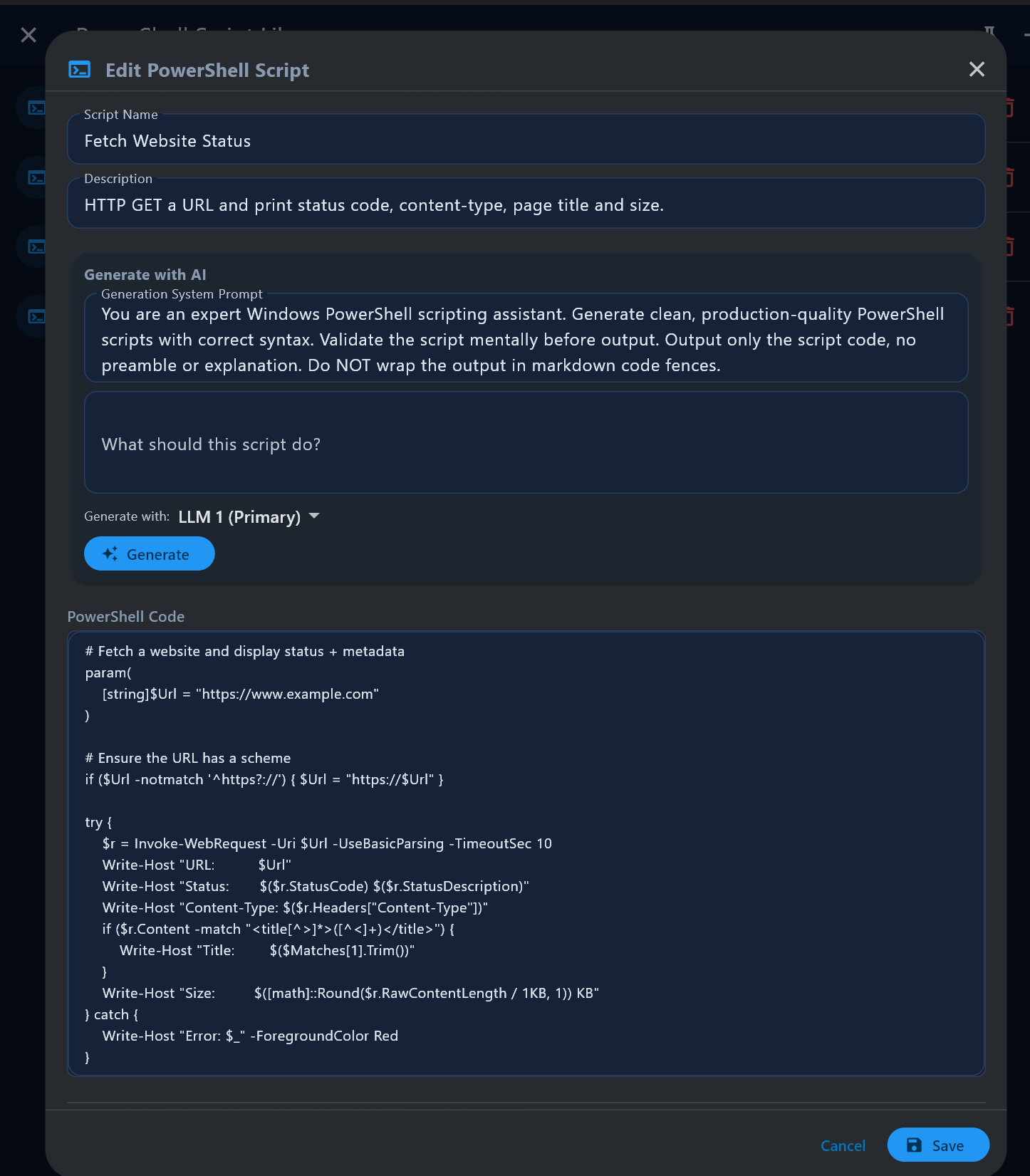
🪟 PowerShell Tool Library PRO (Windows only)

On Windows, a dedicated PowerShell Tool Library lets you create, manage, and reuse .ps1 scripts executed locally by the AI via the ps_bridge MCP server. Tap 🔬 Load Samples to add three ready-to-use examples:

Tip: The ps_bridge server is available in any Playground session or Agent configured on Windows.
Tip: The PowerShell editor supports PowerShell syntax highlighting. Tap the ⛶ expand icon to open a full-screen editor with Save, Cancel, and Copy actions.

📦 MCP Server Registry PRO (desktop)

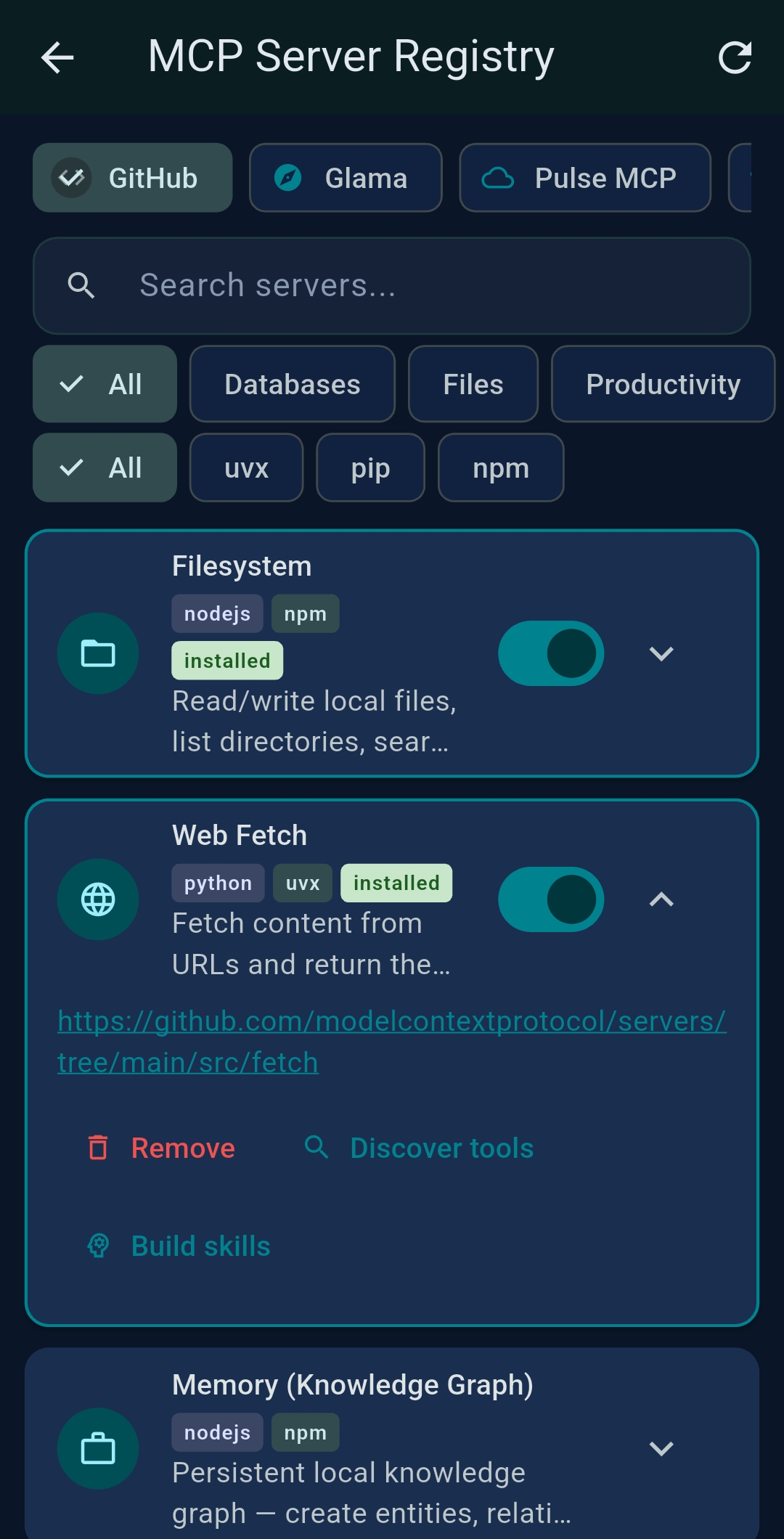
The MCP Server Registry lets you install Python and Node.js MCP servers locally with a single tap — no terminal, no package manager commands. Go to Settings → MCP Server Registry. TealKit automatically runs npm install -g, uvx, or pip in the background and registers the server.

Installed servers run locally on your machine and are started automatically by TealKit when needed. Their tools appear in the same tool selector as built-in and remote servers.

TabSourceInstall method
GitHubTealKit curated catalog (hand-picked, tested)npm / npx / uvx
Glamaglama.ai/mcp/serversnpm / uvx
PulseMCPregistry.modelcontextprotocol.ionpm / uvx
Smitherysmithery.ainpm / uvx
Registry vs Remote MCP Servers: The Registry installs servers that run locally on your machine (desktop only). Remote MCP Servers (Settings → Remote MCP Servers) connect to cloud-hosted endpoints over the network — available on all platforms including mobile.
Node.js requirement: Install Node.js 18 LTS for npm/npx servers. TealKit shows a banner in the Registry screen if Node.js is missing. Python servers use uvx (included with TealKit — no extra install needed).

Installing a server (example: Filesystem)

1
Open Settings → MCP Server Registry. Search for Filesystem in the GitHub tab.
2
Expand the entry and fill in the allowed_dirs field — the directory path to expose, e.g. C:/Users/Me/Documents.
3
Tap Install. TealKit runs npm install -g @modelcontextprotocol/server-filesystem in the background.
4
Enable the server toggle. The AI can now call list_directory, read_file, write_file, and search_files.
Note: allowed_dirs is required. Use forward slashes (e.g. C:/temp) to avoid Windows path-quoting issues.

18   Best Practices

💸 1   Reduce tokens, network calls, and cost

The most expensive part of any automated agent is the back-and-forth between the LLM and the outside world. Every tool call round-trip uses tokens and time. A simple optimisation: delegate the heavy lifting to a script or MCP tool and let the LLM only interpret the final result.

Example — listing recent uploads via SSH:

Instead of asking the LLM to run multiple SSH commands to filter files by date, format sizes, and build a table, create a single shell script in the Script Library (e.g. check_uploads) that does all of that and returns a clean CSV with column headers. Your agent prompt then becomes simply:

Call script check_uploads /uploads 48
Create an Excel file from the returned CSV list.

The LLM makes two tool calls (run script, create file) instead of ten. Fewer tokens, faster execution, lower API cost, and a more reliable result.

Principle: Push data transformation into scripts/tools. The LLM should decide what to do — the script should do the how.

🧪 2   Use the Script/JS wizards — but always test first

The Shell Script Wizard and JavaScript Tool Wizard can generate working code from a plain-language description. A clear prompt that specifies inputs, outputs, and edge cases gives the best results. However:

Tip: Write the script description as precisely as you would a unit test: inputs, expected output format, error behaviour, and the target shell environment (e.g. “Bash on Ubuntu 22.04”).

🖥 Desktop scripting environments

On desktop, three scripting environments are available — each with its own wizard and library:

PlatformScript typeWizard / LibraryWhen to use
Windows .ps1 PowerShell PowerShell Tool Library
Settings → Desktop → PowerShell Tools
Local system administration, Windows API, registry queries, Active Directory, WMI/CIM
Linux / macOS .sh Bash / zsh Shell Script Wizard
Playground Tools tab or Agent editor
File system operations, log parsing, cron helpers, remote SSH commands, package management
All platforms .py Python Python Tool Library
Settings → Desktop → Python Tools
Data processing, REST APIs, CSV/Excel manipulation, cross-platform utilities — most portable

🪟 PowerShell tips (Windows)

Tip: Use the built-in Load Samples button in the PowerShell Tool Library to load three ready-to-run examples (System Info, Last Updates, Website Status) and study the expected script structure.

🐍 Python tips (all platforms)

Tip: Use the Load Samples button in the Python Tool Library (System Info, Fetch Web Page, List Directory) to see the expected tool structure before writing your first tool.

🧠 3   Match model to agent complexity

Not every agent needs the same model. As a rough guide:

Use the LLM 1 / LLM 2 selector in the Playground to run the same prompt through different models side-by-side. Also experiment with the Temperature setting — lower values (e.g. 0.1–0.2) produce more deterministic, reproducible tool calls; higher values add creativity but reduce reliability for automation agents.

Workflow: Design agent in Playground with LLM 1 → try the same prompt with LLM 2 (SLM) → if it works reliably, switch the saved agent to LLM 2 to save cost and latency.

19   Embedded (On-Device) Models

Embedded models let you download GGUF model files and run inference entirely on your device — no API key, no internet connection, no external server required. Go to Settings → Embedded Models to get started.

Downloading a model

1
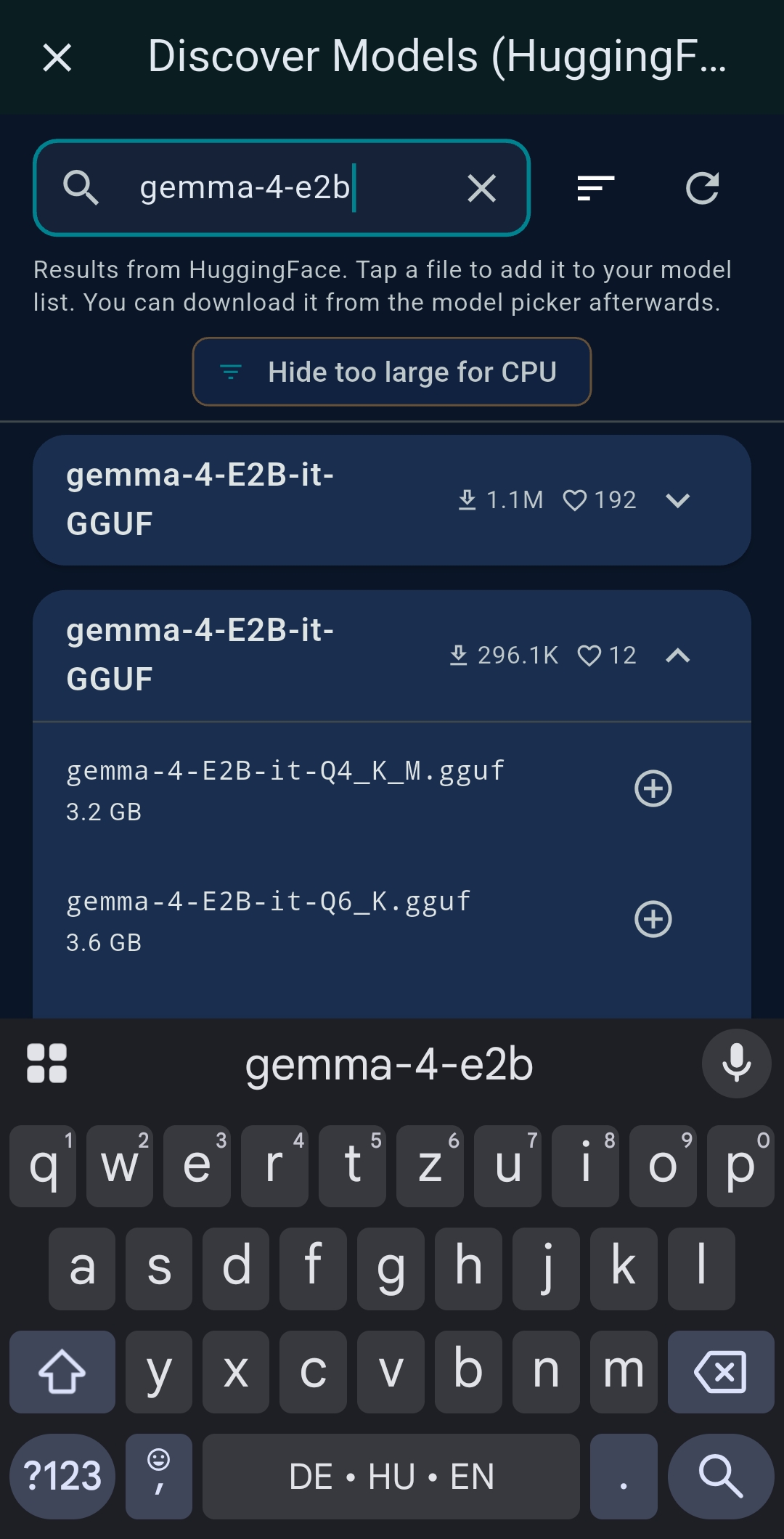
Open Settings → Embedded Models. Browse the built-in HuggingFace catalog or tap + Add custom URL to paste a direct .gguf download link.
2
Select a GPU offload mode for the model: CPU only, Partial GPU (layers split across CPU + GPU), or Full GPU (all layers in VRAM). Models requiring more VRAM than available are filtered out automatically.
3
Tap Download. A progress bar tracks the download. Once complete, tap Load to load the model into memory, or it loads automatically when first used.
4
In the Playground or any Agent, select the embedded model from the LLM selector (“On-Device” group). Enable Chat Mode for simple text tasks to bypass tools and system-prompt overhead.

⚠️ Hardware & capability requirements

Important — read before building agentic workflows with embedded models. Embedded models are most practical for text formatting, translation, summarisation, and classification tasks where no tool calls are needed (use Chat Mode). For agentic tool calling, two conditions must both be met:
  1. GPU hardware: Without a dedicated GPU (e.g. Apple Silicon M-series, Snapdragon 8 Elite, or a discrete GPU), models run on CPU only. Inference on a 3 B+ parameter model can take minutes per response, making interactive agents impractical. On mobile, this means a current-generation flagship device (e.g. Samsung Galaxy S25 Ultra, Apple iPhone 16 Pro).
  2. Tool-calling training: Most small GGUF models were not fine-tuned for function/tool calling. Even with full GPU acceleration they may hallucinate tool names, repeat tokens, or ignore tool schemas entirely. Only models explicitly trained for tool use are reliable — examples include Qwen2.5-3B-Instruct and Ministral-3B in their GGUF variants.
If either condition is not met, use Ollama (local server on a capable machine) or a cloud provider instead.

Recommended use cases

TaskModeNotes
Text formatting / clean-upChat ModeFast; no tools needed
TranslationChat ModeEven 1–3 B models are capable
SummarisationChat ModeKeep context short for small models
Classification / taggingChat ModeSimple structured output
Tool calling / agentsAgent modeRequires GPU + tool-trained model (see note above)

Managing models

Tip: Use the LLM 1 / LLM 2 selector in the Playground to compare an embedded model against a cloud model side-by-side for the same prompt — a quick way to validate that the smaller model's output meets your requirements before committing to it in a scheduled agent.